Overview
Nexa Clip is a clipboard manager that remembers everything you copy and brings it back with a single hotkey so you can paste it again. It runs with an identical-looking interface on Windows, macOS and Linux. It is a single executable written entirely in Rust that draws every pixel on screen itself, with no Qt, WebView or Electron.
- Your history is stored encrypted on your own PC (on by default). It captures text, formatted content (HTML/RTF), images, file paths and native Office formats.
- Quick popup: press
Shift+Alt+Cand a popup appears at the mouse position. Type a search term, pressEnter, and the item is pasted straight into the app you were using. - Main window: organize, search, pin and delete history items, and inspect their contents in the preview.
- Sync is optional. When enabled, clipboard items are exchanged with end-to-end encryption (Noise) only between your own devices that share the same ID and pairing password, and only with devices you have approved after visually checking a 6-digit verification code. Devices on the same network connect without any server; devices on different networks go through a relay server (the server cannot see the contents).
- Files travel too (since v0.1.4). When you paste a file that was copied on another device, its contents are fetched from the source device at that moment and pasted as a real file.
Note: This guide is based on v0.2.1 (released 2026-10-10). Some screenshots were taken with an earlier version (v0.1.x), so details may look different. In particular, the settings window switched to a card layout in v0.2.0.
The license is PolyForm Noncommercial 1.0.0. Personal and non-commercial use is free; commercial use requires a separate license. See the Terms of Service for details. An introduction to the app is on the Nexa Clip page.
System requirements
| Item | Requirement |
|---|---|
| Windows | Windows 10 / 11 · x64 or ARM64. No .NET or Visual C++ Redistributable needed (runtime bundled since v0.1.4) |
| macOS | macOS 11 (Big Sur) or later · Apple Silicon or Intel |
| Linux | x86_64 · glibc 2.17 or later (most distributions). X11 or Wayland (GNOME, etc.) desktop |
| Disk | A few MB for the executable + history storage (default cap 500MB) |
| Network | Not required. Only when sync is on: same-network traffic (UDP 47301) or relay server traffic (TCP/UDP 47300) |
- Linux is currently provided as x86_64 assets only (no ARM Linux assets).
- The only required dependency of the Linux
.debislibc6 (>= 2.17);libx11-6,libxkbcommon0andlibwayland-client0are listed as recommended packages. - Installation puts two executables on your system:
nexa-clip(the main app) andnclip-imgdec(a helper that decodes images in a separate, isolated process). If you deletenclip-imgdec, image thumbnails and image conversion for transfers are lost.
Installation and removal
All release files are on GitHub Releases, and each release includes a SHA256SUMS.txt. The release builds are not formally code-signed (macOS builds are ad-hoc signed), so we recommend verifying downloaded files against SHA256SUMS.txt first.
Which file to download
| OS | Installer | Portable (extract and run) |
|---|---|---|
| Windows x64 | nexa-clip-<version>-windows-x64-setup.exe (+ a .zip of the same file) | nexa-clip-<version>-windows-x64-portable.zip |
| Windows ARM64 | nexa-clip-<version>-windows-arm64-setup.exe (+ .zip) | nexa-clip-<version>-windows-arm64-portable.zip |
| macOS Apple Silicon | nexa-clip-<version>-macos-arm64.dmg | nexa-clip-<version>-macos-arm64-portable.tar.gz |
| macOS Intel | nexa-clip-<version>-macos-x64.dmg | nexa-clip-<version>-macos-x64-portable.tar.gz |
| Linux x86_64 | nexa-clip-<version>-linux-x64.deb · nexa-clip-<version>-linux-x64.rpm | nexa-clip-<version>-linux-x64-portable.tar.gz |
Package manager status (as of 2026-10-12)
| Channel | Command | Status |
|---|---|---|
| Homebrew Cask (macOS) | brew install --cask kiros33/tap/nexa-clip | Available · 0.2.1 |
| Homebrew Formula (macOS/Linux portable) | brew install kiros33/tap/nexa-clip-portable | Available · 0.2.1 |
| APT (Debian/Ubuntu) | sudo apt install nexa-clip (repository setup required · see below) | Available · 0.2.1 |
| DNF (Fedora/RHEL family) | sudo dnf install nexa-clip (repository setup required · see below) | Available · 0.2.1 |
| Chocolatey portable (Windows) | choco install nexa-clip-portable | Available · 0.2.1 approved |
| Chocolatey installer (Windows) | choco install nexa-clip | Not available — 0.1.5 is stuck in community moderation |
| winget (Windows) | winget install SosomLab.NexaClip · SosomLab.NexaClip.Portable | Not available — the 0.1.6 submission is awaiting Microsoft review |
Note: The winget and Chocolatey installer commands above only work once the packages pass review. Until then, download the Windows installer directly from GitHub Releases. While a previous submission is still under review, new versions are not submitted, so even after a package passes review it may install a version older than the latest for a while.
Windows
Installer (recommended)
- Download
nexa-clip-<version>-windows-x64-setup.exefrom GitHub Releases (windows-arm64for ARM64 PCs). If your browser blocks.exedownloads, download the-setup.exe.zipthat contains the same file and extract it. - Run it. It is a per-user install, so no administrator rights are needed and no UAC prompt appears. The install location is
%LOCALAPPDATA%\Programs\NexaClip. - If SmartScreen shows an “Unknown publisher” warning, click More info → Run anyway (there is no code-signing certificate yet).
- When installation finishes, Nexa Clip stays in the tray. A Start menu shortcut is also created.
Portable
- Extract
nexa-clip-<version>-windows-x64-portable.zipto any folder. - Run
nexa-clip.exe. Settings, history and the sync identity are created in adata\folder next to the executable, so if you move the whole folder, everything comes with it. - Do not delete
nclip-imgdec.exein the same folder.
Chocolatey portable
choco install nexa-clip-portableVerifying the download
Get-FileHash .\nexa-clip-0.2.1-windows-x64-setup.exe -Algorithm SHA256Check that the printed value matches the line for the same file in SHA256SUMS.txt.
Upgrading: Simply run the new setup.exe to install over the old one. If the app is running, quit it first via the tray menu → Quit. Settings, history, the device list and approvals are kept.
macOS
Homebrew Cask (recommended)
brew install --cask kiros33/tap/nexa-clipThe cask removes the quarantine flag at install time, so the app runs right away without warnings. It also cleans up stale Accessibility permission entries during installation, so you only need to turn the permission on in the dialog on first launch. To upgrade:
brew upgrade --cask kiros33/tap/nexa-clipPortable (Homebrew Formula)
brew install kiros33/tap/nexa-clip-portableInstalling directly from the .dmg
- Download
macos-arm64.dmgfor Apple Silicon ormacos-x64.dmgfor Intel. - Open the
.dmgand dragNexa Clip.appinto the Applications folder. - If Gatekeeper blocks the first launch, remove the quarantine flag in Terminal.
xattr -dr com.apple.quarantine "/Applications/Nexa Clip.app"Linux
APT repository (Debian/Ubuntu · recommended)
Register SosomLab’s signed package repository pkg.sosomlab.com once, and the app is kept up to date by apt upgrade.
sudo curl -fsSLo /usr/share/keyrings/sosomlab-archive-keyring.gpg https://pkg.sosomlab.com/sosomlab-archive-keyring.gpg
sudo curl -fsSLo /etc/apt/sources.list.d/sosomlab.sources https://pkg.sosomlab.com/apt/sosomlab.sources
sudo apt update
sudo apt install nexa-clip
DNF repository (Fedora · RHEL · Rocky · AlmaLinux)
sudo curl -fsSLo /etc/yum.repos.d/sosomlab.repo https://pkg.sosomlab.com/rpm/sosomlab.repo
sudo dnf install nexa-clip
When dnf asks to import the signing key during the first install, check that the fingerprint is 2522614046FAEE116F4A2FD706236F6AA8EB8FD6 and accept. To update, run sudo dnf upgrade.
Installing a .deb / .rpm directly
sudo dpkg -i nexa-clip-0.2.1-linux-x64.debThe .deb and .rpm packages install /usr/bin/nexa-clip and register an app menu icon. To upgrade, run the same command again with the new file.
Portable
tar xzf nexa-clip-0.2.1-linux-x64-portable.tar.gz
./nexa-clip
If you use Linuxbrew, brew install kiros33/tap/nexa-clip-portable also works.
Caution: Launch the installed app from the Nexa Clip icon in the app menu. On GNOME, if you start it from another app’s integrated terminal (e.g. VS Code), the global hotkeys may get registered under that app’s name and become tangled (see Troubleshooting).
Permissions requested once
| OS | What | When | Notes |
|---|---|---|---|
| macOS | Accessibility (injecting the ⌘V paste keystroke) | First launch or first paste | System Settings → Privacy & Security → Accessibility |
| macOS | Local network access | When you turn on sync | Needed to find your devices on the same network |
| Linux (GNOME/Wayland) | Global hotkeys (GlobalShortcuts portal) | First launch | Stored per app name |
| Linux (GNOME/Wayland) | Paste injection (RemoteDesktop portal) | First paste | The approval token is saved in your user config folder, so you are not asked again after upgrading. The “screen sharing” indicator in the top bar is normal |
| Windows | Firewall permission | The first time you connect with sync on | Click Allow |
On macOS, global hotkeys work without any extra permission.
Install and data locations
| Install type | Program location | Data folder |
|---|---|---|
| Windows installer | %LOCALAPPDATA%\Programs\NexaClip | data\ next to the executable |
| macOS | /Applications/Nexa Clip.app | ~/Library/Application Support/nexa-clip |
Linux .deb/.rpm | /usr/bin/nexa-clip | ~/.config/nexa-clip |
| Portable (all OSes) | The extracted folder | data/ next to the executable |
- If the folder next to the executable is not writable, or is a location that gets replaced wholesale on upgrade (a macOS app bundle, a Homebrew install folder), the user config folder is used instead.
- The data folder holds settings, the encrypted history, the sync identity key, the device list and approvals, and it survives upgrades.
- Files received from other devices are stored separately in a
Nexa Clipfolder under your Downloads folder (configurable · see Sharing files).
Uninstalling
Caution: Before uninstalling, first turn off Start at login in Settings → General. The autostart registration was created by the app in your user account, so deleting only the program files may leave it behind.
Windows installer
- Quit the app via the tray menu → Quit.
- Remove Nexa Clip in Settings → Apps → Installed apps (or run
uninstall.exein the install folder). - The uninstaller removes only the installed files. To also delete your history, delete the
%LOCALAPPDATA%\Programs\NexaClip\datafolder manually.
Windows portable: Quit the app and delete the whole folder. If you installed it with Chocolatey, run choco uninstall nexa-clip-portable.
macOS
brew uninstall --cask kiros33/tap/nexa-clip          # remove the app only
brew uninstall --zap --cask kiros33/tap/nexa-clip    # also remove the data folder
If you installed it manually, move Nexa Clip.app to the Trash; to delete the data too, delete ~/Library/Application Support/nexa-clip.
Linux
sudo apt remove nexa-clip      # if installed with APT
sudo dnf remove nexa-clip      # if installed with DNF
sudo dpkg -r nexa-clip         # if the .deb was installed directly
To also remove the repository registration, run:
sudo rm /etc/apt/sources.list.d/sosomlab.sources /usr/share/keyrings/sosomlab-archive-keyring.gpg   # APT
sudo rm /etc/yum.repos.d/sosomlab.repo                                                               # DNF
To delete the data too, delete ~/.config/nexa-clip. Files received from other devices remain in Nexa Clip under your Downloads folder.
Getting started
Launching
- When launched, the app stays in the tray (the menu bar on macOS). No console window appears.
- Windows: Nexa Clip in the Start menu, or
nexa-clip.exe - macOS:
Nexa Clip.app - Linux: the Nexa Clip icon in the app menu
- Windows: Nexa Clip in the Start menu, or
- Start at login is on by default. The app registers itself as a login item on first launch; if you don’t want this, turn it off in Settings → General. If the registration is removed outside the app (e.g. with a startup manager), the app respects that and switches the setting off.
- If you launch it again on the same PC, the second launch simply passes an “open” request to the Nexa Clip that is already running and exits quietly.
Your first five minutes
- Copy a few words in any app (
Ctrl+C,⌘Con macOS). Try copying an image or a file as well. - With the cursor in an editor such as Notepad, press
Shift+Alt+C(⇧⌥Con macOS). The quick popup appears at the mouse position. - Type two or three characters of a search term. The list is filtered instantly.
- Pick an item with
↑/↓and pressEnter. The popup closes and the item is pasted into the editor. - Left-click the tray icon to open the main window. Use it to organize or pin history items.
Note: On first paste, macOS asks once for the Accessibility permission and Linux GNOME/Wayland asks once for Remote Desktop portal approval. You must allow it for items to be pasted automatically into the original app. Even if you don’t, the selected item is placed on the clipboard, so you can paste it yourself.
Status check command
Run the following in a terminal to see a check of what does and does not work on this PC (clipboard monitoring, paste-injection permission and so on).
nexa-clip status| Command | What it does |
|---|---|
nexa-clip | Stays in the tray (same as running without arguments) |
nexa-clip status | Environment check |
nexa-clip settings | Opens only the settings window |
nexa-clip watch | Prints what gets captured each time you copy (diagnostic · exit with Ctrl+C) |
nexa-clip peek | Reads the current clipboard once and exits |
nexa-clip --version | Prints the version |
nexa-clip --license status | Shows the license status (see License) |
nexa-clip --profile <name> | Runs a second instance with separate data (Testing two devices on one PC) |
nexa-clip --help | Shows all commands |
Command output is in English (since v0.2.1). The app’s interface follows the system language.
The interface
Tray icon
| Action | Result |
|---|---|
| Left-click / Open in the menu | Opens the main window |
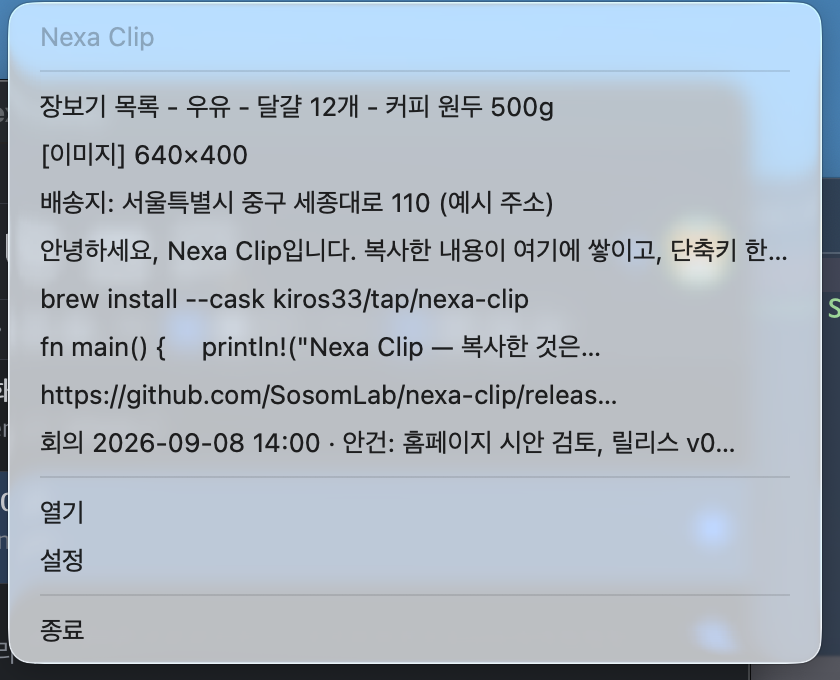
| Right-click | Menu: Nexa Clip v<version> at the top · recent items (8 by default) · Open · Settings · Quit |
| Click a recent item | Puts that item on the clipboard |
Small dots on the tray icon show the sync status (since v0.1.7, each of the three dots lights up independently).
| Position | Color | Meaning |
|---|---|---|
| Top left | Green | Connected to the relay server |
| Bottom left | Blue | Directly connected to a device on the same network (LAN direct) |
| Bottom right | Orange | Receiving files from another device |
Quick popup
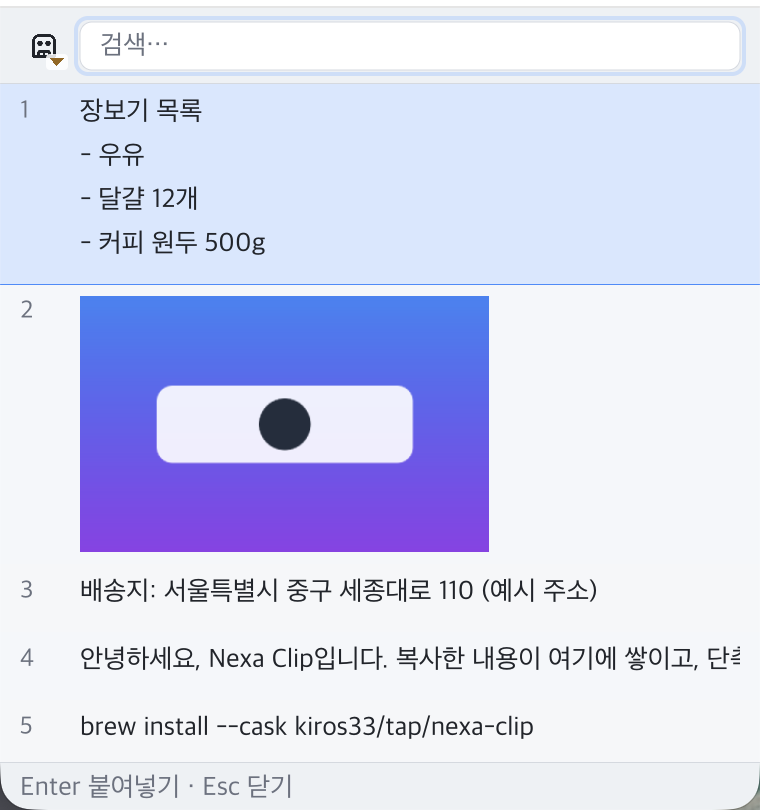
A small window opened with the global hotkey (default Shift+Alt+C). When you pick an item, it closes and pastes into the window you were in.
- Top: the search bar (you can type as soon as it opens)
- Middle: the item list. Rows 1–9 get a number badge on the right (select directly with
Ctrl+1–9). - Bottom: the hint bar. The keys shown change depending on the type of the currently selected item.
- By default it appears at the mouse position; you can change this to the screen center or the last position in settings. The default view is Normal view.
Main window
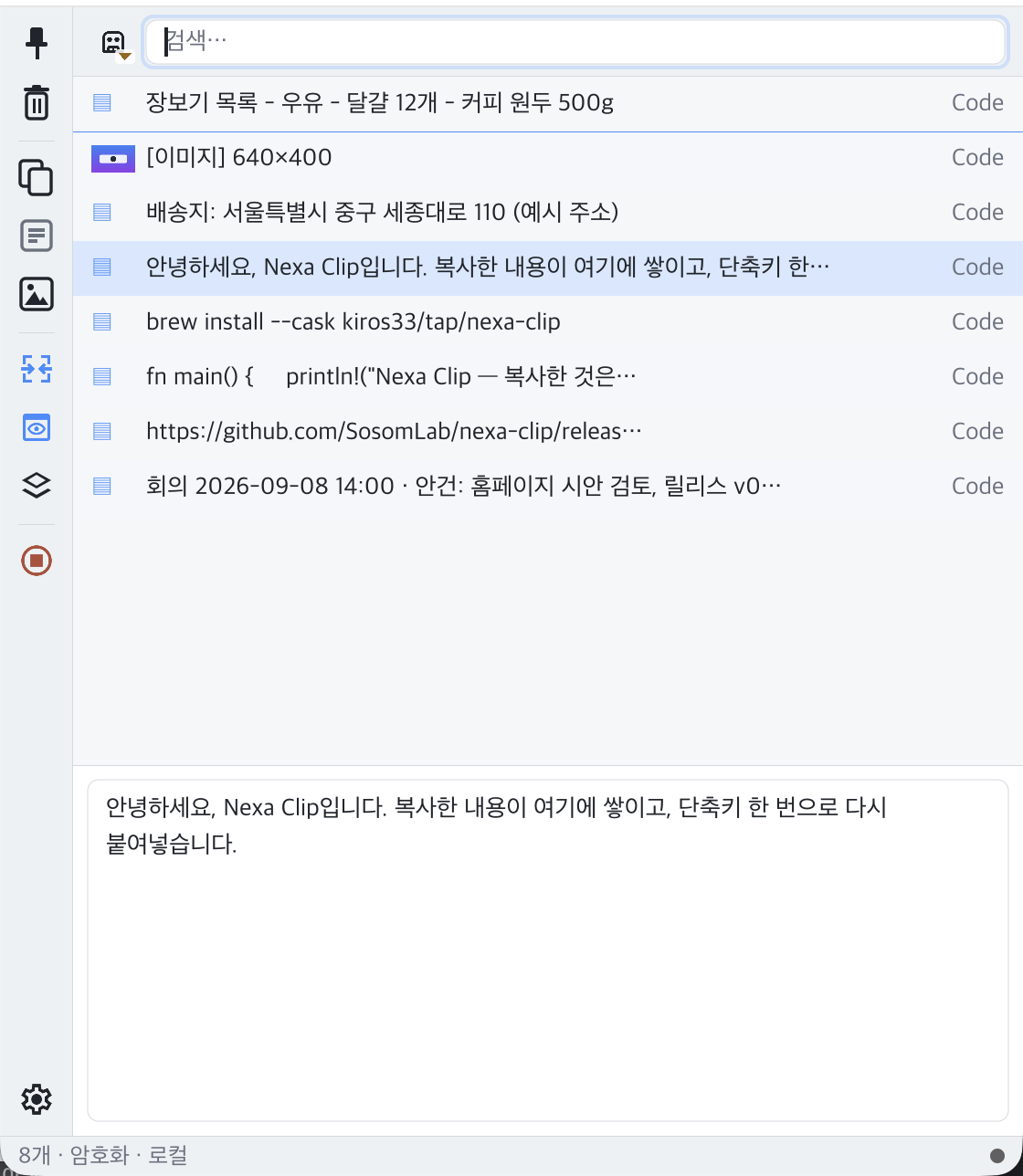
The window for managing your history. Open it by left-clicking the tray icon.
- Vertical toolbar on the left: Pin/Unpin · Delete · Copy · Copy as plain text · Hide duplicates (toggle) · Preview · Always on top · Pause/Resume capture · sync connection icon · file transfer panel · Settings. Hovering over an icon also shows its currently assigned shortcut.
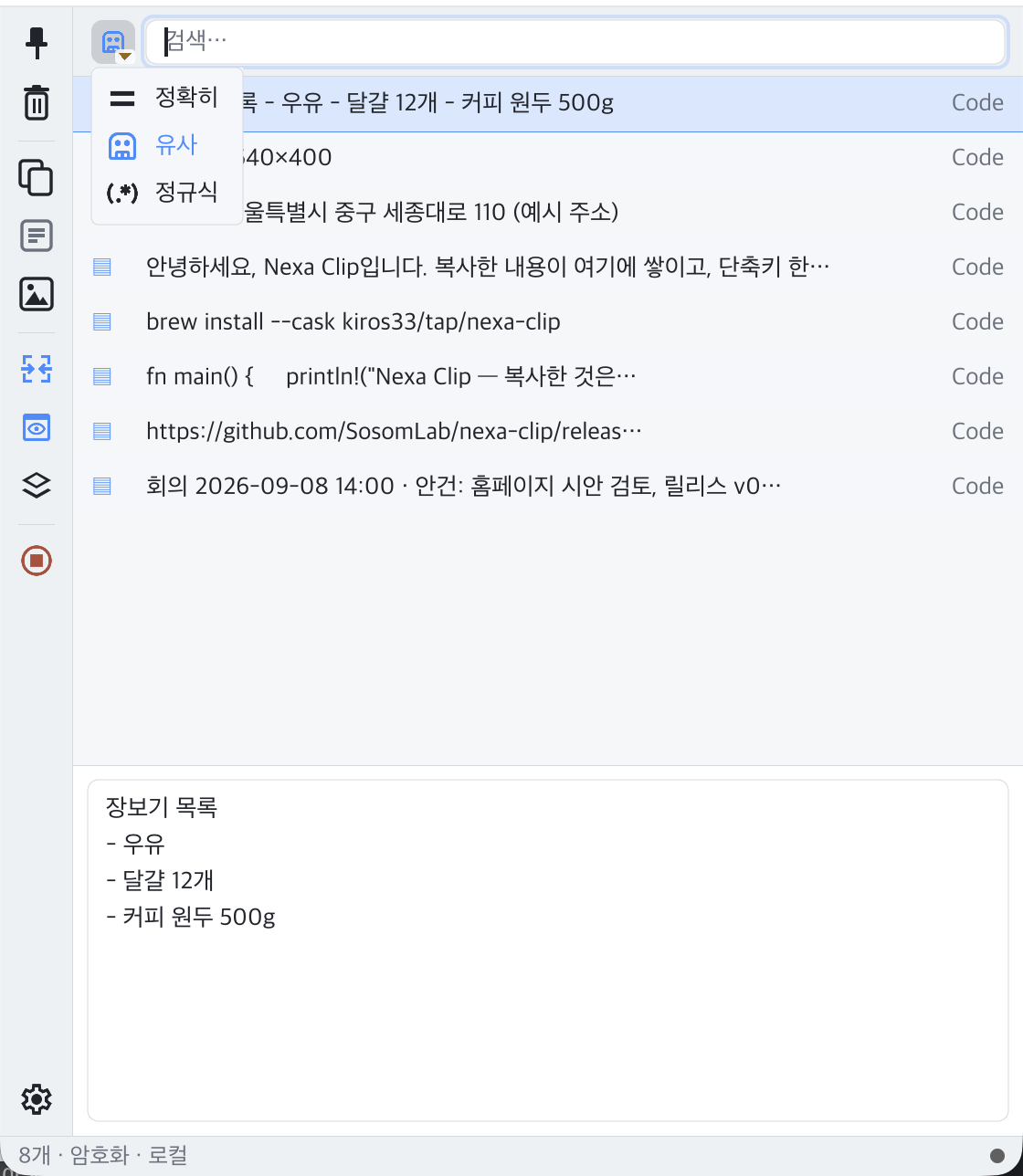
- Search bar: the dropdown in front of it selects the search mode (Exact · Fuzzy · Regex).
- List: Compact view by default. Pinned items are gathered in a pinned section at the top.
- Preview: renders formatting, colors, tables, images and even terminal colors (ANSI). It never runs scripts or accesses the network.
- Status bar at the bottom: the dot on the right shows the sync status (green = relay connected · blue = same network only · gray = sync off · dimmed = relay configured but not connected).
Three view modes
| View name | Shortcut | Appearance |
|---|---|---|
| Normal view | Alt+1 | Number · multiple lines · image thumbnails · type icon |
| Compact view | Alt+2 | One line + type icon · source app |
| Single-line view | Alt+3 | Condensed into one line |
On macOS these are ⌥1/2/3. The view shortcuts work in the main window; the popup’s view is set in Settings → Appearance → Popup view.
Browsing, searching and pinning history
What gets recorded
| Type | Description |
|---|---|
| Text | Plain text |
| Formatted text | HTML/RTF formatting stored alongside the plain text |
| Image | Stored as PNG, with a thumbnail generated |
| File | The list of paths of copied files and folders |
| Native format | Native formats placed by Word, PowerPoint, Excel and others are stored as-is (pasting PPT shapes again inserts them as shapes) |
- The app you copied from (the source app) is recorded as well.
- If you copy the same content again, no new item is created; the existing item moves to the top and its copy count (×N) increases.
- When you copy a cell range in Excel, an image representation is stored too only if the range is small (by default 200 rows · 50 columns · 5,000 cells or fewer). Copying entire rows or columns stores only the text and formatting, without an image.
- Turn individual types on or off in Settings → Capture.
Pausing capture
Press the Pause/Resume capture button in the main window’s toolbar, and nothing you copy in the meantime is recorded. Press it again to resume.
Search
The list is filtered as soon as you type in the search bar. It searches the full content, not just labels, case-insensitively.
| Mode | Behavior |
|---|---|
| Exact | Items that contain the typed string as-is |
| Fuzzy (default) | Items that contain all space-separated words (in any order). Search also works while Korean characters are still being composed |
| Regex | A built-in engine supporting . * + ? {n,m} [] () | ^ $ \d \w \s \b. An invalid pattern falls back to Exact search |
You can switch modes instantly with the dropdown in front of the search bar; set the default mode in Settings → Search. The popup and the main window use the same mode.
Pinning
Pin the items you use often. Pinned items gather at the top of the list and are never deleted by the item-count, retention-period or size limits.
- Select an item in the main window.
- Press
Ctrl+P(⌘Pon macOS), click the pin button in the toolbar, or right-click → Pin. - Do it again to unpin.
Item context menu
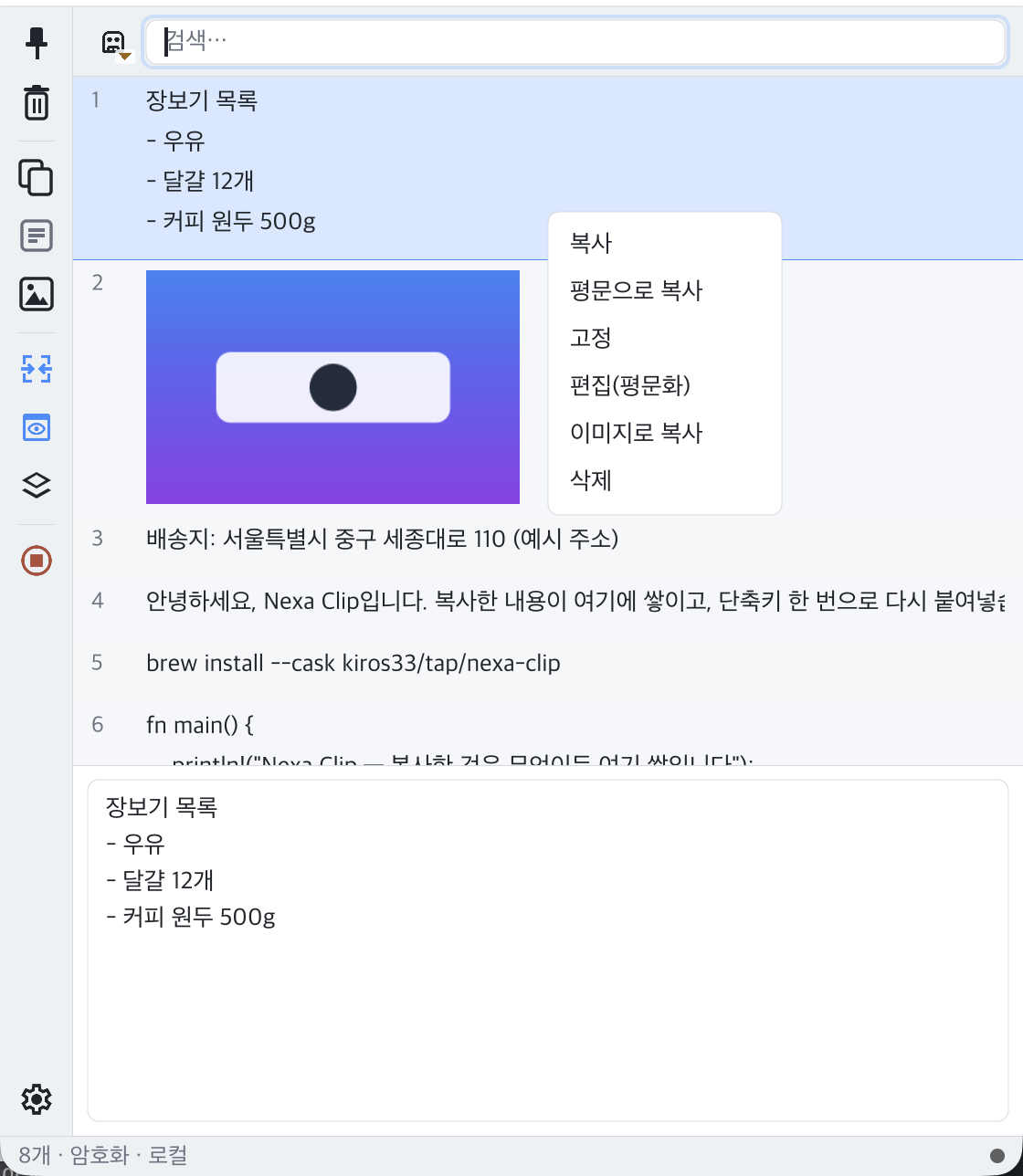
Right-click an item in the main window and its source appears at the top (e.g. Source Code · ⇄ win-b), followed by actions that match the item’s type.
- Copy · Copy as plain text · Copy as object · Copy path only (file items)
- Pin / Unpin
- Edit (as plain text): edits the content as plain text and saves it. In the editor,
Ctrl+Entersaves ·Esccancels ·Alt+Ztoggles word wrap. - Copy as image: puts formatted content or an object on the clipboard as an image (for pasting into PowerPoint as a picture).
- Delete
Hide-duplicates view
When the toolbar’s Hide duplicates toggle (on by default) is on, identical content is shown as a single row.
- Representative row: chosen in the order pinned → has formatting → copied on this PC. If none was copied on this PC, the most recently received one is used.
- Sources are shown merged (your app name first,
⇄ devicesafter it), and copy counts are added up. - Turn it off to see every row, split by source. The popup follows the same rule.
Deleting
- A single item: select it in the main window and press
Delete, click the toolbar’s delete button, or right-click → Delete. - Everything: in Settings → Advanced, press Clear all history twice within 2 seconds. Pinned items remain, and this cannot be undone.
- To clear history every time the app quits, turn on Settings → Security & Privacy → Clear history on exit.
Pasting
Pasting from the quick popup
- Place the cursor in the app you want to paste into.
- Open the popup with
Shift+Alt+C. - Search or select with
↑/↓, then press one of the keys below.
| Key | Pasted as |
|---|---|
Enter | As-is (including formatting, images and files) |
Shift+Enter | Plain text (no formatting) |
Ctrl+Enter | As an object (files, Office objects, etc.) |
Alt+Enter | Path only (file items) |
Ctrl+1 – Ctrl+9 | Paste the Nth visible item directly (⌘1–⌘9 on macOS) |
Esc | Close |
- The hint bar shows only the keys available for the item’s type.
- The numbers for
Ctrl+1–9follow the order currently shown on screen. Filtering by search renumbers them. Digits are detected by their physical key position, so they also work with a Korean keyboard layout. - If you turn off Auto-paste (on by default) in Settings → Paste, selecting an item only places it on the clipboard and you paste it yourself.
- If you turn on Always paste as plain text,
Enterpastes plain text too.
Plain-text paste hotkey
Press Shift+Alt+X (global) to paste the current clipboard contents without formatting, without opening the popup; the original clipboard contents are then restored. Handy for putting text copied from a web page into a document without its formatting.
Paste stack — several items in order
Use this when filling in forms or moving several pieces one after another.
- In the popup, select an item and add it with
Ctrl+Space(orCtrl+click). Added rows get a bar on the left and a sequence number (1, 2, 3…); press again to remove. - When you’re done, press one of the keys below. The items go into the original app one after another, in the order you added them.
| Key | Action |
|---|---|
Enter | Paste in order (as-is) |
Alt+Enter | In order + a line break between items |
Shift+Enter | In order, as plain text |
Shift+Alt+Enter | Plain text + a line break between items |
- No line break is added after the last item. Items without plain text (images) are pasted as-is.
- Auto-paste must be on.
Copying from the main window
The main window puts items on the clipboard instead of pasting them. Enter copies · Shift+Enter copies as plain text · Ctrl+1–9 copies the Nth item. Then paste it yourself in the app you want.
Terminals and special windows
- Linux terminals: terminals use
Ctrl+Shift+Vinstead ofCtrl+V. Since v0.1.7, Nexa Clip automatically sendsCtrl+Shift+Vto terminal windows running under X11/XWayland. For Wayland-native terminals it cannot identify the target window and sendsCtrl+V, so in that case paste the clipboard contents yourself. - Windows elevated (administrator) windows: an app running with normal rights cannot send keys to an app running as administrator. The item is on the clipboard, so press
Ctrl+Vyourself.
Encrypted storage and privacy features
Encrypted storage (default)
Your history is stored encrypted in the data folder on your PC (ChaCha20-Poly1305). There is nothing to turn on, and it cannot be turned off. The encryption key is derived from device.key in the same data folder.
Caution: This encryption protects against the history files leaking on their own, or fragments left behind after deletion. If the entire data folder (that is, including
device.key) leaks, the history can be opened. The app has no separate lock password (master password) feature, so use it together with your PC’s own account lock and disk encryption.
- Files that hold secrets (settings, the device key, the sync identity key, the Linux portal token) are made readable only by their owner (0600) on macOS and Linux.
- If the device key changes, the old history is not deleted but kept as
index.locked.
What is not recorded
| Feature | Default | Description |
|---|---|---|
| Respect password manager markers | On | Content that a password manager marks as “do not record” is not saved (Windows, macOS and KDE markers) |
| Block copies from browser password managers | Off | Does not record what you copy from the password manager pages of Edge, Chrome, Brave and Vivaldi. These browsers do not attach a secret marker, so the decision is based on the page the copy came from |
| Source pages to block | Default list | URL prefixes separated by ;. Leave empty to revert to the default list (the browsers’ password management pages) |
| Apps to exclude | Empty | App names separated by ; (e.g. KeePass). Nothing copied in these apps is recorded |
| Clear history on exit | Off | Deletes unpinned history when the app quits |
All of these are in Settings → Security & Privacy. Passwords or tokens copied from apps that do not send a marker may remain in your history, so add such apps to the excluded apps.
Retention limits
Set these in Settings → Storage. When a limit is exceeded, the oldest unpinned items are deleted first.
| Item | Default |
|---|---|
| Maximum items | 1,000 (10–100,000) |
| Retention period (days) | 0 = unlimited |
| Total size cap (MB) | 500MB |
| Sort order | Most recently copied (first copied or copy count also available) |
Device approval and sync
Sync is off by default. Unless you turn it on, Nexa Clip does no network communication at all.
How it works at a glance
- Your devices find each other when their ID (handle) and pairing password match. The pairing password is only used to compute the meeting point and is never sent to the server.
- Devices that meet appear in the device list, but nothing is exchanged until both sides approve.
- Transfers are sealed with end-to-end encryption (Noise) between the two devices. The relay server only forwards the envelope and cannot see the contents.
- On the same network (same Wi‑Fi or wired LAN), devices connect directly without a server. Devices on different networks go through the relay server.
What gets synced
| Type | Synced | Notes |
|---|---|---|
| Plain text | Yes | |
| Image | Yes | Sent as PNG (downscaled if the long side exceeds 4096px) |
| File | Yes (since v0.1.4) | Only the path list is sent at copy time; contents are fetched at paste time |
| Formatting (HTML/RTF) | No | Arrives as plain text on the receiving side |
| File cut | No | Since v0.1.7, cuts are not sent on any of the three OSes (they stay in your own history) |
- Received items go to the top of your history and are also placed on the clipboard, so you can paste them right away.
- Received items get a green dot and the source
⇄ device name, and are never sent back to the other side. - Text or images larger than 32MB at once are not sent. If items pile up, only the most recent one is sent.
Connecting two devices
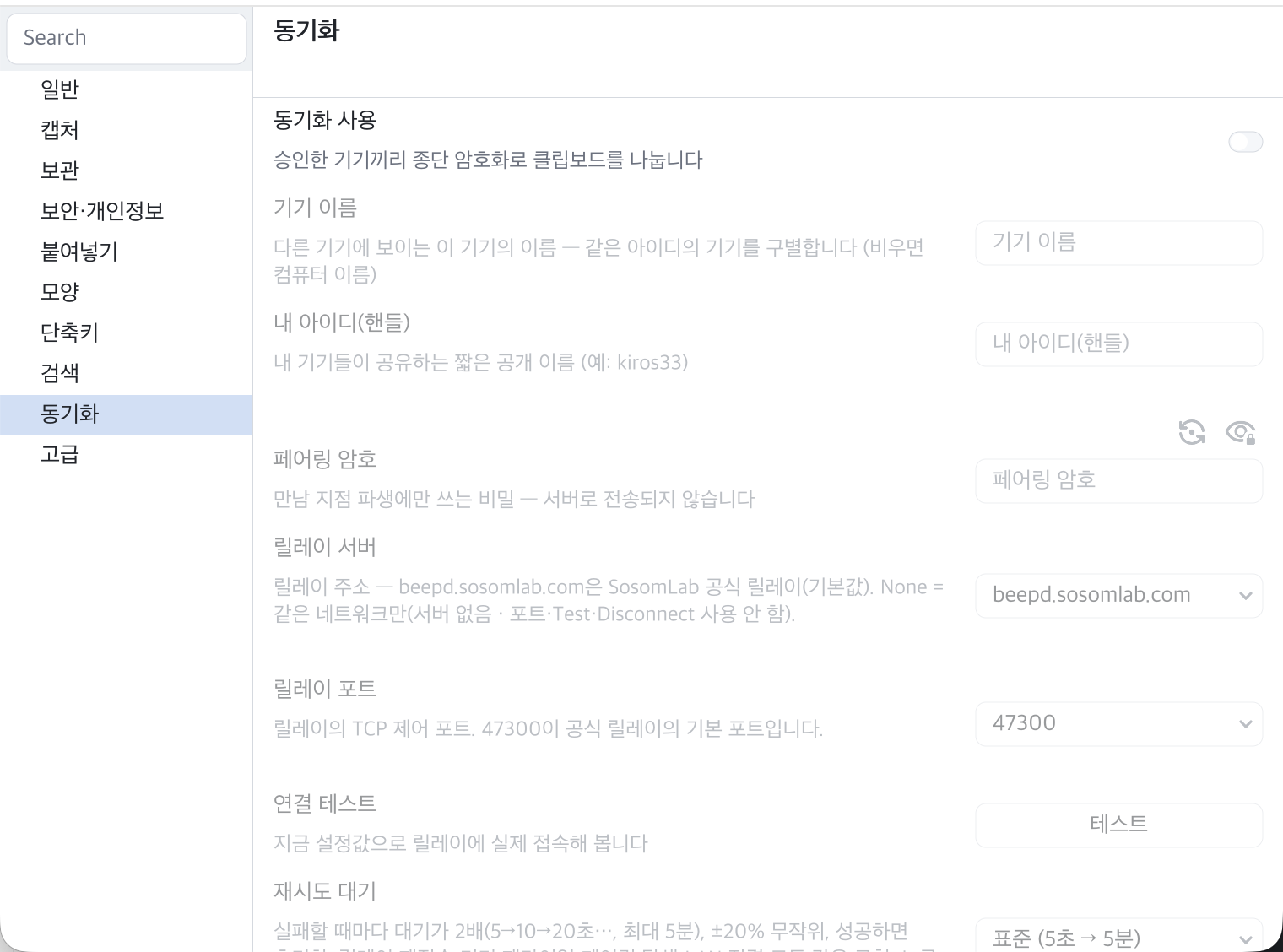
- Open Settings → Sync on both devices.
- Turn on Enable sync.
- Enter the same short name (e.g.
kiros33) in My ID (handle). Once you enter an ID, a pairing password is suggested and filled in automatically. - Reveal the pairing password on one device with the eye button and enter exactly the same password on the other device. (Press the generate button twice within 2 seconds to create a new password.)
- Choose a relay server.
- To also connect with devices on other networks, keep the default
beepd.sosomlab.com(the official SosomLab relay) and click Test connection. - To use it only on the same network, choose None. The devices find each other right away, no test needed.
- To also connect with devices on other networks, keep the default
- After a moment, the other device appears in the device list as “Connected (LAN)” or “Connected (relay)”.
- Visually confirm that the 6-digit verification codes on both screens match, then click Approve on the other device’s row on each device.
- Now when you copy on one device, the item appears at the top of the other device’s history.
- No connection is made until both the ID and the pairing password are filled in.
- Approval is once per device and is recorded in a file. Use Revoke in the device list to withdraw approval and Delete to remove a device from the list.
- If you leave Device name empty, a cleaned-up version of the computer name is used. When you change it, the new name reaches connected devices after about 1 second.
- When a connection test succeeds, auto-connect is turned on so the next launch starts in the same state. Disconnect ends the current relay session (it reconnects at the next start).
- Changing the ID, password, server or port, or turning sync off, drops the connection immediately.
Relay server
| Item | Value |
|---|---|
| Official server (default) | beepd.sosomlab.com · port 47300 (TCP/UDP) |
| None | No server — connects only on the same network |
| Custom | The address of a server you run yourself |
- When the connection test succeeds, the address and the first 8 characters of the server pin (the server’s identity) are shown. The server pin is remembered on first connection, and if the server key changes later, the app stops connecting and warns you. Do not connect unless it is a new pin announced by the operator. The official server’s pin value is published on the relay server page of the Nexa Clip wiki.
- The official server is intended for personal and small-scale use and comes with no availability guarantee.
- The relay server program is not included in Nexa Clip. To run your own, download and run
nexa-beepd, distributed by the Nexa Beep project (brew install kiros33/tap/nexa-beepd, orbeepd-v*from the nexa-beep releases), and open TCP/UDP 47300 in your firewall. Share the 64-character server pin printed on first run with your users. - Nexa Beep uses the same server, but the two apps cannot see each other on the server.
Direct connection on the same network
- Each device sends a UDP beacon (port 47301) every 5 seconds to find devices with the same ID and password, and connects directly over TCP when it finds one. Once connected to the other device, the beacon interval grows to 30 seconds.
- A beacon carries only a tag computed from the ID and password, the device’s public key and the connection port. Neither the password itself nor any clipboard content is included.
- Even when a relay is selected, a same-network connection is attempted as well. If both paths come up with the same device, the later one is dropped.
- On Windows, you must click Allow in the firewall prompt on the first connection.
- Devices may not be found on networks that isolate devices from each other, such as guest Wi‑Fi, or between a virtual machine’s host and guest. Use the relay server in that case.
Retry backoff
Each time a connection fails, the wait before retrying doubles; on success it resets to the start. Choose it in Settings → Sync → Retry backoff.
| Value | Wait |
|---|---|
| Standard (default) | 5 seconds → up to 5 minutes |
| Relaxed | 15 seconds → up to 15 minutes |
| Aggressive | 2 seconds → up to 1 minute |
Sharing files
Since v0.1.4, you can paste files copied on another device.
- On device A, copy files in the file explorer (Finder / file manager) (cuts are not sent).
- The file item arrives in device B’s history. At this point only the path list (name, size, modified time) is transferred.
- When you paste that item on device B (popup
Enter, etc.):- If all the files actually exist at the same paths (shared folders, network drives, etc.), those files are used as they are.
- Otherwise, the contents are fetched from device A at that moment and pasted as real files. If everything arrives within 3 seconds it is pasted immediately; if it takes longer, a “Files ready” notification appears after the download finishes, and you paste it yourself then.
- Received files are saved in the
Nexa Clipfolder under your Downloads folder (one subfolder per item) and reused when you paste them again.
- Small files are fetched in advance. File items totaling 50MB or less are downloaded slowly in the background (by default at most 1,024KB per second) as soon as they arrive, so pasting is instant and still works even if the source device is turned off.
- If the total exceeds 1,000MB, the contents are not fetched and the paths are pasted as text (the reason is logged).
- When the received-file storage exceeds 2,000MB, the oldest files are deleted first.
- If the source device is off, the transfer waits as “Offline” and resumes when it reconnects. If interrupted, it resumes from where it left off.
- Click the file transfer panel button in the main window’s toolbar to see per-file progress and to Stop or Retry. The panel opens automatically during transfers, and an orange dot appears at the bottom right of the tray icon.
- Files travel only between your own approved devices.
Related settings (Settings → Sync):
| Setting | Default | Description |
|---|---|---|
| Sync file paths | On | When off, file items are not sent at all |
| Paste received files | Adaptive | Adaptive = as files if all paths exist / Path text only = always as text |
| Fetch file contents on paste | On | When off, only paths are exchanged and contents are not fetched |
| Auto-cache limit | 50MB | 0 = no prefetching |
| Received files folder | Empty (= Downloads/Nexa Clip) | A change applies to subsequent transfers |
| Maximum file paths | 1,000 | Advanced setting |
| Background speed limit | 1,024KB/s | Advanced setting · 0 = unlimited |
| Maximum size on paste | 1,000MB | Advanced setting |
| File cache size | 2,000MB | Advanced setting |
Caution: When you turn on sync, syncing file paths and fetching file contents are on by default as well. If you don’t want to exchange files, turn off those two settings. Received files are saved as-is even if they are executables, so do not open files whose origin you don’t know.
Testing two devices on one PC
To test sync on a single PC, start a second instance with a profile.
nexa-clip --profile b- The data folder branches off into
data/profiles/b, so settings, history, identity key and device list are all separate. In other words, it appears as a different device. [b]is appended to the window titles, and the default device name becomes<computer-name>-b.- Running with a profile does not touch the login autostart registration.
- It is normal for the second instance to fail to register global hotkeys (the first instance holds them). Open it by left-clicking the tray icon.
- Profile names are 1–32 characters of letters, digits,
-and_.
Keyboard shortcuts
Global hotkeys (from any app)
| Action | Windows · Linux | macOS |
|---|---|---|
| Open the quick popup | Shift+Alt+C | ⇧⌥C |
| Open the quick popup (secondary) | None (assignable) | None |
| Paste the clipboard as plain text | Shift+Alt+X | ⇧⌥X |
A global hotkey must include one of Ctrl, Shift, Alt or Win (⌘) (F keys can be used alone).
In-window shortcuts (when the popup or main window is in front)
| Action | Windows · Linux | macOS |
|---|---|---|
| Paste selected item (popup) / copy (main window) | Enter | Enter |
| Paste / copy as plain text | Shift+Enter | ⇧Enter |
| Select the Nth visible item (1–9) | Ctrl+1 – Ctrl+9 | ⌘1 – ⌘9 |
| Add to / remove from the paste stack | Ctrl+Space | ⌃Space |
| Paste stack in order | Enter | Enter |
| Stack in order + line break between items | Alt+Enter | ⌥Enter |
| Stack in order (plain text) | Shift+Enter | ⇧Enter |
| Stack in order (plain text) + line break | Shift+Alt+Enter | ⇧⌥Enter |
| Pin/unpin (main window) | Ctrl+P | ⌘P |
| Delete item (main window) | Delete | Delete |
| Open settings | Ctrl+, | ⌘, |
| View: Normal (main window) | Alt+1 | ⌥1 |
| View: Compact (main window) | Alt+2 | ⌥2 |
| View: Single-line (main window) | Alt+3 | ⌥3 |
When the stack contains items, the Enter-family keys act as stack-in-order paste.
Fixed keys
| Key | Action |
|---|---|
Esc | Close the popup / window |
↑ / ↓ | Move between items |
Ctrl+A / C / X / V | Edit the search bar |
Ctrl+click | Add to the paste stack |
Ctrl+Enter / Alt+Enter (popup · when the stack is empty) | Paste as object / path only |
Changing shortcuts
- Open Settings → General group → Shortcuts. There are two sets: Global and In-window.
- Click the field of the item you want to change and press the combination you want; it is captured. Confirm or cancel, or remove it with Remove shortcut (a removed key also disappears from badges, tooltips and hints).
- Saving is automatic. Global hotkeys are re-registered immediately (on Linux too, at runtime, since v0.1.7). If a change doesn’t take effect, restart the app.
- For in-window shortcuts, letters, digits and
,must be combined with one of Ctrl, Alt or Win, whileEnter,DeleteandSpacecan also be assigned on their own. - If another app is using the same combination, registration fails and the reason is logged. Choose a different combination.
Settings
Open settings with the settings button in the main window, the tray menu → Settings, or Ctrl+, (⌘, on macOS).
Using the settings window (since v0.2.0)
- Group tree on the left: click a group to see all of its items one after another.
- Cards on the right: each item shows a title · its key name (copy with ⧉) · a description · the control · the default value. When a value differs from the default, a [Reset] button appears.
- Applied instantly: changes take effect immediately and are saved shortly afterwards. There is no save button.
- Search: type words in the search box at the top to search all items. With multiple words, only items containing all of them are shown; Korean is also matched by individual jamo (including characters still being composed). Use
↑/↓to recall previous search terms. - Advanced settings switch (at the bottom): when off, 9 rarely used items are hidden and a “N advanced settings hidden” notice is shown.
- Locked items: when a parent item is off, its dependent items below are dimmed and locked, with a message saying they become available once the parent is turned on. Their values are kept.
- Open settings file… at the bottom opens the settings file (
settings.cfg) in the default editor. Close the window with Close orEsc.
Groups and categories
| Group | Categories |
|---|---|
| General | General · Shortcuts |
| Clipboard | Capture · Paste · Search · Storage · Security & Privacy |
| Appearance | Appearance |
| Sync | Sync |
| Advanced | Advanced · About |
Item descriptions and defaults
General
| Item | Default | Description |
|---|---|---|
| Start at login | On | Starts Nexa Clip automatically when you log in (user-level registration) |
| Stay in tray when the window is closed | On | When off, closing the window quits the app |
| Show Dock icon | On | macOS only. When off, the app disappears from the Dock and ⌘Tab and opens only from the menu bar |
| Language | Follow system language | Korean · English · Chinese · Japanese. English if the system language is not supported |
Capture
| Item | Default | Description |
|---|---|---|
| Save text · Save images · Save files · Save formatting | All on | Whether to record each type |
| Preserve native formats | On | Keeps Word/PPT objects so they can be pasted as objects (advanced) |
| Excel range image: max rows / columns / cells | 200 / 50 / 5,000 | Cell ranges larger than this are stored as text and formatting only, without an image (advanced) |
Paste
| Item | Default | Description |
|---|---|---|
| Auto-paste | On | Selecting an item pastes it straight into the window you were in |
| Always paste as plain text | Off | When on, Enter also pastes plain text |
Search
| Item | Default | Description |
|---|---|---|
| Search mode | Fuzzy | Exact · Fuzzy · Regex |
| Search while composing Korean | On | Results update even before a Korean character is fully composed |
For Storage and Security & Privacy, see Retention limits and What is not recorded.
Appearance
| Item | Default | Description |
|---|---|---|
| Popup position | Mouse position | Screen center · Last position |
| List view | Compact view | Main window view mode |
| Popup view | Normal view | Quick popup view mode |
| Theme | System | Dark · Light. The current OS value is shown alongside, e.g. “System (Light)“ |
| Recent items in tray menu | 8 | 3–20 |
| UI font · Monospace font | System default | Font names. Applied after restart |
| Image preview | On | When off, the list shows only the size instead of a thumbnail |
For Sync, see Device approval and sync. Turning off Enable sync locks all the items below it.
Advanced
| Item | Default | Description |
|---|---|---|
| Diagnostic log | Off | Kept locally only and never sent anywhere (advanced) |
| Clear all history | — | Press twice within 2 seconds to run. Pinned items are kept |
About
- This build: shows the version · git commit · build time · SHA-256 of the running executable · OS · data folder.
- Copy build info: copies the above to the clipboard as plain text (for inquiries and bug reports).
- License: see License.
License
Since v0.2.0, there is a License card in Settings → Advanced → About.
- Non-commercial use is free without a license file, and the status then reads “Free — non-commercial use”. No features are locked without a license.
- To get a commercial license, click Copy request code in the [License…] screen and send it to the contact shown on screen. The request code includes a device code that identifies this PC.
- Install the
.licensefile you receive with Open license file…. Only files that pass signature verification are installed, and you can delete one with Remove. - License checks happen entirely on your PC; the app does not connect to the internet for them.
- You can also manage the license from the terminal.
nexa-clip --license status                    # status
nexa-clip --license request "Name" "Email"     # create a request code
nexa-clip --license install ./my.license      # install (only if verification passes)
nexa-clip --license remove                    # remove
nexa-clip --license path                      # install location
Data and privacy
What is stored on your PC
The following is stored in the data folder (for its location, see Install and data locations).
| Item | Contents |
|---|---|
| Clipboard history · thumbnails | Copied content plus source app, time, copy count and pinned state. Stored encrypted |
device.key | The secret that wraps the history encryption key |
settings.cfg | Settings. Includes the ID and pairing password if sync is on |
identity.key | This device’s identity key when sync is on |
devices.txt | Public key fingerprints, names and approval state of devices met |
server.pin | The relay server’s identity (pinned on first connection) |
| License file | Only if installed |
Separately, files received from other devices are saved in Nexa Clip under your Downloads folder (configurable).
What leaves your PC
- Without sync turned on, there is no network communication. There is no analytics, telemetry, advertising or automatic update check, and no account sign-up.
- With sync on, the app sends beacons (tag, device public key, port) on the same network and exchanges clipboard items and files with approved devices over encrypted sessions.
- When you use a relay server, the server can see metadata such as your public IP address, connection times and byte counts, but the contents, your ID and your pairing password never reach the server.
- The app log does not record item contents (since v0.1.8, only the type is recorded).
For details, see the Privacy Policy.
Clearing history
- A single item:
Deletein the main window. - Everything: Settings → Advanced → Clear all history (twice within 2 seconds · pinned items excluded).
- Completely: quit the app and delete the data folder. Delete the received files folder (
Downloads/Nexa Clip) separately.
Note: Old data may remain because of how SSDs work or in backups you made yourself; the app does not guarantee physical secure deletion.
Troubleshooting
Viewing logs
When run from the tray, there is no console. If you run it directly from a terminal, logs are printed to that terminal.
# Windows (cmd)
nexa-clip.exe > run.log 2> run.err
# macOS
"/Applications/Nexa Clip.app/Contents/MacOS/nexa-clip"
# Linux (output of an instance launched from the app menu goes to the journal)
journalctl --user -f
Sync-related lines start with 동기화: and LAN 직결:, and hotkey registration failures start with 전역 단축키:.
Caution: On Linux (GNOME), launching directly from a terminal may cause global hotkey registration to fail. Check the logs, then relaunch from the app menu icon.
Hotkeys don’t work
- If another app is using the same combination, registration fails. Change it to a different combination in Settings → Shortcuts. You can always open the main window by left-clicking the tray icon.
- Linux (GNOME): global hotkeys are managed by the portal per app name. If you launch from the integrated terminal of another app such as VS Code, they get registered under that app’s name, and later normal launches conflict. Launch from the app menu icon (or via autostart). If things are already tangled, delete the Nexa Clip combinations registered under the wrong app in GNOME Settings’ per-app global shortcuts section, then relaunch.
- On Linux, a changed combination doesn’t work and only the old one does: fixed in v0.1.7. Please upgrade.
- It is normal for a second instance on the same PC (
--profile) to fail to register hotkeys.
Characters appear in the search box when the popup opens / a character keeps repeating
- The issue where characters were typed in because the popup appeared before you released the hotkey was fixed in v0.1.2.
- On Linux (GNOME/Wayland), the issue where a character such as
ckept being typed endlessly even after releasing the keys was fixed in v0.1.5, and v0.1.7 also blocked the case that occurred with Korean input active. Rarely, the first time you type that same character right afterwards, it may be dropped once (normal from the second time on). - The issue where holding down the hotkey made the popup open and close repeatedly (GNOME) was fixed in v0.1.7.
The item is selected but not pasted into the original app
| OS | What to check |
|---|---|
| macOS | Nexa Clip must be enabled in System Settings → Privacy & Security → Accessibility. If it is enabled but still doesn’t work, remove it from the list and add it again (if a reinstall changed the signature, the old entry becomes invalid). |
| Linux (GNOME/Wayland) | Allow the portal Remote Desktop approval prompt that appears on the first paste. If the shell closes that session, it is reopened automatically. |
| Linux terminals | See Terminals and special windows |
| Windows | Keys cannot be sent to apps running as administrator; press Ctrl+V yourself. The issue where popup Enter paste disappeared in windows that already contained text was fixed in v0.2.1. |
Also check that Auto-paste is on in Settings → Paste.
On Windows the app quits immediately after launch (v0.1.3 and earlier)
Windows builds v0.1.3 and earlier quit immediately on PCs without the Visual C++ runtime (VCRUNTIME140.dll). Upgrade to v0.1.4 or later.
Characters show up as □ (tofu)
These are symbols or emoji missing from the primary font. The app automatically falls back to each OS’s symbol fonts. Color emoji (graphical fonts) on macOS and Linux are rendered since v0.1.7. You can see which font was used in the 글꼴 폴백: (font fallback) line of the startup log.
Sync does not connect
- Check that the ID and pairing password are exactly the same on both sides. If either is empty, no connection is made.
- If you use a relay, check the Test connection result. If you see “Retrying in N seconds (k failures)”, it is retrying.
- If you use only the same network (None), check the firewall permission, device isolation on guest Wi‑Fi, and virtual machine adapters.
- If the other device shows “Awaiting approval” in the device list, it must be approved on both sides before the clipboard is exchanged.
- If the two devices’ clocks differ by more than a day, the meeting points don’t match. Set the clocks correctly.
- A “server pin mismatch” warning means the server key has changed. Do not connect unless it is a new pin announced by the operator.
Files received from another device won’t paste
- The source device must be on and connected for the contents to be fetched (except files of 50MB or less that were prefetched).
- If the download doesn’t finish within 3 seconds, the item is not pasted immediately and a “Files ready” notification appears. Paste it yourself after the notification.
- If the total exceeds 1,000MB, the paths are pasted as text. Increase Settings → Sync (advanced) → Maximum size on paste.
- Check that Paste received files is not set to Path text only, and that Fetch file contents on paste is on.
- You can Retry failed transfers in the main window’s file transfer panel.
The same content appears as several rows
If the toolbar’s Hide duplicates toggle is off, items are shown split by source. Turn it on to merge them into one row.
Sync items in settings are dimmed and locked
Either Enable sync is off, the relay is None so port/test/disconnect are meaningless, or a connection is in progress so the test is locked. File-related items are locked when Sync file paths or Fetch file contents on paste is off.
Linux: the app menu icon launches the wrong executable / the window opens behind others
Fixed in v0.1.2. Even after the fix, the shell may remember the old path, so log out and back in (or reboot) once.
In a virtual machine (VMware) guest, a file copy is sent multiple times
The issue where a single file copy on the host caused the same file to be sent multiple times in a Linux guest was fixed in v0.1.8.
When contacting support
Use Copy build info in Settings → Advanced → About to copy the version and build information, and include it with your message. Contact: kiros33@sosomlab.com · GitHub repository
Version history
Version flow summary
| Version | Date | Highlights |
|---|---|---|
| v0.2.1 | 2026-10-10 | Windows popup paste fix · CLI switched to English |
| v0.2.0 | 2026-10-10 | Card-style settings window redesign · license screen · system language by default |
| v0.1.9 | 2026-10-05 | Linux .rpm · DNF repository |
| v0.1.8 | 2026-10-05 | Item contents removed from logs · VMware repeated file transfer fix · APT repository |
| v0.1.7 | 2026-10-05 | Color emoji · formatted tables · three tray dots · many Linux hotkey/paste fixes |
| v0.1.6 | 2026-10-04 | Excel range images · type icons · pinned item fixes |
| v0.1.5 | 2026-09-27 | Linux popup stuck-key fix |
| v0.1.4 | 2026-09-14 | File sharing between devices · About screen · Windows runtime bundled |
| v0.1.3 | 2026-09-08 | Four paste-stack variants · 14 in-window shortcuts |
| v0.1.2 | 2026-09-05 | Many Linux fixes · secret file permissions · hotkey settings |
| v0.1.1 | 2026-09-04 | Same-day fix release after first launch (search, memory) |
| v0.1.0 | 2026-09-04 | First public release |
v0.2.1 — 2026-10-10
Fixed
- Windows: fixed an issue where pasting with
Enterfrom the quick popup was lost when the target app already contained text (the paste keystroke is now sent only after focus has fully moved to the target window). - Added retries so that building the Windows ARM64 installer no longer fails because of temporary outages of external servers.
Changed
- Command-line output such as
--helpandstatus, as well as the release notes, are now in English. The app’s interface continues to follow the system language. - Added APT and DNF install commands to the release notes.
v0.2.0 — 2026-10-10
Added
- License screen: Settings → Advanced → About → License. Shows the status, license ID, file location and device code; copies a request code; installs and removes license files. Command line:
nexa-clip --license status|request|install|remove|path. Non-commercial use is free without a file and no features are locked. - A file picker for choosing a license file (the app’s own screen).
Changed
- Settings window redesign: group tree on the left (General · Clipboard · Appearance · Sync · Advanced) + cards on the right. Each card has key-name copy · [Reset] · default value display.
- Advanced settings switch: 9 rarely used items are hidden by default.
- Dependency locking: when a parent item is turned off, its dependent items are dimmed and locked with an explanation.
- Settings search supports multi-word AND and Korean jamo-level matching, and recalls previous search terms with
↑/↓. - Open settings file… and Close buttons were added at the bottom.
- The language default is now Follow system language. The “System” options for theme and language show the current OS value alongside.
- Rendering components were moved to the shared SosomLab UI library (more symbol-font fallback candidates).
Fixed
- Fixed [Close] and
Escnot responding in the settings window.
v0.1.9 — 2026-10-05
Added
- A Linux
.rpmpackage (Fedora, RHEL and openSUSE families) is now distributed. Its contents are the same as the.deb. - Published to the DNF repository at
pkg.sosomlab.com, so it can be installed and updated withsudo dnf install nexa-clip.
v0.1.8 — 2026-10-05
Changed
- The app log no longer records previews of item contents. Only the item type is recorded (to keep secret strings out of logs).
- Publishing a new version automatically updates the
pkg.sosomlab.comAPT repository (sudo apt install nexa-clip· update withapt upgrade).
Fixed
- Fixed an issue in Linux virtual machine (VMware) guests where copying a host file once caused the same file to be sent about 20 times.
v0.1.7 — 2026-10-05
Added
- Color emoji are rendered on macOS and Linux (graphical glyphs from the system emoji font).
- The formatted preview aligns table column widths and draws cell backgrounds and borders.
- The version is shown at the top of the tray menu (in the form
Nexa Clip v0.1.7). - The tray icon dots were split into three: top-left green = relay · bottom-left blue = same-network direct connection · bottom-right orange = receiving files. The dots have a white outline for visibility.
Changed
- File cuts are not sent to other devices (on all three OSes). They stay in your own history.
Fixed
- Linux: fixed changed hotkey combinations not working (only the old ones did) and having to restart after changing hotkeys.
- Linux: fixed the popup repeatedly opening and closing when the hotkey was held down.
- Linux: the popup hotkey character that kept being typed with Korean input active now resolves itself.
- Linux: pastes into X11/XWayland terminals use
Ctrl+Shift+V. - Linux: stability fixes for clipboard monitor reconnection, re-copying the same content, showing the source app, opening on a second launch, tray re-registration and more.
- Fixed plain text and images written back by virtual machine clipboard-sharing tools piling up as new history items (the cause of formatting disappearing when pasting formatted text).
- ONLYOFFICE presentation objects are captured as image objects, and multiple objects are composited in their original layout.
- HTML containing only images and no text is treated as an image object, so preview and “Copy as image” work.
- “Copy as image” now places a format that each OS recognizes (Linux, macOS).
v0.1.6 — 2026-10-04
Added
- Type icons are now also shown at the right end of rows in Normal view (main window and popup). The type icons were redrawn.
Fixed
- Fixed a “picture is too large and will be truncated” error when copying entire rows or columns in Excel. For cell ranges, the size is checked and an image is stored only for small ranges.
- Fixed Excel items selected from history not pasting into Paint, and made “Copy as image” use the original image captured at copy time first.
- Fixed pinned items disappearing from the pinned section and the pinned divider being displayed incorrectly.
- Pasting a file item as plain text or as a path now always inserts the full path.
- Fixed the window freezing on macOS when receiving items from another device (posting received items was moved into a separate task).
Changed
- The winget and Chocolatey package descriptions were changed to English.
v0.1.5 — 2026-09-27
Fixed
- Linux (GNOME/XWayland): fixed an issue where, if you released the letter key of the popup hotkey first while still holding the modifier, that letter (e.g.
c) was typed endlessly. Keys held down when the popup appears are not accepted as input until they are released.
Changed
- First submission to Chocolatey (
nexa-clip·nexa-clip-portable· awaiting moderation).
v0.1.4 — 2026-09-14
Added
- File sharing between devices: when you paste a file copied on another device, its contents are fetched from the source device at that moment and pasted as a real file. Supports resuming, prefetching small files (in the background · rate-limited) and reusing received files (cache).
- File path sync: on devices where the same paths exist (shared folders, etc.) the files are used as they are; otherwise the paths are pasted as text.
- A file transfer panel in the main window (per-file progress · stop · retry) with a toolbar toggle button, plus tray progress indicators and notifications.
- A Received files folder setting (default = Downloads folder/
Nexa Clip) and file-related settings. - An About screen (Settings → About): version · build info · executable SHA-256 · data folder · copy button.
- Units are shown in the descriptions of numeric settings.
Fixed
- Windows: fixed the app quitting immediately on clean Windows installs without the Visual C++ runtime (runtime bundled).
- Fixed three file-item paste issues (plain-text paste paths, path pasting on macOS and Linux, and on Linux a paste that appeared to succeed but didn’t actually go in).
- Fixed the same file item bouncing back and forth endlessly between two PCs.
v0.1.3 — 2026-09-08
Added
- Four in-order paste variants for the paste stack: as-is · plain text × with/without line breaks between items (
Enter·Alt+Enter·Shift+Enter·Shift+Alt+Enter). - 14 in-window shortcuts can be changed in Settings → Shortcuts → In-window. Assigned keys are shown in badges, the status bar, tooltips and hints.
- Open settings with
Ctrl+,(⌘,on macOS).
Changed
- Item selection is now
Ctrl+1–9(⌘1–9on macOS), and view switching moved toAlt+1/2/3(⌥1/2/3on macOS).
Fixed
- macOS: stale entries left in the Accessibility permission list after upgrading with Homebrew are now cleaned up automatically.
v0.1.2 — 2026-09-05
Added
- Settings → Shortcuts category: change the quick popup, secondary popup and plain-text paste combinations and re-register them immediately.
- When you change the device name, the new name reaches connected devices after about 1 second.
- With the relay set to None, a same-network connection starts automatically even if the ID and password are filled in later.
Fixed
- Linux: fixed pasting never working (automatic portal session recovery), the portal approval prompt appearing every time, windows opening behind others, the cause of global hotkeys not registering, and the app menu icon launching a different build.
- Fixed hotkey characters being typed into the search box when the popup opened (Linux, Windows).
- Fixed received images showing only as “[Image]” (palette and 16-bit PNGs).
- Fixed the settings window position not being restored after restart.
Changed
- The settings file containing the pairing password, the device key and the portal approval token are now readable only by their owner (0600).
v0.1.1 — 2026-09-04
Improved
- Search: labels and content · Exact/Fuzzy/Regex · search while composing Korean.
- Memory: content not viewed for a while is unloaded and thumbnails are loaded only when needed, greatly reducing startup memory and time.
- Fixed the sync identity check.
v0.1.0 — 2026-09-04
Added
- First public release. Clipboard monitoring on Windows, macOS and Linux (text · images · file paths · formatting · native formats), encrypted storage, quick popup · main window · settings · tray, four paste modes · paste stack · plain-text paste, and paste via key injection.
- Sync between devices (plain text · PNG): ID and pairing password, per-device approval with a 6-digit verification code, same-network direct connection and relay server, hide-duplicates view,
--profile. - Installers and portable builds for 5 targets (Windows x64/ARM64, macOS Apple Silicon/Intel, Linux x64), plus Homebrew.
Known limitations
- No code signing. macOS Gatekeeper and Windows SmartScreen warnings appear. Because of this, the Chocolatey installer (
nexa-clip) is stuck in moderation due to antivirus detections and cannot be installed (the portable package works). - It cannot be installed with winget yet (awaiting Microsoft review).
- There is no lock password (master password). The history encryption key lives in the same data folder, so the history is not protected from someone who gets hold of the PC itself.
- Sync does not send formatting (HTML/RTF) (the receiving side gets plain text).
- Sync works only between your own devices that share the same ID and pairing password. Sending to other people and mobile devices are not supported.
- Received files are saved without any separate isolation, even if they are executables.
- Linux is provided for x86_64 only. In Wayland-native terminals, auto-paste sends
Ctrl+Vand may not go in. - Same-network direct connection may fail to find devices on guest Wi‑Fi (device isolation) or between a virtual machine’s host and guest.
- On Windows,
taskkill /PID(a window-close signal) does not end the app; it hides to the tray. To quit, use the tray menu → Quit. - During sync, it has been reported that text received on Linux is captured once more as a new item, and that with three or more devices a received item travels between devices one extra time. This is fixed in the repository and will be included in the next version.
- Some screenshots in this guide were taken with v0.1.x.