
Nexa Clip
v0.2.6An encrypted clipboard manager with the same interface on all three OSes — syncs text, images and files with end-to-end encryption between your own approved devices
Available on every desktop OS
- 1.6MB Windows x64 installer (v0.2.5 · gate 10MB)
- 13.5MB Idle memory — measured over 10 minutes on Windows (v0.2.0)
- 105ms Average cold start (v0.2.0 portable)
- 0 Runtime dependencies · UI frameworks
- 15 Release assets (5 targets · installer, portable, deb, rpm)
- 417 Tests green (v0.2.5 · 3-OS clippy 0)
Install
Windows
Chocolatey — portable
choco install nexa-clip-portablev0.2.5 approved (2026-11-03); 0.2.6 was submitted and is in moderation (checked 2026-11-07). Upgrade: choco upgrade nexa-clip-portable · remove: choco uninstall nexa-clip-portable. The installer package nexa-clip cannot be installed yet (see the channel status below).
Chocolatey — installer (awaiting approval · not installable yet)
choco install nexa-clip0.1.5 is in "Waiting for Maintainer" status, so it cannot be installed yet. For now, use the portable package above or the installer from GitHub Releases.
winget — installer (not registered · not installable yet)
winget install SosomLab.NexaClipPR #446464 has not been merged, so it cannot be installed yet (checked 2026-11-07).
winget — portable (not registered · not installable yet)
winget install SosomLab.NexaClip.PortablePR #446465 has not been merged, so it cannot be installed yet (checked 2026-11-07).
- Installer (recommended) — Download
nexa-clip-<version>-windows-x64-setup.exefrom GitHub Releases (windows-arm64for ARM64) and run it. It is a per-user install, so no administrator rights are needed (%LOCALAPPDATA%\Programs\NexaClip) and no UAC prompt appears. If your browser blocks exe downloads, download the-setup.exe.zipthat wraps the same file. After installation, launching it keeps it in the tray. Start at login is on by default and can be turned off in Settings › General. - Portable — Extract
nexa-clip-<version>-windows-x64-portable.zipand runnexa-clip.exe, and that is all. Settings, the encrypted history and the sync identity are created only in adata\folder next to the exe, so if you move the whole folder, everything comes with it. Do not deletenclip-imgdec.exe(the isolated image decoder) in the same folder. - Each release includes a
SHA256SUMS.txt. Verify against it withGet-FileHash <file> -Algorithm SHA256. In a distribution with no signature, this is the only means of verification. - When you turn on sync, a Windows Firewall prompt appears on the first connection. Click Allow (same-network direct connection uses a UDP
47301beacon + an arbitrary TCP port; relay uses outbound TCP and UDP47300).
System requirements: Windows 10 / 11 (x64 · ARM64) — no .NET or Visual C++ Redistributable needed (static runtime since v0.1.4; v0.1.3 and earlier quit immediately on PCs without the runtime, so upgrade to the latest). There is no code-signing certificate yet, so a SmartScreen warning ("Unknown publisher") may appear; proceed with "More info → Run anyway". An app running with normal rights cannot send keys to an app running as administrator, so in such a window paste the clipboard contents yourself with Ctrl+V. Package manager channel status (as of 2026-11-07): ✅ Chocolatey portable nexa-clip-portable 0.2.5 approved (0.2.6 in moderation). ⏳ Chocolatey installer nexa-clip — 0.1.5 is in "Waiting for Maintainer" status due to antivirus detections (no code signing), so it cannot be installed. ⏳ winget SosomLab.NexaClip · SosomLab.NexaClip.Portable — the 0.1.6 PRs #446464 · #446465 have not been merged, and a manifest format update has been requested since 2026-10-30. Until then, download the installer directly from GitHub Releases above. See the user guide for detailed usage.
macOS
Homebrew Cask (recommended — installs the .app)
brew install --cask kiros33/tap/nexa-clipThe app is not yet signed or notarized, so macOS blocks it from running while the quarantine flag is attached. The cask removes the quarantine flag at install time so it runs right away without warnings, which is why this route is recommended on macOS. The tap follows releases automatically, and 0.2.6 was confirmed as reflected by a check on 2026-11-07. To update: brew upgrade --cask kiros33/tap/nexa-clip.
Homebrew Formula (portable)
brew install kiros33/tap/nexa-clip-portableA portable edition with only the executable and no .app bundle. Data is created in data/ next to the executable.
- Manual install — Open the
.dmgfrom GitHub Releases (Apple Silicon =macos-arm64· Intel =macos-x64) and dragNexa Clip.appinto Applications. If you downloaded it directly and Gatekeeper blocks it the first time you open it, remove the quarantine flag withxattr -dr com.apple.quarantine "/Applications/Nexa Clip.app". - Accessibility permission — To paste the item picked in the popup into the original app (⌘V injection), allow it in the dialog that appears on first launch or first paste (System Settings → Privacy & Security → Accessibility). If a reinstall changes the signature, the old entry becomes invalid, so remove it from the list and add it again.
- Data is created in
~/Library/Application Support/nexa-clip(for portable,data/next to the executable).
Native assets are available for both Apple Silicon and Intel. It stays in the menu bar, and the Dock icon can be turned off in Settings › General. Global hotkeys work without any permission (Carbon RegisterEventHotKey). Clipboard monitoring uses adaptive changeCount polling, so a settle wait keeps one copy from being captured as two items.
Linux
Register the APT repository — Debian · Ubuntu (first time only)
sudo curl -fsSLo /usr/share/keyrings/sosomlab-archive-keyring.gpg https://pkg.sosomlab.com/sosomlab-archive-keyring.gpg
sudo curl -fsSLo /etc/apt/sources.list.d/sosomlab.sources https://pkg.sosomlab.com/apt/sosomlab.sources
Registers the SosomLab signed package repository (pkg.sosomlab.com). Skip this if you already registered it for another SosomLab app. Signing key fingerprint 2522614046FAEE116F4A2FD706236F6AA8EB8FD6.
Install with APT (recommended)
sudo apt update && sudo apt install nexa-clipLatest v0.2.6. After this, sudo apt upgrade gets you new versions.
Register the DNF repository — Fedora · RHEL family (first time only)
sudo curl -fsSLo /etc/yum.repos.d/sosomlab.repo https://pkg.sosomlab.com/rpm/sosomlab.repoSkip this if you already registered it for another SosomLab app.
Install with DNF
sudo dnf install nexa-clipOn first install, check the signing key fingerprint and accept. To update: sudo dnf upgrade nexa-clip.
Installing a deb or rpm directly
sudo dpkg -i nexa-clip-<version>-linux-x64.debReplace with the name of the file you downloaded from GitHub Releases. This registers /usr/bin/nexa-clip + an app menu icon (autostart is registered on first launch), and data is created in ~/.config/nexa-clip. Launch it from the app menu icon: if run directly from a terminal, the portal cannot identify the app and global hotkey registration may fail. To upgrade, run the same command with the new .deb. For .rpm (since v0.1.9): sudo dnf install ./nexa-clip-<version>-linux-x64.rpm.
Homebrew Formula (portable)
brew install kiros33/tap/nexa-clip-portableFor environments using Linuxbrew. A portable edition with only the executable.
Portable tar.gz
tar xzf nexa-clip-<version>-linux-x64-portable.tar.gz && ./nexa-clipExtract and run right away. Persistent data is created in data/ next to the executable.
Currently only x86_64 assets are provided. Builds are linked against glibc 2.17 (zig linker · the only .deb dependency is libc6 >= 2.17), so they run regardless of distribution, and clipboard monitoring is built in with no external tools (xclip, wl-paste). GNOME/Wayland needs portal approval twice: for global hotkeys (GlobalShortcuts) on first launch and for key injection (RemoteDesktop) on first paste. A "screen sharing" indicator in the top bar after approval is normal, and the approval token is saved in your user config folder, so you are not asked again after upgrading (v0.1.2). If the shell closes that session, it is automatically reopened to paste. Pastes into X11/XWayland terminals use Ctrl+Shift+V since v0.1.7; if automatic injection still does not go in, the contents are on the clipboard, so paste them yourself. Hands-on checks from the installed location (Linux VM ↔ macOS host LAN session · hotkeys · key injection) were confirmed on 2026-09-05.
The text, images, file paths and formatting you copy accumulate encrypted on your PC, and one hotkey (Shift+Alt+C) opens a popup where you search and paste straight into the app you were using. It is a single all-Rust executable with its own CPU rasterizer (no Qt, WebView or Electron), so the interface is pixel-identical on Windows, macOS and Linux. Sync is optional: over a same-network direct connection or through a relay server, it exchanges text and images with Noise end-to-end encryption only with devices you have approved, and files are fetched from the source device at the moment you paste. With three or more devices, approved devices tell each other about the others so they can be found. Windows installer about 1.6MB · startup 105ms · idle memory 13.5MB.
Screenshots
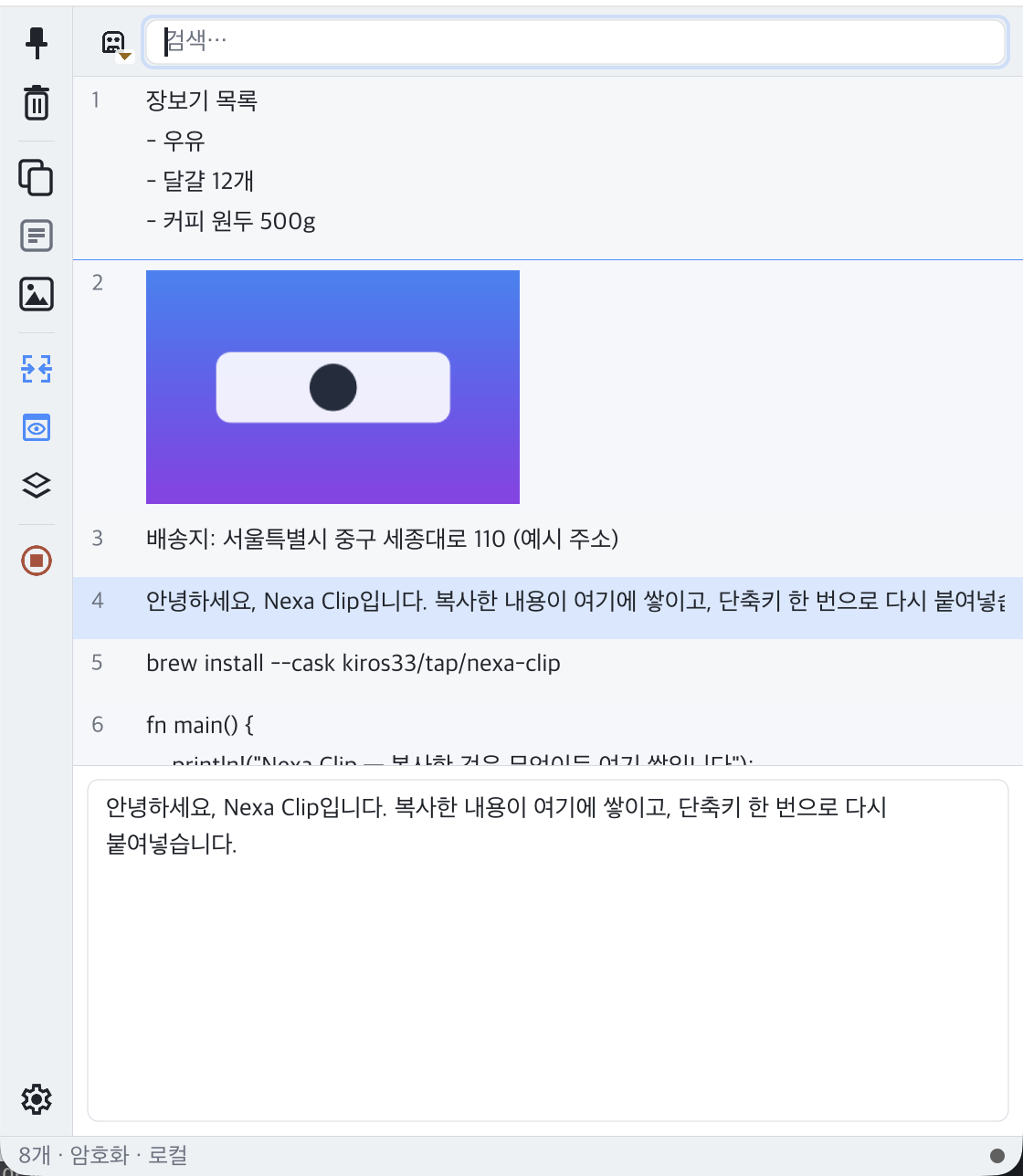
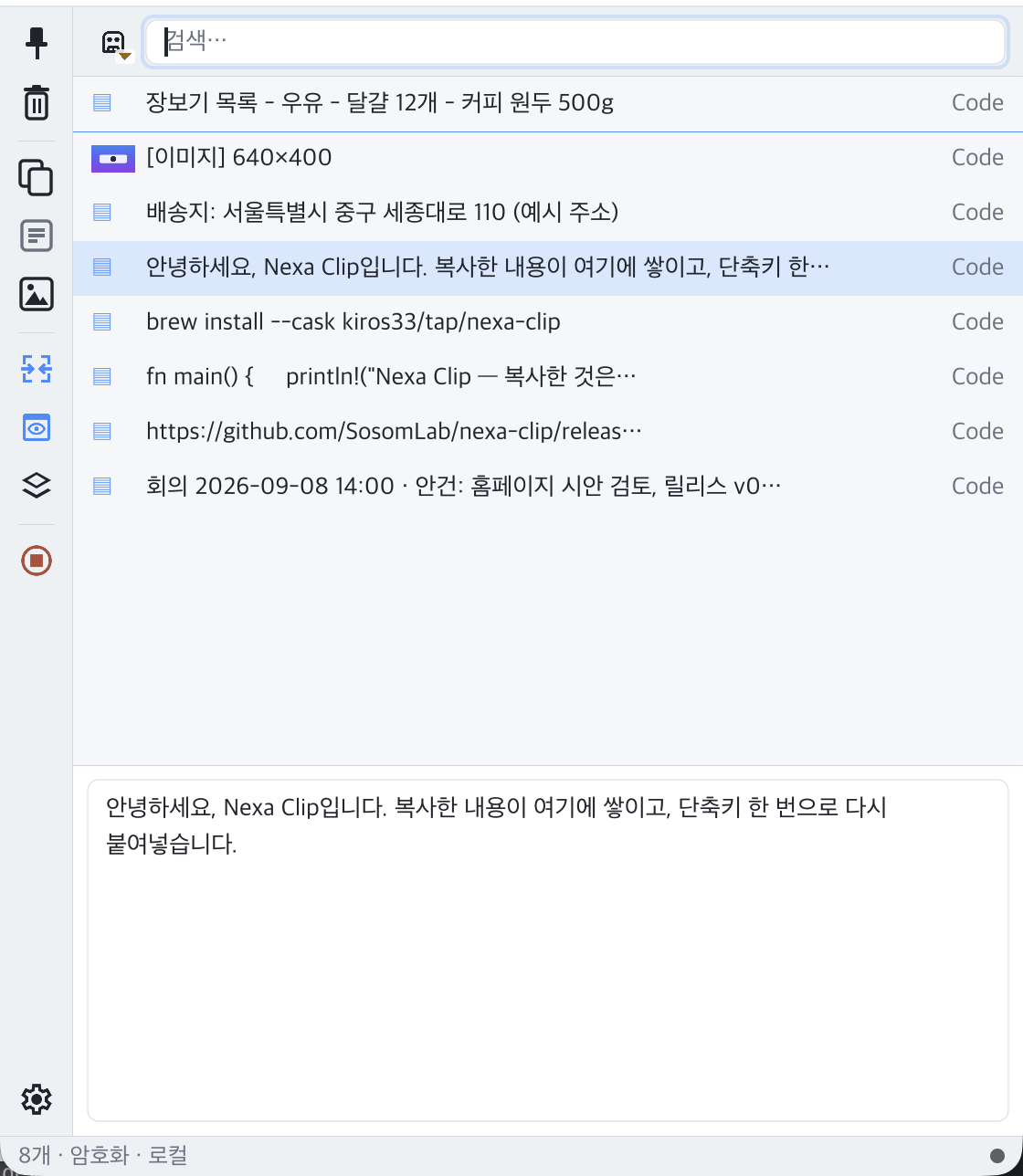
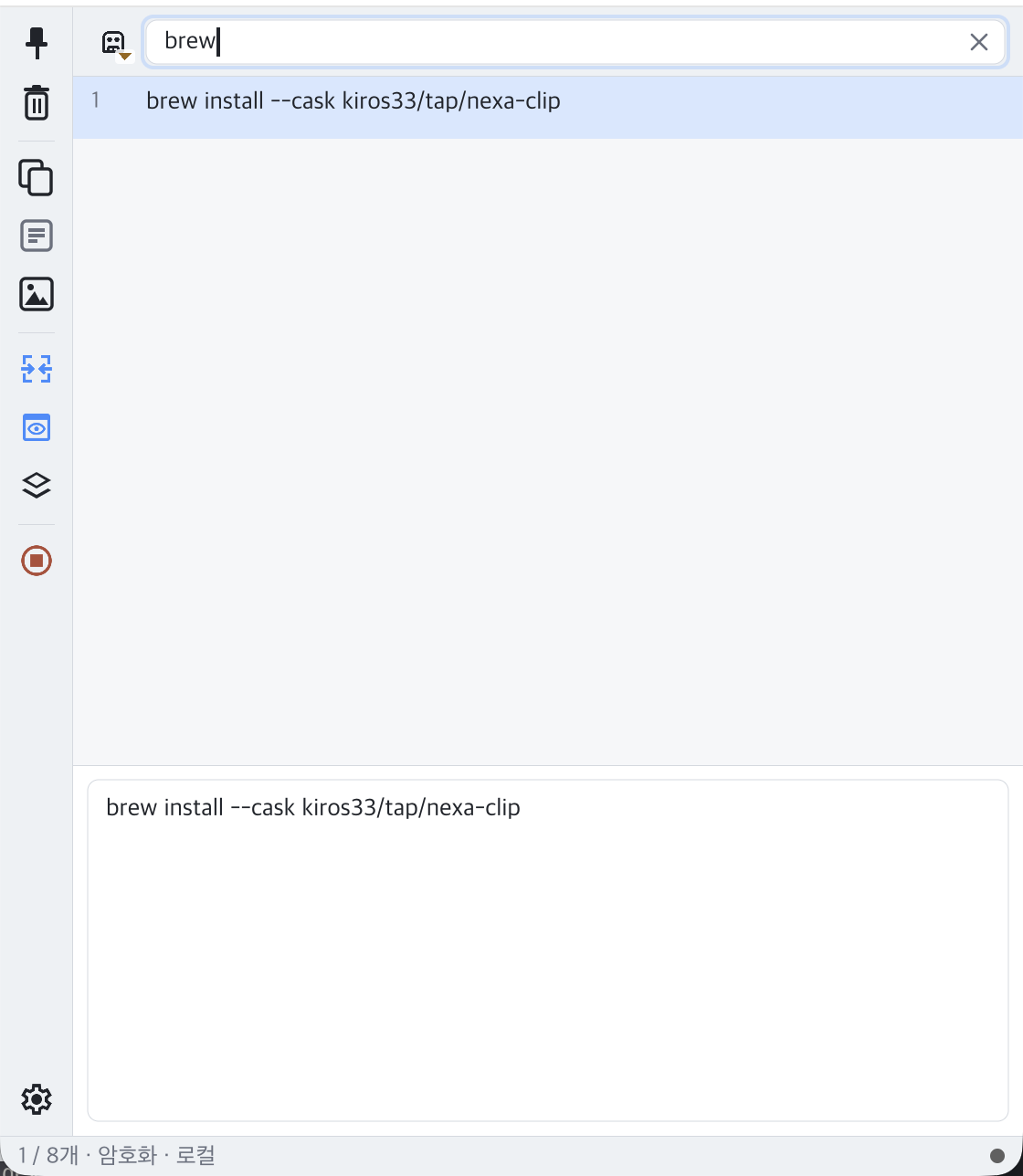
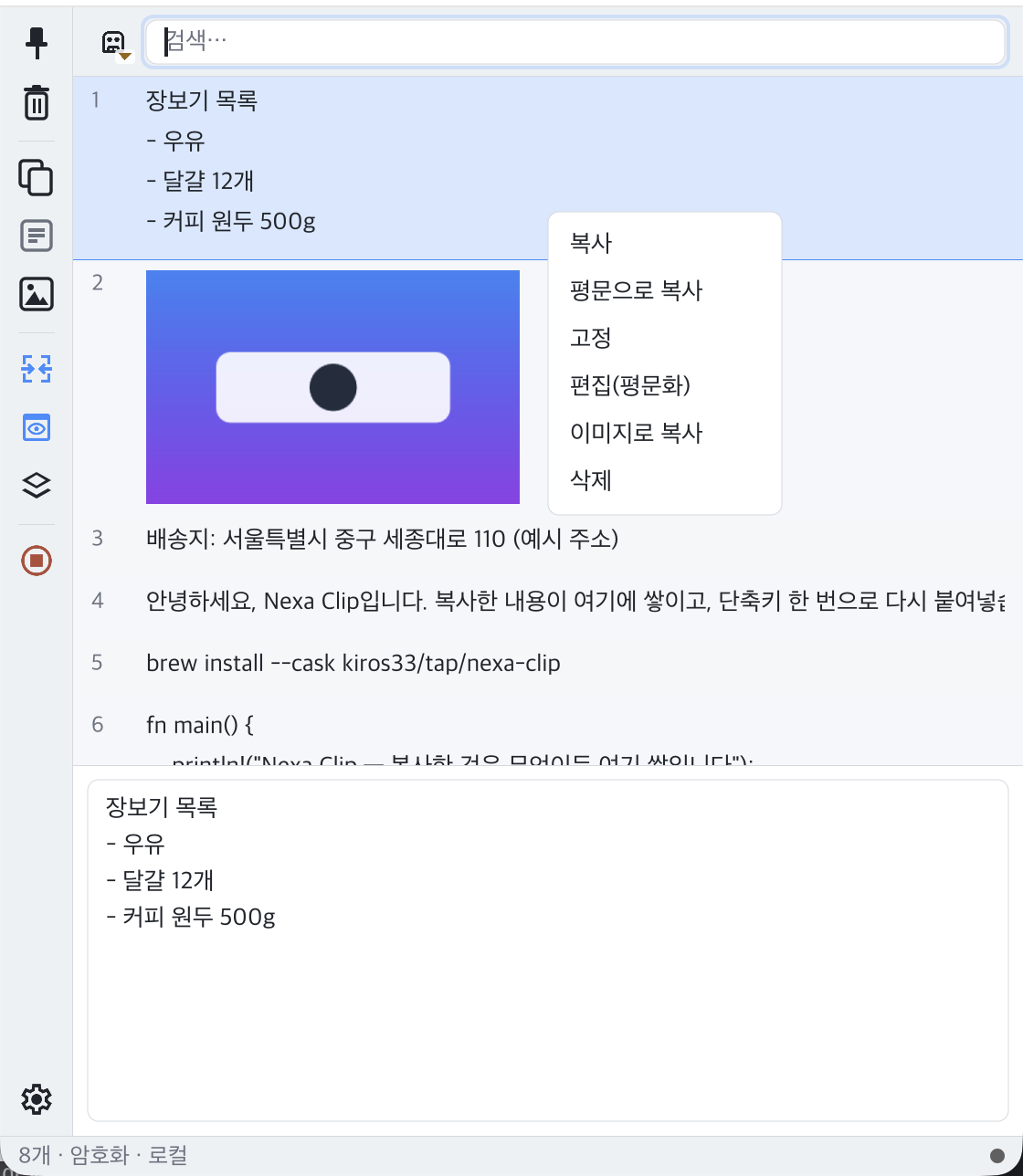
Key Features
- Identical interface on 3 OSes · single executable With no Qt, WebView or Electron, its own CPU rasterizer draws every pixel. The interface is pixel-identical on Windows, macOS and Linux, and only behavior conventions (modifier keys, scrolling, menus) follow each OS natively.
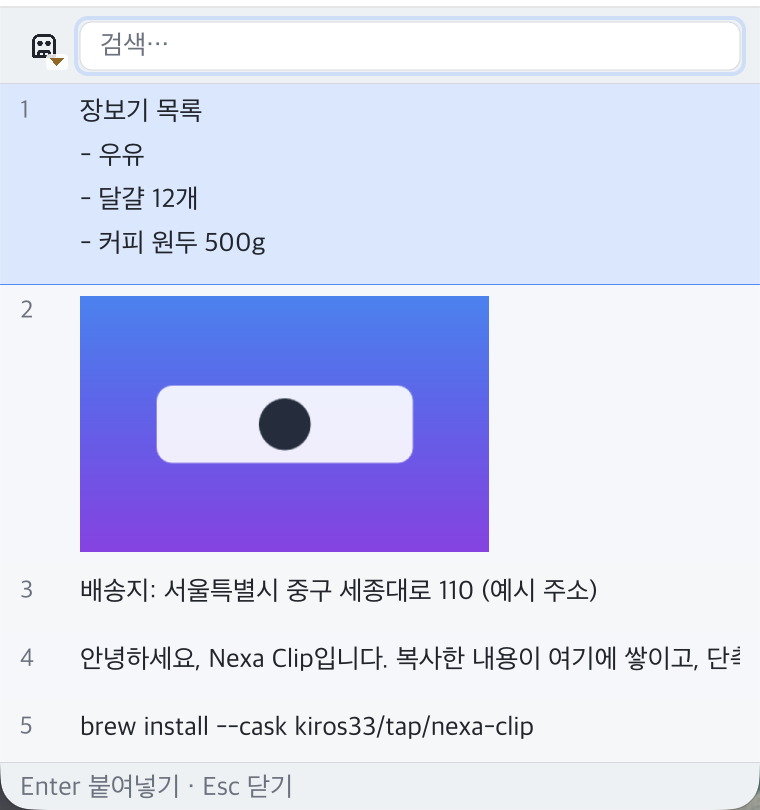
- Quick popup — hotkey → search → Enter Shift+Alt+C opens a popup at the cursor position, ready for typing in the search bar (search works during Korean composition). Ctrl+1~9 for instant selection, Ctrl+P to pin or unpin, complete with just ↑↓, Enter and Esc, and a paste stack that pastes several items in order.
- 4 paste modes + plain-text paste Enter as-is · Shift+Enter plain text · Ctrl+Enter as an object · Alt+Enter path only. When the popup closes, the item is pasted into the window you were in by key injection, and the global hotkey Shift+Alt+X pastes the current clipboard without formatting and then restores the original.
- Formatting and native formats preserved HTML/RTF formatting is kept alongside plain text, and native Word, PowerPoint and Excel formats are preserved under their original names. PPT shapes and charts do not degrade into pictures when pasted again, and when you do want a picture, "Copy as image" pastes them that way.
- Image and file path capture Images are preserved as PNG with a thumbnail, and lists of copied file and folder paths also become items (something Win+V cannot do). Images are decoded only in a separate, isolated process, so parser vulnerabilities cannot touch the main program.
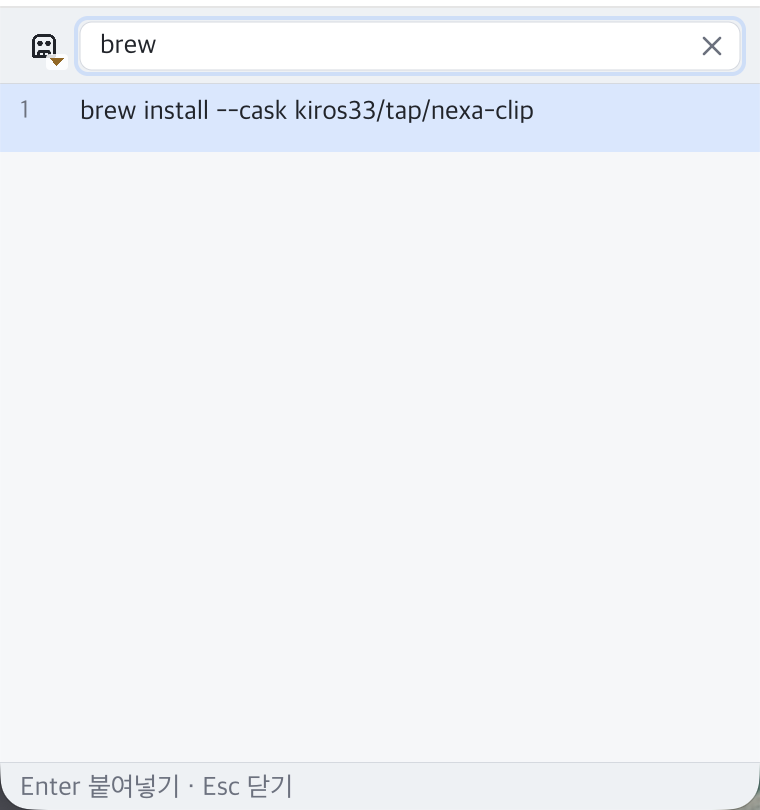
- 3 search modes · content included Exact · Fuzzy (default) · Regex look through labels and content using an in-RAM index. The dropdown in front of the search bar switches the mode, and the popup and main window follow the same rules.
- 3 main window view modes · preview Alt+1/2/3 switches between Normal view (number · multiple lines · thumbnails) · Compact view (type icon · source app) · Single-line view, and the preview panel draws formatting, terminal colors (ANSI) and inline images without scripts or network access.
- Encrypted storage by default History is stored in append-only segments sealed with ChaCha20-Poly1305 envelopes + content-addressed blobs (on by default). Retention limits are available for all three of count, age and size, and pinned items are exempt.
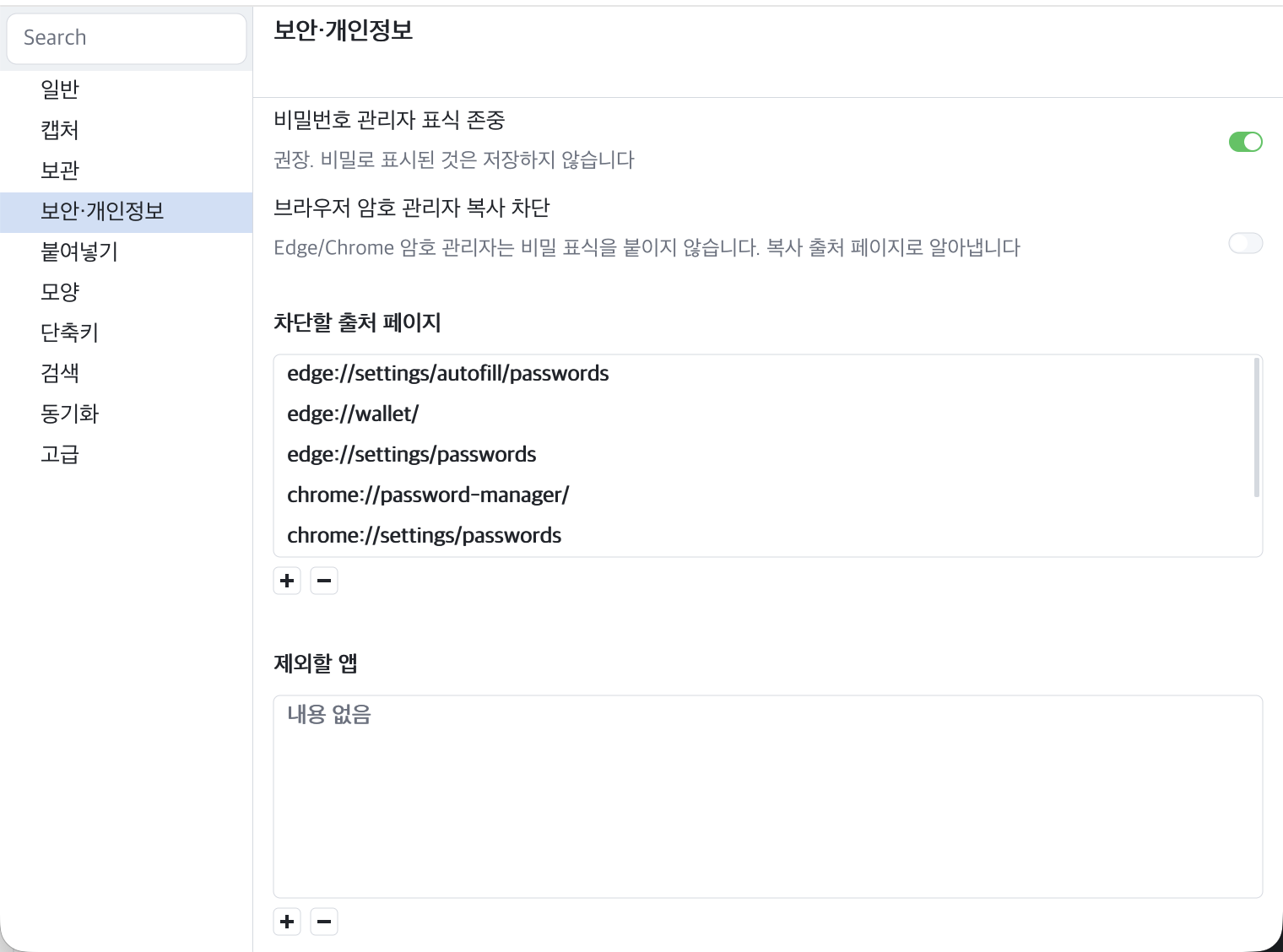
- Steers clear of sensitive data on its own It respects the OS sensitive markers sent by password managers and does not capture that content, and it offers a list of excluded apps, hiding of sensitive sources, Clear history on exit and Clear all history (twice within 2 seconds). Files that hold secrets are readable only by their owner (0600).
- Sync between your own devices — approved devices only Your devices meet through two lines, an ID and a pairing password, and plain text and PNG are exchanged with Noise end-to-end encryption only with devices you approved after visually checking a 6-digit verification code; files are fetched from the source device when you paste. Received items are labeled with a ⇄ source and never sent back. With three or more devices, approved devices tell each other about the others so they can be found.
- File sharing — fetched the moment you paste When you paste a file copied on another device, its contents are fetched from the source device at that moment and pasted as a real file. Resuming, prefetching for 50MB or less, a transfer panel (progress · stop · retry), and only between your own approved devices.
- Same-network direct connection · relay optional On the same Wi-Fi, devices connect without a server (None) through UDP beacons + direct TCP. Other networks go through a relay server (the official beepd.sosomlab.com or a nexa-beepd you run yourself), and the server sees only envelopes.
- Lightweight — 1.6MB installer · 13.5MB idle Pure Rust with 0 runtime dependencies. With the in-memory layer (cold content unloaded immediately · thumbnail LRU) and lazy blob loading: cold start averaging 105ms · idle working set 13.5MB (no growth over 10 minutes · measured on v0.2.0) · exe 2.43MB (v0.2.5). Build size and idle memory are held by CI gates.
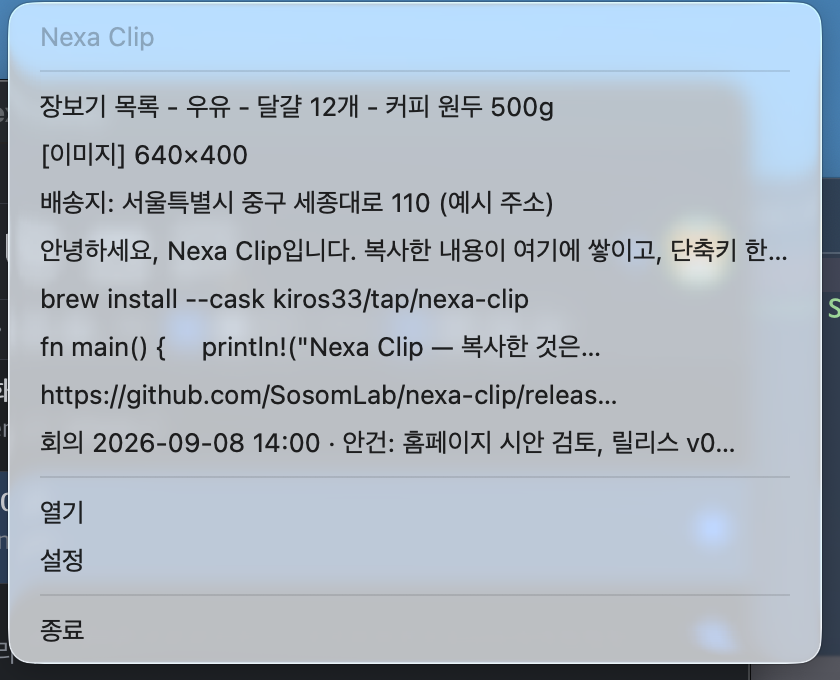
- Always in the tray · recent items menu · autostart When launched, it stays in the tray (menu bar). Left-click = main window, right-click = recent items with number badges, Settings and Quit. Icon dots: top left green = relay · bottom left blue = same-network direct connection · bottom right orange = receiving files. It starts at login (on by default), and launching it twice brings the existing instance forward.
Features in Detail
Capture — from the clipboard to the app
What your copy gets captured as is where this product starts. It captures every type, while leaving out what should not be captured.
- Clipboard monitoring on 3 OSes Windows uses
WM_CLIPBOARDUPDATEevents, macOS uses adaptivechangeCountpolling, and Linux monitors with X11XFIXESimplemented in pure Rust (x11rb) with no external tools (Wayland goes through the XWayland bridge). Unsupported compositors do not fail silently; they are honestly shown as "capture unavailable". Thenexa-clip watch·peekdiagnostic commands let you see on a real machine what gets captured. - Text · images · file paths Text is normalized to UTF-8 with normalized line endings, images are preserved as PNG + thumbnail (long side 96px by default), and files and folders are captured as path lists (Windows
CF_HDROP· macOS file URL · Linuxtext/uri-list). The trap of charset-lesstext/plainfrom Linux terminals and Firefox being captured as escaped strings is prevented by a UTF-8 guarantee ranking. - Formatting and native formats preserved (Word · PPT · Excel) HTML/RTF formatting is kept alongside plain text, and native formats such as Office objects and GVML are preserved under their original names. This design came from hands-on results showing that with HTML/RTF alone, PPT shapes degrade into pictures. It was verified with automated hands-on macOS PowerPoint tests, 12/12 (formatted text and 2 text boxes — color and shape preserved through copy → re-post → paste).
- Source app recording · duplicate promotion The app you copied from is recorded for each item and shown in the list, preview and context menu. Copying the same content again moves the existing item to the top instead of creating a new one (copy count ×N), and the same text differing only in formatting (plain text ⊆ native) is also promoted to the native version.
- Per-item size limit (v0.2.3) When an item exceeds the limit (
cap.max_item_mb· 32MB by default · 0 = unlimited · Settings › Capture › Advanced), non-essential representations such as duplicate bitmaps and metafiles are not stored, largest first. Text, HTML, RTF, files and the representations used for the main display and thumbnail are always kept, so an item can still exceed the limit. Windows asks for sizes first and does not even read representations to be dropped, and Linux reads at most 64MB of a representation. - Isolated image decoding (nclip-imgdec) Image parsers have historically been a common route to RCE, so the main program does not link one. Thumbnails and previews are decoded by a separate process,
nclip-imgdec, and the main program re-validates the pixels. Rejection of palette and 16-bit PNGs was fixed in v0.1.2, and old items without thumbnails generate their own when reopened. - Pause/Resume capture · ignore the next copy only A 2-state toggle in the toolbar (brick/green) pauses and resumes capture for the current session. A gate sits in front of capture, in the order sensitive marker > pause > next copy.
Quick popup · pasting
A clipboard manager's real competitor is not another manager but simply going back to copy the original again. Hotkey → 2–3 search characters → Enter has to be done within 3 seconds.
- Global hotkey → popup at the cursor The default is Shift+Alt+C. The popup appears at the current mouse position (or, by setting, the screen center or last position) with focus in the search bar. If registration fails because another app holds the same combination, the reason is logged, and you can always open the main window by left-clicking the tray icon. Synthetic keys and auto-repeat right after the popup appears are ignored, so hotkey characters do not end up in the search box (v0.1.2).
- Focus restore + key injection When you pick an item, the popup closes and pastes into the window that originally had focus — Windows
SendInput, macOSCGEvent(Accessibility permission), Linux X11 XTest / Wayland portal RemoteDesktop. Without permission it honestly falls back to "return to clipboard", and if the shell closes the Linux portal session it recovers on its own using the saved token. - 4 paste modes
Enteras-is ·Shift+Enterplain text ·Ctrl+Enteras an object ·Alt+Enterpath only. The hint bar shows only the modes that apply to the item's type. The Always paste as plain text setting changes the default. - Plain-text paste global hotkey Shift+Alt+X pastes the current clipboard contents without formatting, without a popup, and restores the original clipboard. Formatting never tags along into a terminal or plain-text editor.
- Number shortcuts Ctrl+1~9 · views Alt+1/2/3 Because the search field always has focus, the Nth visible item is picked instantly with
Ctrl+1~9(⌘1~9on macOS) rather than bare digits (by physical key position · regardless of Korean layout). Rows 1~9 get a badge on the right, and the 3 view modes areAlt+1/2/3(⌥on macOS). - Paste stack Collect several items and use them in order. When filling in forms or moving code snippets one after another, you do not have to reopen the popup each time.
- Pin and unpin in the popup (v0.2.3) Press
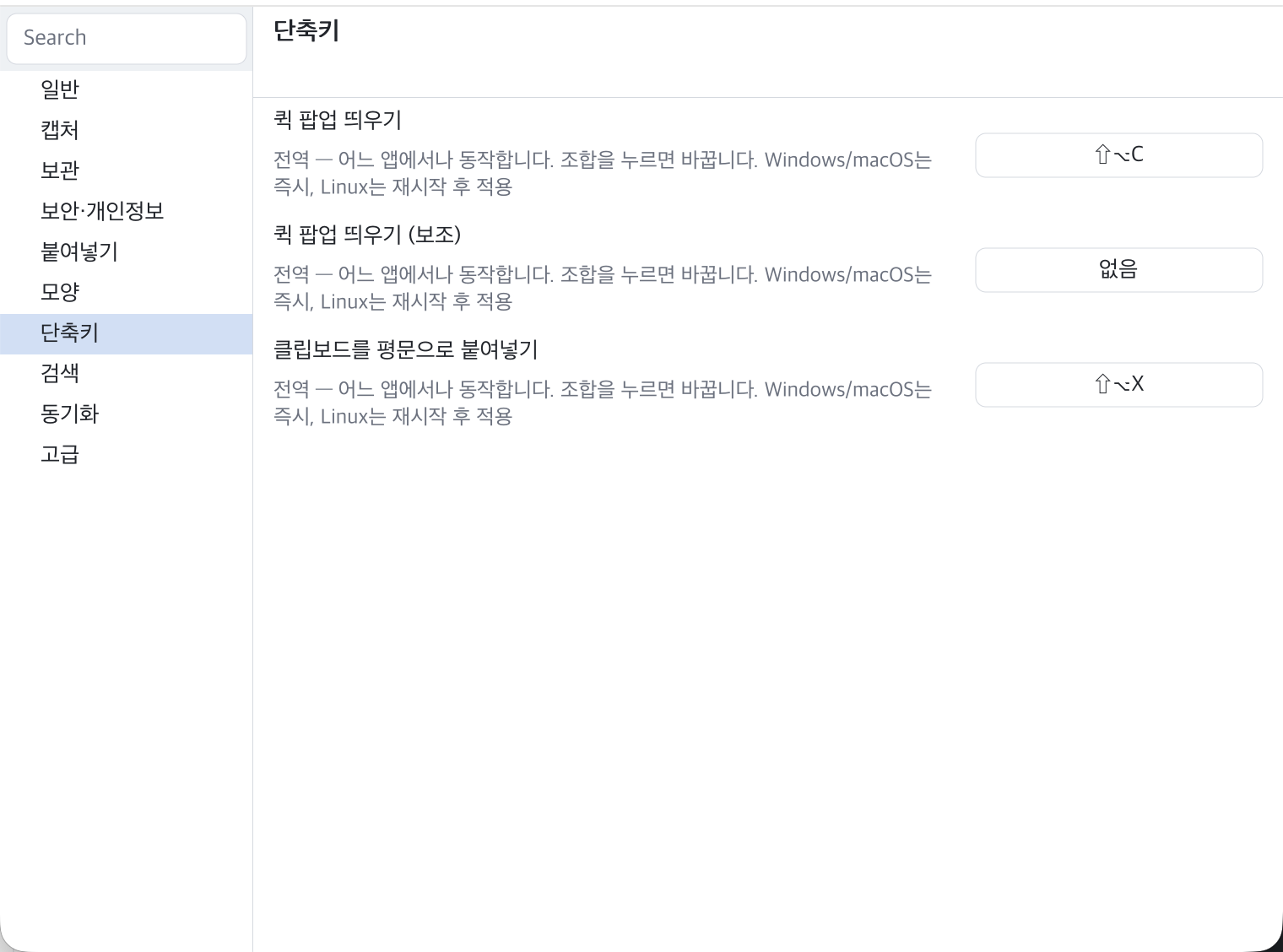
Ctrl+P(⌘Pon macOS) or click the dot area at the far left of a row to pin or unpin an item. The popup stays open and the selection follows the moved item. In Normal view, the pin and received dots moved below the number so they no longer cover it. Also fixed a Korean character being composed staying behind in the search bar. - Custom shortcuts Change the three combinations for the quick popup, secondary popup and plain-text paste in Settings › Shortcuts. Click a field and press the combination you want, and a capture overlay picks it up (remove · confirm · cancel), and it is re-registered as soon as it is saved (3-OS registration model). Editing shortcuts are detected by physical key, so they also work with a Korean layout.
Main window · search · preview
If the popup is for those 3 seconds, the main window is for organizing. Prioritizing vertical density, it consists of a vertical toolbar on the left and 3 view modes.
- Vertical toolbar on the left · 3 view modes Pin · Delete · Copy · Copy as plain text · Hide duplicates (toggle) · Preview · Always on top · Pause/Resume capture · Settings. The views are Normal view (number · multiple lines · image thumbnails) · Compact view (type icon · source app) · Single-line view (condensed into one line), switched with
Alt+1/2/3(default: Compact for the main window · Normal for the popup). The list is virtualized, so it stays smooth even with 10,000+ items. - Search — Exact · Fuzzy · Regex The list is filtered instantly as you type in the search bar. The dropdown in front of it (3 SVG icons) selects the mode, and content is searched as well as labels using an in-RAM index. Fuzzy search reflects Korean characters still being composed, and the default mode is set in Settings › Search.
- Preview — restricted rich-text renderer It draws weight, color, italics, list bullets, indentation, scale and inline
data:images, and reproduces color, font and background for text copied from terminals, right down to ANSI SGR (monospace slotui.font_mono· Nerd Font fallback). Bullets that Outlook sends in Wingdings are replaced with ■. Script and network access are 0. - Item context menu Copy · Copy as plain text · Pin · Edit (as plain text) · Copy as image (PNG +
CF_DIB— paste into PPT as a picture) · Delete. After a double-click, Enter or Copy as image, the selection and scroll follow the item to its new position, and the preview stays open. - Hide-duplicates view (on by default) Identical content appears as a single row. The representative is chosen in the order pinned → with formatting → copied on your own PC; if none is yours, the most recently received one. Sources are merged into the metadata (your app name first · ⇄ devices after it) and copy counts are added up. Turn it off to see rows split by source; the popup follows the same rule.
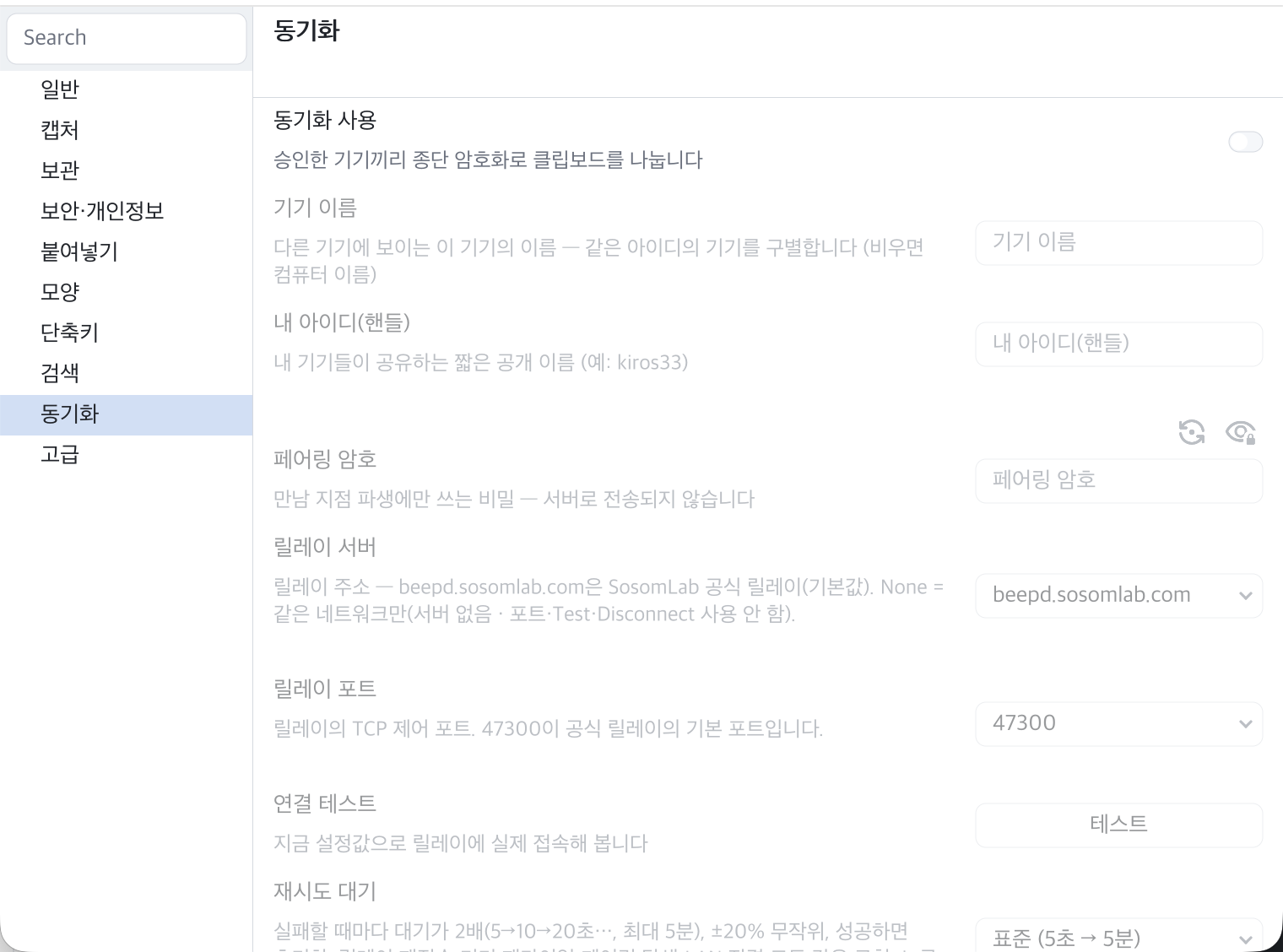
- Settings window — group tree · cards · Advanced · Changed (v0.2.0~) A group tree on the left (General · Clipboard · Appearance · Sync · Advanced) and cards on the right (key-name copy · [Reset] · default value display). Rarely used items are hidden behind the Advanced switch, and when a parent item is off, its dependent items appear locked and dimmed with an explanation. Search at the top (multi-word AND · Korean by individual jamo) finds items, values apply the moment you change them, and saving happens in a batch shortly afterwards (no save button). Clicking a key name copies it and briefly shows the copied key above it (v0.2.4). It opens with
Ctrl+,(⌘,on macOS), appears on the monitor beside the main window, and remembers its last position. Since v0.2.5, [Changed] at the bottom shows only items that differ from their defaults, andPageUp,PageDown,HomeandEndscroll. - Notifications & motion · Fast scroll (v0.2.5) The Notifications & motion category in the Appearance group controls toasts (duration · opacity · remaining-time bar · position), flash messages (hold and fade time · shape) and fast scroll. Fast scroll (on by default) increases the distance moved when wheel ticks in the same direction follow each other quickly and shows
×N; it applies to the main window and popup lists and to the settings window. - Settings JSON — Export · Import · Edit (v0.2.5) [Export…] saves settings to a JSON file, and [Import…] applies only the keys present in a file (unknown keys and invalid values are reported). [Edit JSON…] opens
settings.jsonin the data folder with the OS default program, watches for saves and immediately applies only the changed keys. The persistent source remainssettings.cfg. Exported files andsettings.jsoncontain the sync pairing password in plain text, so do not share them.
Storage · privacy
Passwords, API tokens and resident registration numbers pass through the clipboard every day. It has to be safe before the user configures anything.
- Encrypted segments + content-addressed blobs The index is append-only encrypted segments + a manifest, and content and images are content-addressed blobs (deduplication comes for free). Envelopes use ChaCha20-Poly1305 with domain-separated keys per file type, and the master key is sealed with the device key
device.key. Because encrypted storage is on by default, this structure was chosen over SQLite+FTS: a DB index cannot be built over ciphertext. - Retention limits — count · age · size Maximum items (1,000 by default · actual usage shown) · maximum retention period · maximum size (500MB by default) are all available, and pinned items are exempt. Heavy native formats (Office clipboards run to several MB) are reclaimed first through per-representation lifetimes (7 days by default), and there is a history compression option.
- Sensitive markers respected · excluded apps · hiding sensitive sources Windows
ExcludeClipboardContentFromMonitorProcessing· macOSorg.nspasteboard.ConcealedType· KDEx-kde-passwordManagerHint— the "do not record" signals from password managers are respected by default, and that content is not captured at all. Apps that do not send a marker are blocked with the excluded apps list, and sources such as browser password pages with source hiding. - Clear history on exit · Clear all history "Clear history on exit" in Settings › Security & Privacy and "Clear all history" in Advanced (click twice within 2 seconds — confirmation for a destructive action). If the device key changes, the old history is not silently reset but kept as
index.locked— keeping is not deleting. - Secret files 0600 · sanitized before display
settings.cfg(which holds the pairing password), the device key, the sync identity key and the portal approval token are made readable and writable only by their owner (0600) from the moment they are created (v0.1.2). RLO and control characters are sanitized before drawing so that text cannot deceive the display. - In-memory layer (DR-42) Cold content is unloaded immediately with a 30-second GC, and thumbnails moved to 384² PNG blobs are loaded only into an LRU cache (200 by default) → startup RSS 82 → 18.7MB. Lazy blob loading took startup from 1.8 seconds → 107ms, and restoring a 26MB history takes 43ms. The minimal-processing principle (DR-41), which separates requests from execution and lets only the last of a burst overwrite, keeps the UI thread from waiting. v0.2.3 added a first step to lower the memory peak of large copies (per-item size limit · 2-stage reads on Windows · holding only fingerprints for stabilization checks). The real-world peak reduction is still being measured.
- Data locations · portable · profiles Portable uses
data/next to the executable, the Windows installer also usesdata\next to the exe, macOS uses~/Library/Application Support/nexa-clip, and Linux.debuses~/.config/nexa-clip. Settings, the encrypted history, the sync identity key, the device list and approvals are kept there and survive upgrades.--profile <name>launches a second instance on one PC with separate data (data/profiles/<name>).
Sync between devices — approved devices only
A relay solves "can it reach?", not "is it the same person?". Trust comes only from human approval, and there is no compromise on this.
- ID (handle) + pairing password On a new device you enter just two lines. The handle is a public label, and the pairing password is the secret for computing the meeting point: a rotating rendezvous ID is derived with
PBKDF2-HMAC-SHA256(password, "nclip-rid-v1" ‖ handle ‖ date), so a dictionary scan is not feasible without the password, and even with the same handle, different passwords never meet. The password never goes to the server and is not used for authentication either. Entering a handle suggests a password automatically, and there are eye and generate (click twice) buttons. - Per-device approval + 6-digit verification code Even once the rendezvous succeeds, devices do not connect automatically. Each row in the device list has [Approve/Revoke] · [Delete] buttons and, while connected, a 6-digit verification code; you visually confirm that the codes on both screens match and then approve on each PC (no transcribing · 1 approval per device · recorded in a file). Clipboard items and files are not exchanged with an unapproved device, so even if the password leaks, approval is the line of defense.
- Automatic propagation on copy Plain text and PNG images you copy (converted to PNG if only a DIB is present · palette and 16-bit PNGs also display correctly on the receiving side) propagate immediately to approved devices, go to the top of their history and are placed on their clipboard as well. Rich formatting does not propagate yet (for files, see the next item). If items pile up, only the most recent one is sent.
- File path propagation · fetching contents (v0.1.4) When you copy files, the path list (with sizes and modified times) propagates, and on the receiving device the contents are fetched from the source device at the moment you paste and pasted as real files. If all the same paths exist on the receiving device, those files are used; otherwise, it is pasted as path text. There is resuming · background prefetching for 50MB or less · a cache for reusing received files, and received files are saved to
Downloads/Nexa Clipby default. Progress, stop and retry are in the main window's file transfer panel. File cuts are not sent. - Received marker ⇄ · ping-pong prevention Received items get a green dot below the number and a source (
⇄ device name), and are never sent back to the other side by any route (received marker = persistent flag · since v0.2.2 whether the content is the same is checked as well). Each sending device gets a separate item, and if the same content comes again from the same device, that item moves up (×N). - Three or more devices · Refresh device list (v0.2.2) Approved devices tell each other the list of public keys of the devices they have approved. The receiving side tries to connect through the relay to devices it does not know, and once a session is up they appear as awaiting approval, like any new device. The list is a hint, not trust, and is not stored. The pairing rendezvous stays open at a slow interval (5 minutes on Standard) even when a device is connected. [Refresh device list] in Settings › Sync runs reconnection, rendezvous and the LAN beacon once immediately.
- Device name · re-introduction If left empty, the name shown to other devices is a cleaned-up version of the computer name (with likely real-name parts removed). When you change it, it is re-introduced after about 1 second to all connected sessions (relay and LAN · regardless of approval), and the other side's list updates right away.
- Connection status display 3 tray icon dots: top left green = relay · bottom left blue = same-network direct connection · bottom right orange = receiving files. There is also a cable/plug icon in the main window toolbar and a dot on the right of the status bar: green relay · blue None (same network only) · gray sync off · dimmed relay configured but not connected. Hovering shows a tooltip.
- Like two devices on one PC (--profile)
nexa-clip --profile blaunches a second instance with separate data, single-instance guard, window titles and device name, so you can test sync. Echoes from both instances monitoring the same OS clipboard are absorbed by native-version promotion.
Same-network direct connection · relay server
On the same Wi-Fi, no server is needed. A relay is an option for meeting devices on other networks, and on either path only the two devices can read the contents.
- UDP beacons + direct TCP (relay None) Each device broadcasts a UDP beacon (port
47301) every 5 seconds. It carries only a tag derived from the handle and password, the device key and the TCP port; neither the password itself nor the relay meeting point is included. When a device with the same tag is found, the side with the smaller key value connects over TCP and performs the same Noise handshake as the relay. Once connected to the other device, the beacon slows to 30 seconds, and if the handle and password are filled in later it restarts automatically after 800ms. - Relay server — official · custom · None The relay server in Settings › Sync is one of
beepd.sosomlab.com(official · default) · Custom · None. One press of [Test connection] connects, and on success auto-connect is turned on so the next launch starts in the same state. Changing the ID, password, server or port, or turning sync off, disconnects immediately (connection lifetime contract). If both relay and LAN paths come up, the later session is dropped. - The server sees only envelopes · server pin (TOFU) All that reaches the server is a 16-byte rendezvous ID that changes daily and your public IP:port, and data the server carries when hole punching fails is also end-to-end ciphertext. The server public key is pinned on first connection, and if it changes the app stops connecting and warns you. Compare the first 8 characters of the pin shown in the connection success note with the value published on the wiki.
- The relay server is a separate program (nexa-beepd) Nexa Clip does not include a server. It is a single executable from
crates/nexa-beepdin the Nexa Beep repository, distributed under its ownbeepd-v*tags. It stores nothing, so restarting is always safe, and its resident memory is around 1MB. To run your own, usebrew install kiros33/tap/nexa-beepdor download the release asset, open TCP and UDP47300, and share the 64-character server pin printed on first run with your users. - Application isolation — Beep and Clip cannot see each other They use the same server, but the domain strings used in rendezvous derivation differ (
nclip-rid-v1vsnbeep-rid-v1), so they never stand at the same meeting point to begin with, and because the Noise prologue (nexa-clip/1) differs, the handshake fails mathematically even if they meet by chance. There is no "reject if the app differs" check, so there is no check to forget or bypass. - Retry policy · traffic safeguards Each failure multiplies the wait by 2 (Standard 5 seconds→up to 5 minutes · Relaxed 15 seconds→15 minutes · Aggressive 2 seconds→1 minute · ±20% jitter · reset on success). 4 concurrent handshakes, a 30-second cooldown for failed peer IPs, a limit of 20 received beacons per second, per-peer receive budgets (24MB per 10 seconds), and 2-second retransmission suppression. These apply to both relay and LAN.
Interface · always-on · platforms
It uses no OS widgets and draws every pixel itself. For a program that runs 24 hours a day, getting noticed already means failure.
- Own CPU rasterizer · design tokens On top of a render and control layer that absorbs Nexa Beep's
gfxandctlunder this project's name, spacing, type, state layers, elevation and motion tokens are codified. It has hover fades on rows, buttons and combos (1000ms), alpha compositing for overlays, sheet dimming, shadows and translucent dividers, and hover intent coalescing (70ms · stable while scrolling). A Material skeleton with a macOS finish. - Staying in the tray / menu bar (3-OS) Windows
Shell_NotifyIcon· macOSNSStatusItem· Linux SNI. Left-click = main window, right-click = recent items (configurable count · changes apply on the next click · number badges in the icon slot since v0.2.3), Settings and Quit, and 3 icon dots show connection and receiving status (the version is shown in the menu header). Running the installed app or a shortcut stays in the tray with no arguments (no console), and on macOS the Dock icon can be turned off (Accessory policy). - Autostart · single instance "Start at login" in Settings › General (on by default · registered on first launch · Windows Run · macOS LaunchAgent · Linux XDG autostart · user level). If launched twice on the same PC, the second launch simply passes an "open" request to the running instance and exits quietly. On Linux, if a packaged install exists, the user launcher stays pointed at it so development builds do not hijack the icon (v0.1.2). On Windows logoff and system shutdown, settings and history are saved before exiting (v0.2.3).
- Theme · fonts · font fallback chain System/Light/Dark themes (following the OS), and UI font and monospace font slots. Symbols and emoji missing from the primary font automatically get per-OS symbol font fallbacks, so they do not show up as □ (tofu): Windows Segoe UI Symbol → Emoji (monochrome), macOS Apple Symbols, Linux DejaVu Sans → Noto Sans Symbols2. Coverage can be checked in the font fallback line of the startup log.
- Window position memory · bringing to front The main window saves its position when moved and corrects it if it is off-monitor. The settings window follows Always on top, opens beside the main window and remembers its position per monitor. The issue on Linux/X11 where a window opened behind others with only a "ready" notification was solved by raising it directly with a pager source, which respects Mutter's focus-stealing prevention (v0.1.2).
- Diagnostics — status · logs
nexa-clip statusshows a check of what does and does not work on this PC (permissions · clipboard · hotkeys · injection). Launched directly from a terminal, it prints logs, and the sync, LAN direct connection and global hotkey lines record connections, disconnections, propagation, retries and registration failure reasons as they are. Item contents are not logged (only id, type, size and reason).
Budgets · quality · distribution
Lightness is a gate, not a promise, and defects found on real machines are locked in as regression tests.
- Budget gates · measurements Build size ≤10MB (Windows x64 installer 1.64MB · exe 2.43MB · v0.2.5) · idle working set 13.5MB (Windows over 10 minutes · 24.3MB with the main window open) · cold start averaging 105ms (measured on v0.2.0 portable). The release profile is
opt-level z· fat LTO · stripped symbols, and crypto primitives are optimized even in debug builds (measurements showed ChaCha20 at opt 0 runs at 10MB/s and eats into startup). - 417 tests green · 3-OS CI 417 tests (v0.2.5), 0 clippy warnings (
-D warnings), a pre-push 3-target clippy script (check-3os.sh), and 3-OS CI. 18 defects found on real machines (PPT · Excel · Edge · VS Code · Greenshot · CopyQ) are locked in as regressions, and there are automated hands-on macOS PowerPoint tests 12/12 · automated hands-on paste tests 3/3 · real pasteboard round-trip checks. Hands-on testing is done across Windows↔macOS↔Linux VM on all three OSes from the installed locations (/usr/bin·/Applications·%LOCALAPPDATA%\Programs). - 5 targets × 2 channels automated distribution Windows x64 and ARM64 (NSIS installer · portable zip) · macOS Apple Silicon and Intel (dmg · tar.gz) · Linux x64 (deb · rpm · tar.gz) — 15 assets including package manifests and
SHA256SUMS.txt. The tag must equal theCargo.tomlversion to pass, and one push leads from publishing the release → updating the Homebrew tap and thepkg.sosomlab.comAPT/DNF repositories → generating winget/Chocolatey manifests. A guard job automatically skips only the package whose previous submission is still under review. - Linux — distribution-independent The GUI app loads Wayland and xkbcommon with runtime dlopen, so static musl is not possible. Instead, the zig linker links it against glibc 2.17, so it runs on any distribution from CentOS 7 and Ubuntu 14.04 onward, and a symbol gate blocks linking non-glibc libraries and symbols newer than 2.17. The only
.debdependency islibc6 (>= 2.17). - Docs · wiki · license About 30 design documents (vision · competitive survey · storage design · identity and pairing · propagation · decision records up to DR-42) are in the repository's
docs/, and user guidance is in 10 wiki pages + 20 screenshots. PolyForm Noncommercial 1.0.0: personal and non-commercial use is free, and commercial use requires a separate paid license (contactkiros33@sosomlab.com). See the Terms of Service for details. - License (v0.2.0) The [License…] screen in Settings › Advanced › About shows the status, license ID and device code, copies a request code, and installs or removes a license file. There is also the CLI
nexa-clip --license status|request|install|remove|path. Non-commercial use is free without a file and no features are locked, and signature verification is done offline only.
About
Nexa Clip is a clipboard manager with an identical-looking interface on Windows, macOS and Linux. It was built for people who copy and paste dozens to hundreds of times a day while moving between OSes: developers, planners, translators and operators. The product is defined in one line: an always-running tool that keeps everything you copy encrypted, shows it in the same interface on three OSes, and brings it back in one step on any of your devices. In short: "the power of Ditto, the lightness of Maccy and the portability of CopyQ, in a single interface we draw ourselves, with no framework."
We surveyed six competing products and settled on three differentiators. ① A fully identical interface on 3 OSes: CopyQ has the Qt look and EcoPaste and PasteBar use the OS WebView, so their interfaces differ by OS, whereas Nexa Clip uses neither OS widgets nor a UI framework and draws every pixel itself. ② Encryption by default: history is stored encrypted on your PC (on by default · 0 of the six products surveyed have this on by default), and transfers between devices are sealed with end-to-end encryption. ③ Always-on budget gates: because the program runs 24 hours a day, idle memory, build size and startup time are enforced by gates. This one item is what killed 1Clipboard (Electron).
Capture covers text, images (PNG preserved + thumbnail), file and folder paths and HTML/RTF formatting, and it preserves the native formats placed by Word, PowerPoint and Excel under their original names, so PPT shapes pasted again go in as shapes rather than pictures. The app you copied from (the source app) is recorded as well, and copying the same content again moves the existing item to the top instead of creating a new one. It respects the "do not record" marker sent by password managers and does not capture that content at all, and there is also a list of excluded apps and a toggle to pause capture. The image parser is not linked into the main program; images are decoded only in a separate, isolated process (nclip-imgdec).
The fastest route is the quick popup. Press Shift+Alt+C and a popup appears at the cursor position, ready for you to type in the search bar. Search also works while Korean characters are still being composed. Enter pastes as-is · Shift+Enter as plain text · Ctrl+Enter as an object · Alt+Enter the path only. Ctrl+1~9 (⌘1~9 on macOS) instantly picks an item by its visible order, Ctrl+P (⌘P on macOS) pins or unpins an item without closing the popup, and the paste stack lets you collect several items and use them in order. The popup takes focus and always gives it back: after you pick an item, it is pasted into the window you were in by key injection, and Shift+Alt+X pastes the current clipboard without formatting and then restores the original.
The main window consists of a vertical toolbar on the left (Pin · Delete · Copy · Copy as plain text · Hide duplicates · Preview · Always on top · Settings), a search bar, a list and a preview. Alt+1/2/3 switches between three view modes: Normal view (number · multiple lines · image thumbnails) · Compact view (type icon · source app) · Single-line view. Search has three modes, Exact · Fuzzy (default) · Regex, and looks through the content as well as the labels using an in-RAM index. In the preview, a restricted rich-text renderer draws weight, color, lists, indentation, inline images and terminal colors (ANSI), while script and network access stay at 0. The settings window (Ctrl+,) is made of cards in 5 groups (General · Clipboard · Appearance · Sync · Advanced); you find items with search (matching Korean by individual jamo) and changes apply instantly. Rarely used items are hidden behind the Advanced switch, and since v0.2.5 you can view only the items that differ from their defaults and export, import and edit settings as JSON.
Storage uses append-only encrypted segments + content-addressed blobs. ChaCha20-Poly1305 envelopes use domain-separated keys per file type, and the device key (device.key) wraps the master key. Retention limits are available for all three of item count, age and size, pinned items are exempt, and heavy native formats are reclaimed first through per-representation lifetimes. Settings include clearing history on exit, hiding sensitive sources such as browser password pages, and Clear all history (twice within 2 seconds), and files that hold secrets are made readable only by their owner (0600). The in-memory layer unloads cold content immediately and keeps thumbnails in an LRU cache, which cut startup RSS from 82MB to 18.7MB, and lazy blob loading took startup time from 1.8 seconds to 107ms. Since v0.2.3, when a copy exceeds the per-item size limit (32MB by default), non-essential representations are not stored, largest first, and on Windows sizes are checked first so that representations to be dropped are never read.
Sync is optional and off by default. To turn it on, you fill in just two lines: an ID (handle) and a pairing password. The password never goes to the server; it is only input for deriving the meeting point (rendezvous ID) with PBKDF2, so nobody who does not know it can compute where your devices meet. Devices that meet appear in the device list, and the clipboard is exchanged only after you visually confirm that the 6-digit verification codes on both screens match and approve (1 approval per device · revocable at any time). What propagates is plain text and PNG images; received items are labeled with their source (⇄ device name) and are never sent back. On the same Wi-Fi, devices connect without a server (None) through UDP beacons + direct TCP, and devices on other networks go through a relay server; on either path the Noise end-to-end session is established only between the two devices, and the server sees only envelopes. Files travel too since v0.1.4: only the path list is sent at copy time, and at the moment you paste on the receiving device the contents are fetched from the source device and pasted as real files. Files of 50MB or less are slowly prefetched in the background, and received files stay in the Nexa Clip folder under your Downloads folder for reuse. File cuts and formatting (HTML/RTF) are not sent. With three or more devices, since v0.2.2 approved devices tell each other which devices they know, so devices on different networks that could not meet directly can still be found and connected. Devices found this way also exchange no clipboard items or files until approved.
The relay server is not included in Nexa Clip. It is a separate program, nexa-beepd, distributed by the Nexa Beep project, and the app defaults to the official SosomLab server (beepd.sosomlab.com:47300). The server public key is pinned on first connection (TOFU), and if it changes the app stops connecting and warns you. Nexa Beep uses the same server, but the rendezvous domain string and Noise prologue differ, so the two apps cannot see each other on the server (application isolation — by structure, not by check code). Traffic safeguards include exponential retry backoff (Standard 5 seconds→5 minutes), 4 concurrent handshakes, a 30-second cooldown for failed IPs and per-peer receive budgets.
We do not hide what does not work yet. There is no code signing, so macOS Gatekeeper and Windows SmartScreen warnings appear (the brew Cask removes the quarantine flag at install time), and for the same reason the Chocolatey installer is stuck in moderation due to antivirus detections (the portable package is approved). The winget 0.1.6 submission has not been merged yet. macOS needs the Accessibility permission for paste injection, and Linux (GNOME/Wayland) needs one portal approval each for global hotkeys and key injection. Sync does not carry formatting yet, Linux assets are x86_64 only, and mobile receiving is the lowest priority.
Distribution covers 5 targets (Windows x64 and ARM64, macOS Apple Silicon and Intel, Linux x64) × 2 channels, installer and portable (15 assets, including .rpm, package manifests and SHA256SUMS). Pushing a tag publishes automatically, and the Homebrew tap follows releases automatically. On Linux, the signed APT and DNF repositories at pkg.sosomlab.com are updated automatically with each release. Linux builds are linked against glibc 2.17, so they run regardless of distribution. The underlying structure was taken from Nexa Beep (crate boundaries · rasterizer · relay stack) and Nexa Dir (controls · virtualized list) and absorbed under this project's name. Under the PolyForm Noncommercial 1.0.0 license, personal and non-commercial use is free, and commercial use requires a separate paid license (contact kiros33@sosomlab.com). Since v0.2.0, Settings › Advanced › About lets you check the license status, copy a request code and install a license file, and verification is done offline only.
Release Notes
v0.2.6 2026-11-06 Fix for "Not responding" after a Remote Desktop reconnect · large text items are also unloaded from memory when idle · window transparency.
Fixed
- On Windows, the window could stay "Not responding" for good after a Remote Desktop (RDP) reconnect — A deadlock in the window library when the taskbar is recreated is now worked around inside the app.
Added
- Window transparency (Settings › Appearance) — Make the main window transparent separately when focused (
ui.transparency) and unfocused (ui.transparency_blur). There is also a setting that keeps the main window from dimming when focus moves to the app's own dialogs (ui.dialog_keeps_active) and a grace period before it dims (ui.blur_grace_ms). Windows · macOS · Linux.
Improved
- Text items of 1MB or more (plain text · HTML · RTF) are now also unloaded from memory when idle — Previously only images and the like were. Resident memory grows less when you copy large tables or documents often.
Changed
- Window transparency is on by default (focused 5% · unfocused 10%). To keep the window opaque as before, set both values to 0 in Settings › Appearance.
Distribution
- Homebrew · pkg.sosomlab.com (APT · RPM) picked up 0.2.6 automatically (checked 2026-11-07). Chocolatey portable 0.2.6 was submitted and is in moderation (approved version 0.2.5); the Chocolatey installer and winget were skipped again because earlier submissions are still stuck.
v0.2.5 2026-11-03 Settings window improvements — Changed view · Notifications & motion · JSON import/export/edit · fast scroll · Windows executable information.
Added
- [Changed] switch — When turned on at the bottom of the settings window, it shows only items that differ from their defaults.
- Notifications & motion category — Gathers settings for toasts (duration · opacity · remaining-time bar · position), flash messages (hold and fade time · shape) and fast scroll under the Appearance group.
- Fast scroll — Increases the distance moved and shows
×Nwhen wheel ticks in the same direction follow each other quickly (main window and popup lists · settings window · on by default). - Settings JSON — [Export…] · [Import…] · [Edit JSON…] at the bottom. Import applies only the keys present in the file and reports unknown keys and invalid values. Edit JSON opens
settings.jsonin the data folder, watches for saves and immediately applies only the changed keys. Exported files andsettings.jsoncontain the sync pairing password in plain text.
Changed
- Tidied the settings window's bottom row into [Advanced] · [Changed] · [Export…] · [Import…] · [Edit JSON…] · [Close], and moved opening the settings file to the Settings file card under Advanced.
PageUp,PageDown,HomeandEndscroll the settings window, and the wheel over the tree on the left moves the tree. Switching categories starts from the top.- Windows executable information — Added version, icon and manifest to both executables and filled in the installer information in English. As a supporting measure to reduce antivirus false positives, the installer's compression method changed, and the Windows x64 installer grew to about 1.6MB. There is still no code signing.
- The notice at the top of the license file is now in English.
Distribution
- Homebrew and pkg.sosomlab.com (APT · RPM) picked up 0.2.5 automatically. Chocolatey portable 0.2.5 was approved 11-03. The Chocolatey installer and winget were skipped because previous submissions have not finished.
v0.2.4 2026-10-17 Tray recent-item count applies right away · settings key copy message.
Fixed
- Tray recent-item count — Fixed the tray menu showing the old count until the next copy after changing the count (
ui.tray_recent_n) in settings. It now applies on the next click.
Improved
- Settings key copy message — Clicking a key name on a settings card to copy it now briefly shows the copied key above that text (below if there is no room), without covering the key text.
Distribution
- Homebrew and pkg.sosomlab.com (APT · RPM) picked up 0.2.4 automatically. Chocolatey portable skipped 0.2.4 because the previous 0.2.3 was under review, and the Chocolatey installer and winget were also skipped because previous submissions have not finished.
v0.2.3 2026-10-17 Pin and unpin in the popup · tray menu number badges · per-item size limit · Windows logoff save.
Added
- Pin and unpin in the popup — In the quick popup, pin or unpin with
Ctrl+P(⌘Pon macOS) or by clicking the dot area at the far left of a row. The popup stays open and the selection follows the item. - Tray menu number badges — Numbers appear in the menu icon slot of recent items (same look on all three OSes).
- Per-item size limit —
cap.max_item_mbin Settings › Capture › Advanced (32MB by default · 0 = unlimited). Above it, non-essential representations are not stored, largest first. Text, HTML, RTF and files are always kept.
Fixed
- Windows logoff and system shutdown — On receiving the shutdown signal, the app finishes saving before it exits.
- Leftover Korean character — Fixed a character being composed staying in the search bar when the popup closed, which also filtered the list.
- Covered number — Fixed pin and received dots covering the number in the popup's Normal view (the dots moved below the number).
Improved
- First step on memory peak — On Windows, representation sizes are checked first and representations to be dropped are not read, stabilization checks hold only a fingerprint instead of two copies, and adding to history moves instead of duplicating. The actual reduction for large copies is still being measured.
Distribution
- Homebrew and pkg.sosomlab.com (APT · RPM) picked up 0.2.3 automatically. Chocolatey portable 0.2.3 was approved 10-20. The Chocolatey installer and winget were skipped because previous submissions have not finished.
v0.2.2 2026-10-15 Finding devices through the relay with three or more devices · Refresh device list button · sync echo fixes.
Added
- Device list exchange — Approved devices tell each other the list of public keys of the devices they have approved. The receiving side tries to connect to devices it does not know, and once a session is up they appear as awaiting approval. This is how a third device that could not be met because of different networks is found.
- [Refresh device list] — In Settings › Sync, runs reconnection to known devices, the pairing rendezvous and the LAN beacon once immediately.
Changed
- The pairing rendezvous used to open only when no device was connected; it now stays open at a slow interval (5 minutes on Standard) even when a device is connected.
Fixed
- Fixed received text being read back and captured once more as a new item (plain-text representation name normalization).
- Fixed received content being propagated again to other devices; it is now blocked by comparing with content in the history.
Distribution
- Homebrew and pkg.sosomlab.com (APT · RPM) picked up 0.2.2 automatically. Chocolatey portable 0.2.2 was approved 10-16. The Chocolatey installer and winget were skipped because previous submissions have not finished.
v0.2.1 2026-10-10 Fix for the Windows popup Enter paste defect · command-line output and release notes switched to English.
Fixed
- Windows popup paste — Fixed a defect where pasting with
Enterfrom the quick popup was lost when the target app already contained text. The paste keystroke is now sent after waiting for focus to finish moving to the target window. - Added retries to the NSIS install step so that building the Windows ARM64 installer does not fail because of a temporary external feed outage (504).
Changed
--help,status, profile errors and other command-line output and the release notes are now in English. The app's interface continues to follow the system language.- Added
sudo apt install nexa-clip·sudo dnf install nexa-clip(pkg.sosomlab.com) lines to the release notes.
Distribution
- Homebrew and pkg.sosomlab.com (APT · RPM) picked up 0.2.1 automatically. For Chocolatey, only the portable
nexa-clip-portable0.2.1 was submitted and approved 10-11; the installer and winget were skipped because previous submissions were under review.
v0.2.0 2026-10-10 Card-style settings window redesign · license screen and CLI · system language by default · move to the shared UI library.
Added
- License — The [License…] screen in Settings › Advanced › About (status · license ID · file · device code · copy request code · install/remove file) and
nexa-clip --license status|request|install|remove|path. Non-commercial use is free without a file and no features are locked, and verification is done offline only. - The app's own file picker (nexa-dlg) for choosing a license file.
Changed
- Settings window redesign — A group tree on the left (General · Clipboard · Appearance · Sync · Advanced) + cards on the right (key-name copy · [Reset] · default value display). At the bottom, [Advanced settings switch] · [Open settings file…] · [Close].
- The Advanced switch hides 9 rarely used items, and when a parent item is off its dependent items appear locked + dimmed + with an explanation (9 pairs).
- Settings search supports multi-word AND, Korean jamo-level matching and search term history (
↑/↓). - The language default is now Follow system language, and the System options for theme and language show the current OS value alongside.
- Moved the render, control and font layers to the shared SosomLab UI library (nexa-ui). There are more symbol-font fallback candidates.
Fixed
- Fixed [Close] and
Escnot responding in the settings window.
v0.1.9 2026-10-05 Linux .rpm package · pkg.sosomlab.com DNF repository.
Added
.rpmpackage — The same contents as the.deb, packaged for the Fedora, RHEL and openSUSE families (15 assets).- First publication of the pkg.sosomlab.com DNF repository — Register the repository once and install and update with
sudo dnf install nexa-clip·dnf upgrade(signed repository metadata).
v0.1.8 2026-10-05 Item contents removed from logs · VMware guest repeated file transfer fix · automatic APT repository updates.
Changed
- The app log no longer records previews of item contents. Only the type is recorded, and previews are logged only when the diagnostic environment variable (
NEXA_CLIP_DIAG) is on. - After a release is published, the pkg.sosomlab.com APT repository updates automatically (
sudo apt install nexa-clip·apt upgrade).
Fixed
- Fixed an issue in Linux virtual machine (VMware) guests where copying a host file once caused the same file to be sent about 20 times; files from the clipboard bridge are no longer read.
v0.1.7 2026-10-05 Color emoji · formatted tables · 3 tray dots · cuts no longer propagated · many Linux hotkey and paste fixes.
Added
- Color emoji — Draws PNG glyphs (CBDT · sbix) from the system emoji font (macOS · Linux).
- Tables in the formatted preview — column width fitting · cell backgrounds · borders.
- The version (
Nexa Clip v0.1.7) is shown in the tray menu header. - 3 tray dots — top left green = relay · bottom left blue = same-network direct connection · bottom right orange = receiving files (white outline · larger size).
Changed
- File cuts are not sent to other devices (on all 3 OSes · they stay in the local history).
- Exposed the Excel cell range image limits (rows · columns · cells) as settings.
Fixed (Linux)
- Fixed GNOME sticking to the old combination after a hotkey change · re-registration right after a change.
- Fixed the popup repeatedly opening and closing when the hotkey was held down.
- The popup hotkey character getting stuck with Korean input active now resolves itself.
- Pastes into X11/XWayland terminals use
Ctrl+Shift+V. - Monitor reconnection · re-copy promotion · source app · shutdown signal · opening on a second launch · tray re-registration · paste moved to a worker.
Fixed (all platforms)
- Plain text and images written back by the virtual machine clipboard bridge no longer go into history (the cause of formatting disappearing when pasting formatted text).
- ONLYOFFICE presentation objects are captured as image objects, and multiple objects are composited in their original layout.
- HTML containing only images and no text is treated as an object, so preview and Copy as image work. Copy as image posts under each OS's representation names.
v0.1.6 2026-10-04 Excel cell range image policy · type icons in Normal view · pinned item and macOS freeze fixes.
Added
- Type icons in Normal (rich) view too — at the right end of rows (main window · popup). The type icons were redrawn.
Fixed
- Fixed the “picture is too large and will be truncated” error when copying entire rows or columns in Excel. Cell ranges are judged by size, and an image is kept alongside only for small ranges (200 rows · 50 columns · 5,000 cells).
- Fixed Excel items selected from history not pasting into Paint · Copy as image uses the original image captured at copy time first.
- Fixed pinned items disappearing from the pinned section · the pinned divider being displayed incorrectly.
- Plain-text and path pastes of file items always use the full path.
- Fixed the window freezing on macOS when receiving remote items; remote posting moved off the UI thread.
Distribution
- Changed all winget and Chocolatey submissions to English, and submitted 0.1.6 to winget anew (PRs
#446464·#446465· awaiting review).
v0.1.5 2026-09-27 Fix for the Linux popup hotkey character getting stuck · first Chocolatey submission.
Fixed (Linux)
- On GNOME/XWayland, if you released the letter key first while still holding the hotkey's modifier, that letter (
c) was typed endlessly. The app now checks the X server key state, and keys held down when the popup appears are not accepted as input until they are released.
Distribution
- First Chocolatey submission (
nexa-clip·nexa-clip-portable· 09-28). The portable package was later approved, and the installer is stuck in moderation due to antivirus detections.
v0.1.4 2026-09-14 File sharing between devices (fetched on paste) · About screen · Windows runtime bundled.
Added
- File content sharing — When you paste a file copied on another device, its contents are fetched from the source device at that moment and pasted as a real file. Resuming · background prefetching for 50MB or less (rate-limited) · a cache for reusing received files · a size limit on paste.
- File path propagation — If all the same paths exist on the receiving device, it is pasted as files; otherwise, as path text (adaptive · does not fail silently). Compatible with older versions in both directions.
- A main window file transfer panel (per-file progress · stop · retry) with a toolbar toggle, plus a tray progress dot, tooltip and notifications.
- A Received files folder setting (default = the OS Downloads folder/
Nexa Clip) and 9 file-related settings. - About screen (Settings › About) — version · git commit · build time · executable SHA-256 · data folder · [Copy].
Fixed
- Windows static runtime — Fixed a defect where the app quit immediately on clean Windows without
VCRUNTIME140.dll(added a DLL gate). - 3 file-item paste defects (plain-text paths · macOS and Linux path fallback · X11 text alias not advertised).
- Prevented file items propagating in a chain (ping-pong) between two PCs.
Distribution
- The winget 0.1.3 submission was rejected over a run error and was resubmitted as the fixed 0.1.4.
v0.1.3 2026-09-08 4 in-order stack paste variants · 14 in-window shortcuts made configurable · first winget submission.
Added
- 4 in-order stack paste variants — Injects several items collected in the stack, in order, all at once. The four combinations are as-is or plain text × with or without line breaks (line breaks with
Alt+Enter, plain text with line breaks withShift+Alt+Enter), and on all 3 OSes Enter is injected between items so that forms and tables fill in as they are. - 14 in-window shortcuts made configurable — Split into Global and In-window groups, handled by exact physical key match, with the assigned keys shown in badges, the status bar, tooltips and the footer. Settings
Ctrl+,/⌘,· item selectionCtrl+1~9/⌘1~9(visible order · fixed to the original) · view switchingAlt+1/2/3.
Fixed (macOS)
- Automatic cleanup of "ghost" Accessibility permission entries after a brew upgrade — Dead entries that stayed in the permission list when the signature changed are now cleaned up by the app's warm_up and
tccutil resetin the Cask postflight.
Distribution
- First winget submission — Submitted the
SosomLab.NexaClip·SosomLab.NexaClip.Portablev0.1.3 manifests to microsoft/winget-pkgs for the first time (PRs#431182·#431183· awaiting merge). The Homebrew tap follows releases automatically and picked up 0.1.3 right away, and Chocolatey submission remains on hold.
v0.1.2 2026-09-05 5 Linux defects fixed · secret files 0600 · popup hotkey leftover keystrokes resolved · device name re-introduction · hands-on testing from installed locations completed on 3 OSes.
Fixed (Linux)
- Pasting never working — Once the GNOME shell closed the portal RemoteDesktop session, later key injection kept failing with "Invalid session". Added self-recovery that reopens the session with the saved token on failure and retries 1 time (includes a reproduction test).
- The portal approval prompt appearing every time — The approval token was in the data folder, so re-approval was required whenever the build or installed copy changed. Moved the token to a version-independent location (the user config folder), measured at 0.55–0.57 seconds with no dialog.
- Windows opening behind others with only a "ready" notification (X11/XWayland) — winit sent the activation request with an app source and was blocked by Mutter's focus-stealing prevention. Applied a common path that raises directly with a pager source (
bring_to_front) to the main and settings windows. - The root cause of global hotkeys not registering — The portal reads the app name from the cgroup unit, so launching from an editor's integrated terminal registered our hotkeys under the name
code, and normal launches then conflicted. Portal errors that were being discarded are now logged, and the script was fixed to use an app-name scope. Confirmed hands-on by a user ✓. - The app menu icon launching a development build — The app overwrote the user launcher with its own path at every start. If a packaged install exists, the user launcher and autostart now stay pointed at it (deleting them made gnome-shell fail by caching the deleted path). The procedure for a launcher path change runs through restarting the shell.
Fixes · improvements (3-OS)
- Leftover hotkey characters entering the search box when the popup opened — Synthetic keys and auto-repeat at the moment the popup takes focus are ignored (found on Linux XWayland · applied to Windows
WM_SETFOCUStoo, which has the same structure). - Files holding secrets readable only by their owner (0600) —
settings.cfg(which holds the pairing password), the portal approval token and the device key, from the moment they are created. On a real machine they were 664. - Fixed the same key appearing on two lines in the settings file and the settings window position not being restored after restart — corrected the missing registration of window position keys (
ui.set_*) and the re-emission of unknown keys. - Device name re-introduction — When you change the name, the new name reaches all connected sessions (relay and LAN · regardless of approval) after about 1 second, and the other side's list updates right away.
- Received images showing only as "[Image]" — Fixed the isolated decoder rejecting palette and 16-bit PNGs through normalization, and old items without thumbnails generate their own when reopened.
- With the relay set to None, filling in the ID and password later automatically restarts the same-network connection after 800ms (no Test connection or restart needed).
- Global hotkey settings category — Change the quick popup, secondary popup and plain-text paste combinations with a capture overlay, with re-registration as soon as they are saved (Windows). The defaults are Shift+Alt+C / Shift+Alt+X.
Distribution · docs
- Hands-on testing from installed locations is now in place on all 3 OSes — Linux
dev-install-linux.sh(atomically replaces the distributed.debinstall in/usr/binwith a release build, then restarts through the installed.desktop) · macOSdev-install-mac.sh(keeps TCC permissions with a self-signed identity) · Windowsdev-install-win.ps1. - A pre-push 3-target clippy script (
check-3os.sh) — prevents a repeat of the incident where a cfg module path chain turned CI red 16 times in a row. - Published 10 user wiki pages + 20 screenshots (Installation · Getting started · Settings items · Sync setup · Relay server · Same-network direct connection · Hide duplicates and source display · Multiple instances · Troubleshooting). The manual now states explicitly that the relay server
nexa-beepdis not included in Clip and is distributed and run separately from Nexa Beep. - Homebrew followed 0.1.2 automatically ✓ · 14 assets · 11 release jobs succeeded. winget and Chocolatey have their submission switches off (guard false), with only manifests bundled.
v0.1.0 · v0.1.1 2026-09-04 First public release — self-contained local core (M1) + sync foundation between devices (M2) + automated distribution for 5 targets. v0.1.1 is the same-day fix for search, the identity check and memory.
Local core (M1)
- Clipboard monitoring on 3 OSes — Windows events · macOS
changeCountpolling (settle wait so one copy = one item) · Linux X11XFIXESbuilt in (E2E ✓ on a PC without xclip · 1.5MB INCR round trip ✓). Captures text, images, file paths, HTML/RTF and native formats, with 18 defects found on real machines locked in as regressions. - Encrypted persistence — Append-only encrypted segments + content-addressed blobs (ChaCha20-Poly1305 · domain-separated keys · master key sealed with
device.key). On by default. - Quick popup · main window · settings · tray — Vertical toolbar on the left, 3 view modes, 4 paste modes, paste stack, settings window (21-item registry · search · instant apply · splitter), tray recent items menu, single instance, autostart. macOS menu bar residence (
NSStatusItem) + Dock policy + directNSPasteboardposting + Carbon global hotkeys. - Key injection — Windows
SendInput· macOSCGEvent(Accessibility) · Linux XTest/portal RemoteDesktop. The popup takes focus and gives it back. - 2-stage rich rendering — Color, weight, italics, pre line breaks, tab stops, Outlook Wingdings bullets replaced with ■, lists, indentation, scale, inline
data:images, terminal copy color/font/background + ANSI SGR. Fixed the defect where shapes would not paste because PPTpublic.htmlwas missing + automated hands-on macOS PowerPoint tests 12/12. - Search (v0.1.1) — Labels + content · Exact/Fuzzy/Regex with a built-in engine · in-RAM index · mode dropdown. Search while composing Korean.
- In-memory layer (v0.1.1 · DR-42) — Cold content unloaded immediately + 30-second GC + thumbnails moved to PNG blobs with an LRU cache → startup RSS 82 → 18.7MB. Lazy blob loading took startup from 1.8 seconds → 107ms.
- Per-OS symbol and emoji font fallback chain (no more tofu), hover fades + hover intent coalescing, following the active target, Pause/Resume capture toggle, settings window placement (beside the main window · remembered per monitor), main window geometry correction.
Sync between devices (M2)
- Relay stack (
nclip-sync— a copy of Nexa Beep'snbeep-relay· 3 forms of app isolation · TOFU server pin · pairing RID) + Settings › Sync (handle · pairing password auto-suggest/generate/eye · server selection · port · Test connection · Disconnect · retry policy · device list). - Same-network direct connection — UDP beacons (LAN tag · /24 directed broadcast) + direct TCP + the same Noise session. A relay None option. Fixed a defect where Windows accept inherited non-blocking mode.
- Per-device approval + 6-digit verification code (
DeviceListcontrol), sync off = everything off + dependent settings locked, connection lifetime contract (Test connection success = auto-on · changed details = immediate disconnect). - Automatic propagation on copy (plain text · PNG) — to approved devices only, receiving = history (⇄ device name) + clipboard posting, echo fingerprint blocking, no resending (persistent flag). A separate item per sending device (×N), a green dot in the list, and the hide-duplicates view (on by default · local first).
- Traffic safeguards — Per-device exponential backoff (5 minutes) · pairing search backoff · 4 concurrent inbound · sending coalesced to the latest 1 · 2-second retransmission suppression · per-peer receive budget 24MB/10s · adaptive beacon 30 seconds · failed IP cooldown. A non-blocking UI principle (decoding, encoding and transfer all in workers).
--profile <name>for testing like two devices on one PC. First real-world meeting of macOS ↔ Windows ✓ (devices.txt).
Distribution
- Distribution pipeline (ported from Nexa Beep) — 5 targets × installer and portable, 14 assets + SHA256SUMS, automatic Homebrew Cask/Formula updates, winget and Chocolatey manifest generation + an automatic review-pending guard (skips only that channel if the previous submission is under review). Linux links against glibc 2.17 with the zig linker + a symbol gate.
- Right after the v0.1.0 tag, search, identity check and memory fixes were redistributed as v0.1.1 the same day. Both include brew · exclude winget/choco.
Notices
- There is no code signing — macOS Gatekeeper and Windows SmartScreen warnings appear. Check files first with
SHA256SUMS.txt, and on macOS the brew Cask (removes the quarantine flag automatically) is recommended. - Sync propagates only plain text and PNG images. File (path list) and rich formatting propagation, sending to other trusted people, and mobile receiving exist only as designs and are not implemented yet.
- The relay server is a separate program (
nexa-beepd) distributed by Nexa Beep. If you use only the same network, it works without a server (None).
Terms & Policies
Contact: kiros33@sosomlab.com