
Nexa Shortcut
v0.3.0A collection of ultra-lightweight keyboard shortcut utilities for Windows
Available on every desktop OS
- 5,120B Standard build executable (x64)
- 6,144B LED build executable (x64)
- About 70 KB Memory shown in Task Manager (x64, idle)
- 8KB CI size limit (build fails above it)
Install
Windows
winget — one-line install of the standard build (recommended)
winget install SosomLab.nShiftSpaceThe portable exe is added to the PATH, so you can also run it with the nshiftspace command (x64 or x86 is selected automatically). Upgrade: winget upgrade SosomLab.nShiftSpace · Uninstall: winget uninstall SosomLab.nShiftSpace. ⚠️ winget does not close a running program for you, so exit it from the tray icon before upgrading or uninstalling.
Chocolatey — one-line install of the standard build (administrator)
choco install nshiftspace -yRun this in an administrator PowerShell. Only the one exe matching your OS architecture is installed, and a shim of the same name is added to the PATH, so it runs with the nShiftSpace-x64 command (nShiftSpace-x86 on a 32-bit OS). Upgrade: choco upgrade nshiftspace -y · Uninstall: choco uninstall nshiftspace -y. ✅ Unlike winget, it automatically closes the running program when upgrading or uninstalling.
LED build — Chocolatey (administrator)
choco install nshiftspace-led -yThis is the build whose tray icon turns green while any key is held. Run it with the nShiftSpace-led-x64 command (nShiftSpace-led-x86 on a 32-bit OS). It uses the same shortcut as the standard build and they do not run at the same time, so install only one of the two. Upgrade: choco upgrade nshiftspace-led -y · Uninstall: choco uninstall nshiftspace-led -y.
LED build — winget (listing under review)
winget install SosomLab.nShiftSpace.LED⏳ It will not appear in search results until the winget-pkgs listing review is complete. Until then, use Chocolatey or the zip. Once listed, it runs with the nshiftspace-led command.
Auto-start — tray menu (easiest way)
Click the tray icon → check "Start at login" (로그인 시 자동 실행)This writes the path of the currently running exe to the nShiftSpace value under HKCU\Software\Microsoft\Windows\CurrentVersion\Run, and unchecking removes it. With winget, turn it on after running the program through the nshiftspace alias. If you run the exe in the package folder directly and then turn it on, it can break on upgrade. Uncheck it before removing the program — uninstalling a package does not remove this value. If the menu is all you need, you can skip the manual procedure below; to use it in elevated windows as well, see ③.
Manual registration ① — find the installed executable
where.exe nshiftspaceNeither winget nor Chocolatey registers it as a startup program automatically. To register it yourself instead of using the menu, you only need to follow the procedure below once. For winget, the %LOCALAPPDATA%\Microsoft\WinGet\Links\nshiftspace.exe path that the command above reports is the alias on the PATH, and the actual extracted exe is inside …\WinGet\Packages\SosomLab.nShiftSpace_…\. Point the shortcut to Links\nshiftspace.exe, whose path stays the same after upgrades. If you installed with Chocolatey, the target is %ChocolateyInstall%\lib\nshiftspace\tools\nShiftSpace-x64.exe. (Right after installing, open a new terminal window so the PATH change takes effect. If the Links alias is reported as missing, turn on Windows Developer Mode and reinstall to create it — winget creates the alias as a symbolic link)
Manual registration ② — create a Startup shortcut (PowerShell) (winget install)
$exe = (Get-Command nshiftspace).Source
$dir = [Environment]::GetFolderPath('Startup')
$lnk = (New-Object -ComObject WScript.Shell).CreateShortcut("$dir\nShiftSpace.lnk")
$lnk.TargetPath = $exe
$lnk.Save()
A shortcut must be in this folder for the program to start automatically with Windows. The script above is for the current user. To apply it to all users, change Startup to CommonStartup and run it in an administrator PowerShell. To undo it, delete the nShiftSpace.lnk it created.
Manual registration ② — create it in a file manager
shell:startup
shell:common startup
Enter a path above in Win+R (Run) or in the file manager address bar to go straight to the Startup folder. shell:startup is for the current user, and shell:common startup is for all users (requires administrator privileges). Put a shortcut to the exe you found in ① there (right-click → Create shortcut) and registration is done.
Manual registration ② — all at once with dual panes
Left panel address bar →  shell:common startup
Right panel address bar →  the executable folder found in step ①
With a dual-pane file manager, you do not have to go back and forth between folders. Open the Startup folder in the left pane and the folder containing the executable in the right pane, use right-click → Create shortcut on the exe on the right, and drag the resulting .lnk to the left pane to register it. With both folders on one screen, there is little chance of picking the wrong path. SosomLab's Nexa Dir supports dual panes, per-pane tabs, drag and drop, and entering shell: paths in the address bar, which suits this job well. It is a portable file explorer that runs as a single exe with no installation.
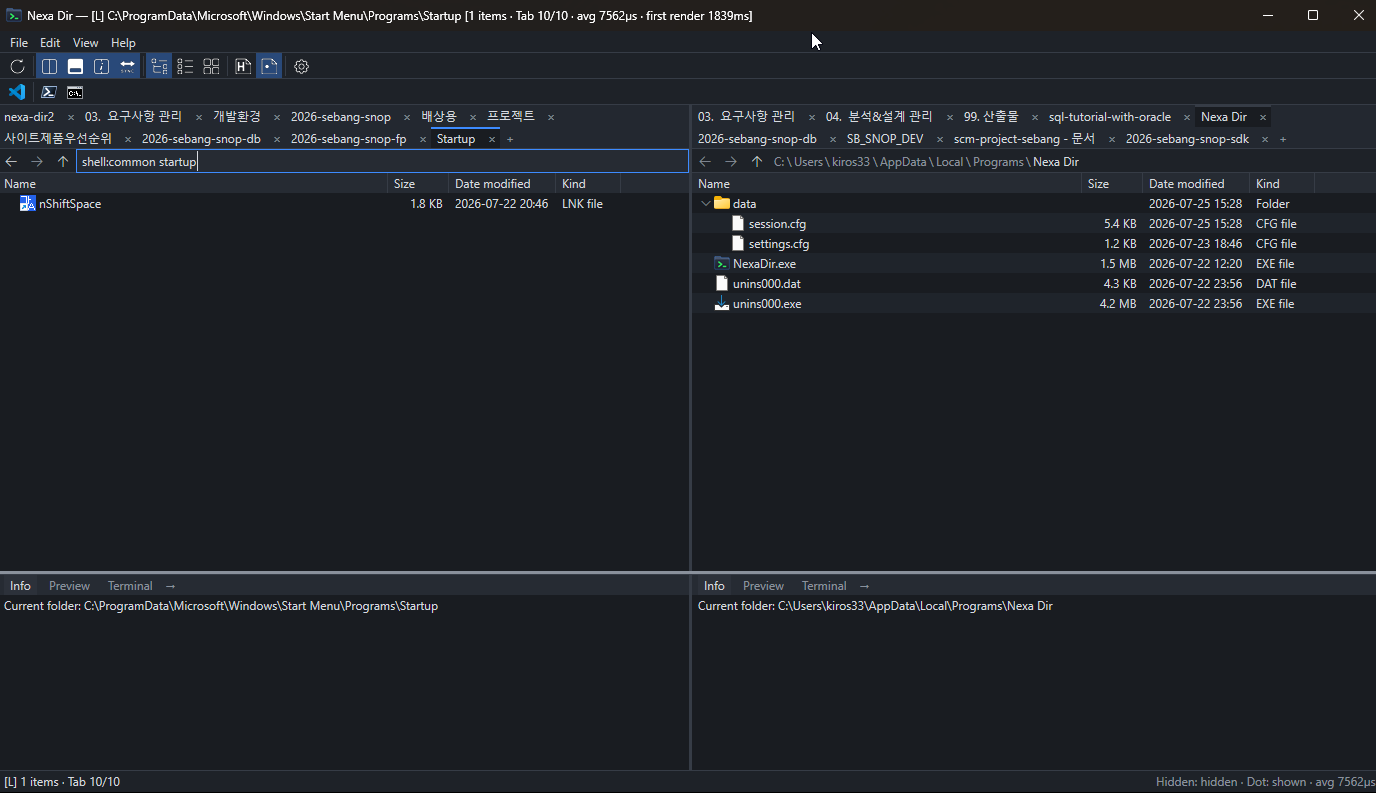
shell:common startup in the address bar (the finished nShiftSpace shortcut is visible), and the right pane is the folder containing the executable.Manual registration ③ — Task Scheduler (to use it in elevated windows too) (winget install)
$exe = "$env:LOCALAPPDATA\Microsoft\WinGet\Links\nshiftspace.exe"

$action    = New-ScheduledTaskAction  -Execute $exe
$trigger   = New-ScheduledTaskTrigger -AtLogOn -User $env:USERNAME
$principal = New-ScheduledTaskPrincipal -UserId $env:USERNAME -LogonType Interactive -RunLevel Highest
$settings  = New-ScheduledTaskSettingsSet -AllowStartIfOnBatteries -DontStopIfGoingOnBatteries -ExecutionTimeLimit 0

Register-ScheduledTask -TaskName 'nShiftSpace' -Action $action -Trigger $trigger -Principal $principal -Settings $settings -Force
When a window running with administrator privileges has focus, such as Task Manager or an elevated terminal, the shortcut of an nShiftSpace running with standard privileges is not delivered. This is the Windows UIPI security policy; it cannot be bypassed, and it applies to every program that works the same way. To solve it, nShiftSpace itself must run elevated, which is not possible through the tray menu, the Startup folder, or the Run key — only through Task Scheduler. Run the script above in an administrator PowerShell — -RunLevel Highest is the key part, and -ExecutionTimeLimit 0 keeps the resident program from being terminated after 3 days. It runs quietly at login, and no UAC prompt appears. To undo it: Unregister-ScheduledTask -TaskName 'nShiftSpace' -Confirm:$false
- Alternatively, download
nShiftSpace-x64.zip(64-bit) ornShiftSpace-x86.zip(32-bit) from GitHub Releases. For the LED build, usenShiftSpace-led-x64.zip·nShiftSpace-led-x86.zip. - Extract it and run
nShiftSpace-x64.exe. It stays in the tray and works right away. (No separate installation step) - In this case too, you can set up auto-start by checking Start at login in the tray menu — the extracted location is recorded as is, so turn it on again if you move the exe.
If a SmartScreen warning appears on an exe you downloaded directly, click "More info → Run anyway". To quit, choose Exit in the tray icon menu. System requirements: Windows 10 / 11 (x64·x86). Package manager channel status (checked 2026-11-07): ✅ winget SosomLab.nShiftSpace 0.3.0 (PR #454771 merged), ✅ Chocolatey nshiftspace 0.3.0 approved, ✅ Chocolatey nshiftspace-led 0.3.0 approved, ⏳ winget SosomLab.nShiftSpace.LED not yet listed (PR #454772 under review). For more detail on installation, auto-start, and troubleshooting, see the User Guide.
A collection of shortcut utilities written using only the pure Win32 API, with no GUI framework or CRT, to keep executable size and memory usage to a minimum. The first tool, nShiftSpace, is about 5 KB and toggles Korean/English input with Shift+Space, and you can also choose an LED build that shows key presses on the tray icon.
Key Features
- Korean/English toggle with Shift+Space When you press Shift+Space, it presses the Korean/English key (VK_HANGUL) for you, so you can switch the same familiar way on any keyboard.
- Ultra-lightweight executable of about 5 KB Uses only the pure Win32 API, with no GUI framework or CRT. Standard build 5,120 bytes (x64), LED build 6,144 bytes (x64). CI blocks size regressions by failing the build above 8 KB.
- Keyboard LED indicator build (separate package) The tray icon turns green while any key is held and returns to blue when released. It uses Raw Input rather than a hook, so it does not delay input, and turning it off from the tray menu brings the per-keystroke cost to 0, as in the standard build. What you type is not stored or transmitted.
- Start at login menu One check in the tray menu makes it start automatically when you log in. It writes the registry startup (HKCU Run) value only when turned on, and removes it when turned off. To use it in elevated windows as well, Task Scheduler registration is explained.
- About 70 KB in Task Manager It turns off the IME for its own thread and empties its working set once, 2 seconds after the last activity. There is no periodic timer, so idle CPU stays at 0. This reduces the displayed figure and resident pages; committed memory is about 1.4 MB.
- Near-zero CPU while idle The standard build uses RegisterHotKey instead of a keyboard hook, so the OS notifies it only about Shift+Space, and staying resident costs almost no CPU.
- Tray resident with automatic recovery Click the tray icon to open the menu, where you can turn auto-start on or off or exit. The tray icon is restored automatically when Explorer (explorer) restarts, and duplicate launches are prevented.
- 198-byte pixel-art icon A 16×16 1bpp ICO with pixel art of a Hangul syllable and the letter A is generated by a script and embedded — even the icon follows the ultra-lightweight principle.
- No configuration, clean removal There is no settings file and no settings screen. Neither .NET nor the VC++ Redistributable is required. The registry is used for a single value only when auto-start is on, so once it is off, deleting the one exe removes the program completely.
- Official winget and Chocolatey listings The standard build is at 0.3.0 on both package managers, with one-line install, upgrade, and uninstall commands. The LED build is approved on Chocolatey, and its winget listing is under review. Installation, auto-start, and troubleshooting are covered in the 8-page user wiki.
- Key remapping engine (roadmap) Simple key remapping that you define yourself with mappings.ini (nexa-mapper) and exporting a standalone exe with built-in mappings are planned (development not yet started).
About
Nexa Shortcut is a collection of keyboard shortcut utilities for Windows, built on the principle of "one feature, as light as possible." It links neither a GUI framework nor even the C runtime (CRT) and uses only the pure Win32 API, which cuts executable size and memory usage to the extreme.
The first tool, nShiftSpace (Nexa ShiftSpace), is a single-purpose resident program that toggles Korean/English input with Shift+Space. Its executable is about 5 KB (x64 5,120 bytes · x86 5,632 bytes), less than half the 12 KB of the original jwShiftSpaceKey.exe, and because it uses RegisterHotKey, its CPU usage while idle is effectively 0.
The keyboard LED indicator build (LED build, about 6 KB) is a separate build that adds a key press indicator to the same feature. The tray icon turns green while any key is held and returns to blue when released. It receives only key down and up signals through Raw Input, not a keyboard hook, so it does not delay input to other programs, and it does not store or transmit what you type. Turning it off from the tray menu stops the reception altogether. It uses the same shortcut as the standard build, so install only one of the two.
The displayed memory figure has also dropped sharply. Because the program takes no text input, it turns off the IME for its own thread and empties its working set 2 seconds after the last activity, so it shows about 70 KB (x64) · 120 KB (x86) in Task Manager. This reduces the displayed figure and resident pages; committed memory stays at about 1.4 MB.
The tray icon follows the same ultra-lightweight principle. A 198-byte 1bpp ICO with pixel art of a Hangul syllable and the letter A is generated by a script and embedded, and the program also prevents duplicate launches and restores the tray icon automatically when Explorer restarts.
There is no settings file and no settings screen, and the shortcut is fixed to Shift+Space: both are deliberate choices to stay ultra-lightweight. The registry is used for a single startup value only when you turn on "Start at login" in the tray menu, and that value is removed when you turn it off. Once it is off, removal is just deleting one exe file. However, because of a Windows security policy (UIPI), the shortcut is not delivered when a window running with administrator privileges, such as Task Manager, has focus. In that case, running nShiftSpace itself elevated through Task Scheduler solves the problem — the procedure is covered in the user guide and in "Auto-start setup" on the wiki.
The standard build is available as 0.3.0 on winget and Chocolatey and installs with a one-line command. The LED build can be installed with Chocolatey (winget listing under review). You can also download the zip and keep it in a folder of your choice. The user wiki (8 pages), covering installation, auto-start, and troubleshooting, is available from the "Docs (Wiki)" button above.
Planned next are a simple key remapping engine (nexa-mapper) that you define yourself with mappings.ini, and a feature that exports a standalone exe with only the current mappings built in (development not yet started). It is MIT licensed and free for anyone to use.
Release Notes
v0.3.0 2026-10-17 Second improvement to the displayed memory figure, now about 70 KB, plus a separate package for the LED build. The executable size is the same as v0.2.0.
Improved
- About 70 KB (x64) · 120 KB (x86) in Task Manager — Found why the figure rose back to 800 KB–1 MB (the Korean IME/TSF stack, about 20 DLLs, attached to the process when the tray menu opened), and now turns off the IME for its own thread (
ImmDisableIME). No functionality is lost because the program takes no text input. - Working set trimming timing changed — Instead of calling it right after initialization and after the menu, it empties once after 2 quiet seconds following any message. It is not a periodic timer, so idle CPU stays at 0. This reduces the displayed figure and resident pages; committed memory stays at about 1.4 MB.
- Size unchanged — Imports were cleaned up, so the executable size is the same: standard build 5,120 / 5,632 bytes, LED build 6,144 / 6,656 bytes (x64 / x86).
Distribution
- New separate package for the LED build — Chocolatey
nshiftspace-led(approved 2026-10-21) · wingetSosomLab.nShiftSpace.LED(PR #454772 under review). The existingnshiftspace/SosomLab.nShiftSpaceremain the standard build. The two builds use the same shortcut, so install only one. - Standard build 0.2.0 and 0.3.0 listed — winget PRs #454746 and #454771 merged (2026-10-20), Chocolatey approved (2026-10-21).
v0.2.0 2026-10-17 Keyboard LED indicator · Start at login menu · working set trimming — the first feature update since v0.1.0.
Added
- Keyboard LED indicator (separate build) — The tray icon turns green while any key is held and returns to blue when released. Provided as
nShiftSpace-led-x64.zip·nShiftSpace-led-x86.zip. It receives only key down and up events through Raw Input, not a keyboard hook, so it does not delay input to other programs, and turning it off with the Keyboard LED tray menu item stops the reception, bringing the per-keystroke cost to 0. The on/off state is not saved, and it starts in the on state every time you launch it. This code is not included in the standard build. - Start at login menu — When checked in the tray menu, it writes the path of the running exe to the
nShiftSpacevalue underHKCU\…\Run; when unchecked, it removes the value. The check mark is decided each time the menu opens by whether the value exists.
Improved
- Displayed memory about 300 KB (x64) · 160 KB (x86) — Empties the working set right after initialization and after the menu closes.
Changed
- Executable size 4.5 KB → 5,120 bytes (x64) · 5,632 bytes (x86) — It grew with the addition of the auto-start menu. The 8 KB limit is unchanged.
- Registry principle — By default it still writes nothing, and a single value is written only when auto-start is on. Turn it off before removing the program.
Deployment · Docs 2026-08-02 Official winget and Chocolatey listings complete, plus the user wiki published (the executable is still v0.1.0).
Distribution
- Chocolatey
nshiftspaceapproved (2026-07-30) — Install withchoco install nshiftspace -yin an administrator PowerShell. Unlike winget, it automatically closes the running program when upgrading or uninstalling. - winget
SosomLab.nShiftSpacelisted (2026-07-17, winget-pkgs PR #397365 merged) —winget install SosomLab.nShiftSpace. As a portable manifest, it adds thenshiftspacealias to the PATH, and x64 or x86 is selected automatically. - This secures both planned distribution channels. Direct zip download remains available as well.
Docs
- User wiki published with 8 pages — Installation · Auto-start setup · Usage · Troubleshooting · Building it yourself · Releases and distribution · Roadmap. This addresses the problem that the repository
docs/, centered on design and distribution history, was heavy reading for general users. It is available from the "Docs (Wiki)" button at the top. - Auto-start procedure established — Covers why to use the
WinGet\Links\nshiftspace.exealias path so shortcuts do not break with a winget install, how to turn on Developer Mode when the alias is missing, and the target path for each channel. - Elevated window limitation and solution documented — The installation guide and the wiki both explain that the shortcut does not work in elevated windows because of UIPI, and the procedure for working around this with Task Scheduler (
-RunLevel Highest).
v0.1.0 2026-07-04 First public release — nShiftSpace, a 4.5 KB resident program that toggles Korean/English input with Shift+Space.
Added
- Korean/English toggle with Shift+Space — Pressing it presses the Korean/English key (
VK_HANGUL) for you. This is a tool for international keyboards without a Korean/English key, or for when the key position does not suit your hands. - 4.5 KB single executable — Links neither a GUI framework nor the C runtime (CRT) and uses only kernel32, user32, and shell32. Neither .NET nor the VC++ Redistributable is required.
- 0% CPU while idle — Uses
RegisterHotKeyrather than a keyboard hook (SetWindowsHookEx), so the OS intercepts the key directly. Because it does not inspect every keystroke, it also avoids the problem of antivirus software flagging hook-based programs. - Tray resident — Shows only a tray icon with no window, and exits with a right-click. The icon comes back automatically even if Explorer restarts, and duplicate launches are blocked with a mutex.
- 198-byte custom icon — Pixel art of a Hangul syllable and the letter A, generated by a script as a 16×16 1bpp ICO and embedded. Even the icon follows the ultra-lightweight principle.
- Two builds, x64 · x86, provided. It writes nothing to the registry, so deleting the exe removes it completely.
Notes
- The shortcut is fixed to Shift+Space — There is no settings file and no settings screen. This is a deliberate choice to stay at 4.5 KB; freely changing keys will be handled by nexa-mapper on the roadmap.
- If another program has already registered Shift+Space (some IMEs, macro programs, and game overlays), registering the shortcut can fail.
Terms & Policies
No terms or policy documents are registered.
Contact: kiros33@sosomlab.com