
Nexa Dir
v0.30.2The same UI on Windows · macOS · Linux · an ultra-lightweight, all-Rust dual-pane file explorer
Available on every desktop OS
- 3 Supported OSes (Windows · macOS · Linux)
- 8.2MB Executable size (Windows · measured on the v0.30.1 release)
- 3.7MB MSI installer (measured on the v0.30.1 release)
- about 11MB Private memory (Windows · 2026-10-08 development measurement)
- 2.1ms Input→screen (p95 4.3ms · 2026-10-08 development measurement)
- 835 Tests passed · 0 failures (2026-11-04 full gate)
- 3 Built-in UI languages (Korean · English · Japanese)
Install
Windows
winget — MSI installer (recommended)
winget install SosomLab.NexaDir⚠️ Currently installs 0.29.0 (checked 2026-11-07 · PR #469333 merged). An earlier portable submission (#468006) is stuck on a Defender scan error, so 0.30.0–0.30.2 have not been submitted yet. If you need the latest version, use Chocolatey or GitHub Releases. The MSI installs for the whole computer (Program Files\Nexa Dir) and shows a UAC prompt. An existing Windows-only edition (Inno Setup) installation is removed and replaced. Upgrade: winget upgrade SosomLab.NexaDir · Remove: winget uninstall SosomLab.NexaDir
winget — portable
winget install SosomLab.NexaDir.Portable⚠️ Currently installs 0.29.0 (checked 2026-11-07 · PR #469334 merged). This is the portable zip, and it registers the nexa-dir and nexa-copy command aliases. Upgrade: winget upgrade SosomLab.NexaDir.Portable
Chocolatey — installer · portable
choco install nexa-dir
choco install nexa-dir.portable
Latest 0.30.2 approved (both packages · 2026-11-06 · checked 2026-11-07). The installer package removes an existing Inno installation first. Upgrade: choco upgrade nexa-dir
- Direct MSI install — Download
nexa-dir-<version>-windows-x64.msifrom GitHub Releases and run it. For a silent install, usemsiexec /i nexa-dir-<version>-windows-x64.msi /qn; adding to PATH is on by default. - Portable zip — Extract it and run. To keep settings next to the executable, create a
datafolder in the same folder yourself (it is not in the zip). Without it,%APPDATA%\nexa-diris used. - When using a console such as PowerShell, use the helper executable
ndir.exeso that output and pipes work correctly (e.g.ndir --selfcheck). The command-line copy toolnexa-copyis installed as well (nexa-copy --help).
System requirements: Windows 10 (version 1809, build 17763) or later · x64. Because the app is not code-signed yet, directly downloaded files may show a SmartScreen warning; click "More info → Run anyway". You can check integrity with Get-FileHash against sha256sums.txt in the release assets. The settings location has changed from the Windows-only edition (data\ next to the exe) to the OS user settings folder, and settings from the previous edition (0.22.0 or earlier) are imported automatically at first launch. If you need cloud connection, you can keep using Windows-only edition 0.22.0. See the user manual for detailed usage.
macOS
Homebrew Cask (recommended)
brew install --cask kiros33/tap/nexa-dirLatest 0.30.2 available (checked 2026-11-07). The Cask removes the quarantine flag during installation, so the app runs without a warning. Update: brew upgrade --cask nexa-dir · Remove: brew uninstall --cask nexa-dir
- pkg install — Running the
.pkgfrom GitHub Releases installs/Applications/Nexa Dir.app, the command/usr/local/bin/nexa-dir, and the command-line copy toolnexa-copy. With the.dmg, drag the app into the Applications folder. - The app is not signed or notarized yet, so if Gatekeeper blocks a directly downloaded app, remove the quarantine flag with
xattr -dr com.apple.quarantine "/Applications/Nexa Dir.app". - To remove a pkg installation:
sudo "/Applications/Nexa Dir.app/Contents/Resources/uninstall.sh"(add--purgeto delete settings too).
macOS 11 or later · Universal (Apple Silicon · Intel). Settings are stored in ~/Library/Application Support/nexa-dir. Fine-tuning of the macOS UI is still in progress.
Linux
Register the APT repository — Debian · Ubuntu (first time only)
sudo curl -fsSLo /usr/share/keyrings/sosomlab-archive-keyring.gpg https://pkg.sosomlab.com/sosomlab-archive-keyring.gpg
sudo curl -fsSLo /etc/apt/sources.list.d/sosomlab.sources https://pkg.sosomlab.com/apt/sosomlab.sources
Registers the SosomLab signed package repository (pkg.sosomlab.com). Skip this if you already registered it for another SosomLab app.
Install with APT (recommended)
sudo apt update && sudo apt install nexa-dirLatest 0.30.2 (checked 2026-11-07). After this, sudo apt upgrade gets you new versions. nexa-copy and libndir_xfer.so are installed as well.
Register the DNF repository — Fedora · RHEL family (first time only)
sudo curl -fsSLo /etc/yum.repos.d/sosomlab.repo https://pkg.sosomlab.com/rpm/sosomlab.repoSkip this if you already registered it for another SosomLab app.
Install with DNF
sudo dnf install nexa-dirLatest 0.30.2 (checked 2026-11-07). Update: sudo dnf upgrade nexa-dir · Remove: sudo dnf remove nexa-dir
Direct deb · rpm install
sudo apt install ./nexa-dir_<version>_amd64.deb
sudo dnf install ./nexa-dir-<version>-1.x86_64.rpm
Replace with the name of the file you downloaded from GitHub Releases (run only the line that fits your distribution).
x86_64 · glibc 2.35 or later. Installing fonts-noto-cjk is recommended for displaying Korean text. In a Wayland session, the app opens as an X11 window through XWayland. Settings are stored in ~/.config/nexa-dir.
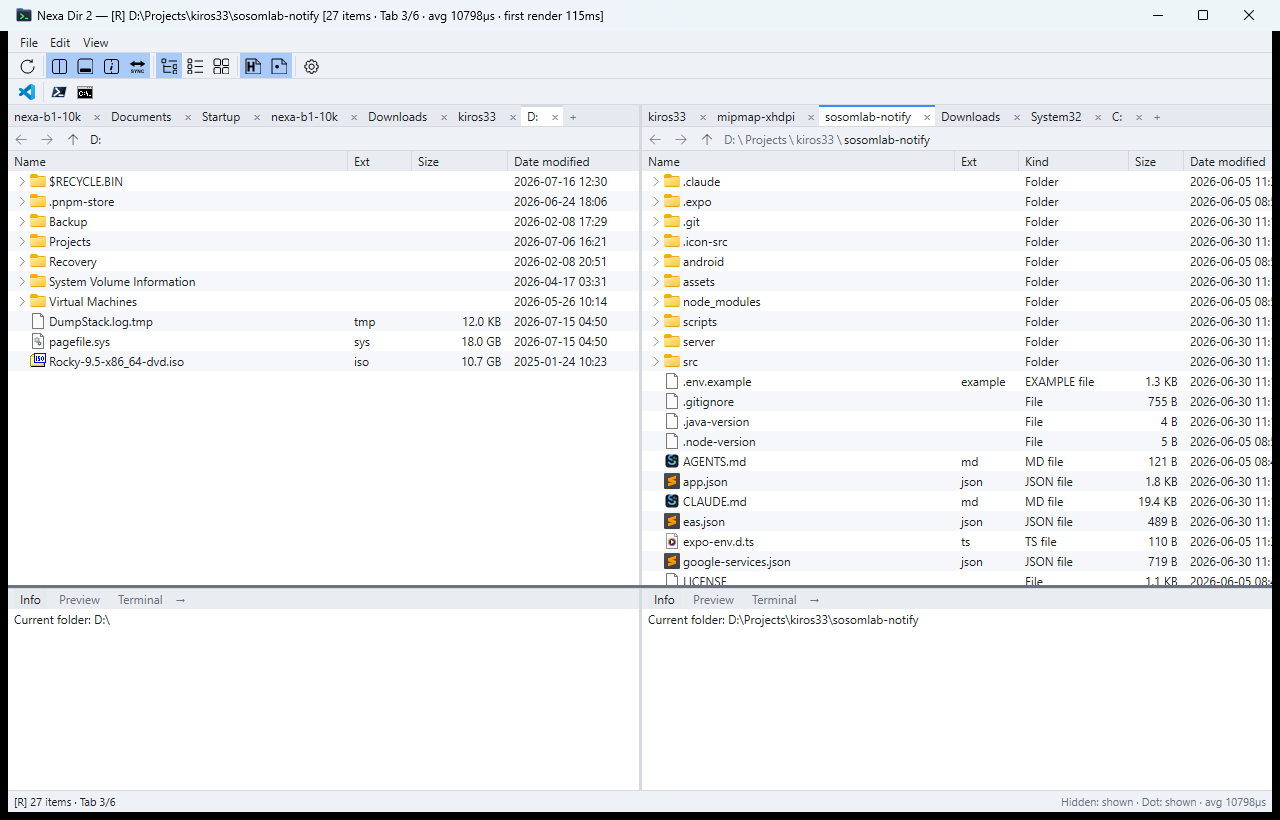
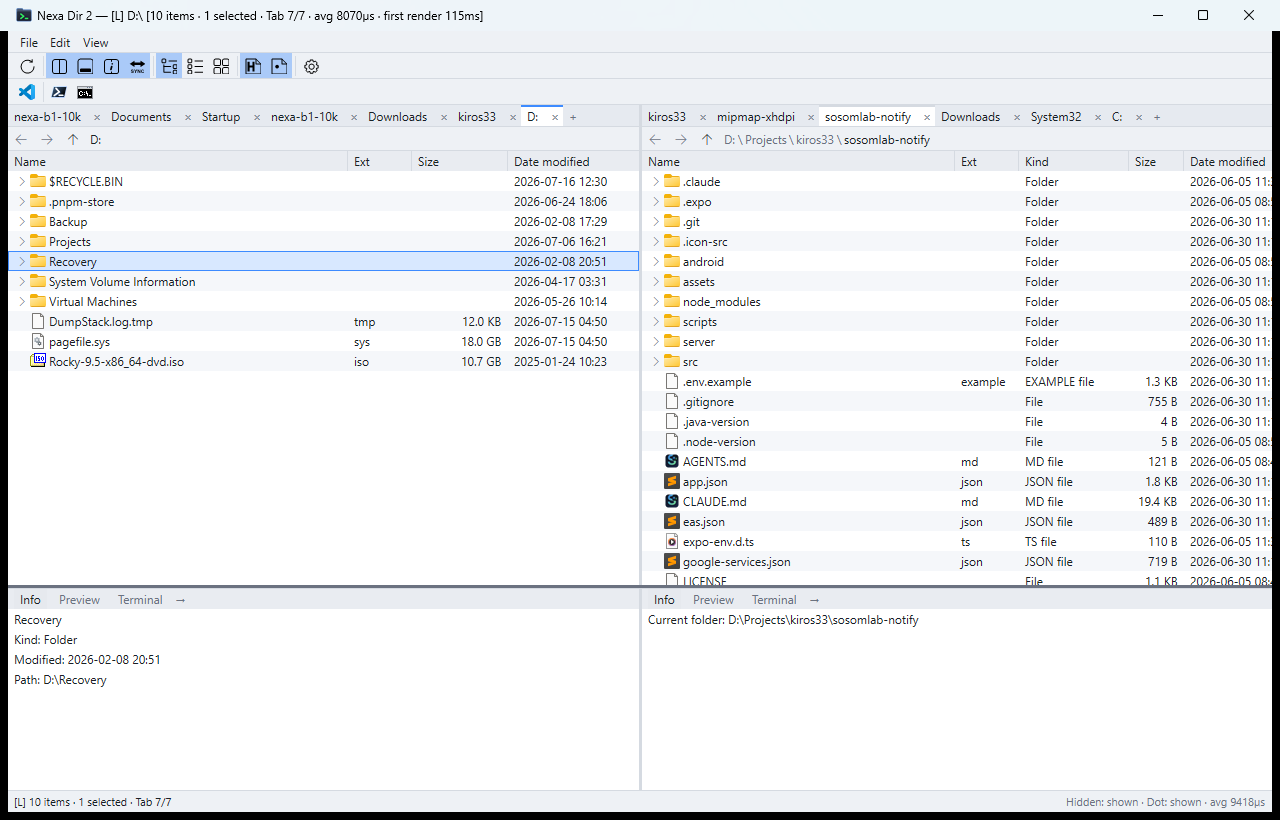
A lightweight file explorer with dual panes, per-pane tabs, and a tree that expands inside the list. A Rust executable with no runtime, it works with the same UI on three OSes and includes everyday tools such as checksums, a duplicate file finder, folder compare, batch rename, and a transfer queue, plus the command-line copy tool nexa-copy. (Windows 10/11 · macOS 11+ · Linux)
Screenshots
Key Features
- The same UI on three OSes Works on Windows 10/11 · macOS 11+ · Linux (x86_64) with the same self-drawn UI and no OS controls. Shortcuts switch to ⌘ notation on macOS, and Recycle Bin/Trash, right-click menus, and drag and drop follow each OS.
- Ultra-lightweight · single executable A Rust executable with no runtime to install. v0.30.1 Windows executable 8.2MB · private memory about 11MB · input→screen 2.1ms (memory and latency from a 2026-10-08 Windows development measurement).
- Multi-selection across folders (flagship) With the tree expanded inline, select items from different folders at the same time. This signature UX is carried over unchanged from the initial version.
- 3 view modes · column system Tree (inline expansion) · Flat · Tile views, a virtualized list, multi-column sort, natural sort, reordering by dragging headers, and auto-fit by double-clicking a boundary. New tabs inherit per-tab sorting, which persists across restarts, and large folders are read in the background so the window does not freeze.
- Dual file panes + per-pane tabs Left/right dual file panes with independent per-pane tabs (lock · pin · duplicate), and the session is restored after exit. Tabs can be dragged between panes.
- Fast path navigation · favorites The path bar switches between breadcrumbs and edit mode, with autocomplete and variable expansion (%VAR% · $HOME · ~ · relative paths). Also includes favorites (Ctrl+D to add · Ctrl+B to open), recent folders, quick filter (Ctrl+F), Korean type-ahead, and "This PC" on all three OSes (drives · root · home · mounted volumes).
- Full file operations Copy, move, delete, rename, and create new, with progress, conflict handling, undo/redo, Recycle Bin/Trash, clipboard, drag and drop, folder watching, fast copy, and Copy/Move to folder. For same-named folders, choose Merge, Replace, or Keep both.
- Transfer queue · resume after restart Copies and moves started during a transfer are not refused; they wait in a queue. Unfinished transfers can be resumed or discarded at the next launch (v0.28.0 onward).
- Virtual file paste (Windows) Receives items with no real path, such as Outlook attachments and items inside Explorer zip folders, by drag and drop or Ctrl+V. Progress and undo work as usual (v0.30.0 onward).
- Tab status bar · git summary Each pane shows the folder item count and a git repository summary (branch · ahead/behind · changes · untracked) with Starship-style symbols. Query load can be adjusted in settings.
- Checksums · duplicate finder · folder compare Calculates checksums for multiple files in parallel per algorithm, and saves and verifies verification files. Finds duplicate files, and compares the folders in two panes and syncs them by copying (the mirror option sends to the Recycle Bin/Trash). Also includes folder size calculation, archive extraction (zip · tar · gz), and built-in zip compression.
- Command palette · log window Run commands by typing their names with Ctrl+Shift+P (macOS ⌘⇧P); recent commands appear at the top. The F10 log window filters the app's internal records, kept in memory only, by type and saves them to a file.
- Command-line copy tool nexa-copy Uses the app's transfer engine from scripts. Supports verification (--verify), mirroring, dry runs, name filters, speed limits, resume, and JSON job files, and is included in every package (v0.27.0 onward).
- System load in the status bar · memory window The status bar shows CPU, memory, disk, and network load, app memory, and license status, and the memory window shows the app's memory use in detail.
- Bottom dock (Info, Preview, Terminal) Switch between the Info pane, text · image · archive preview, and the built-in terminal in a single strip.
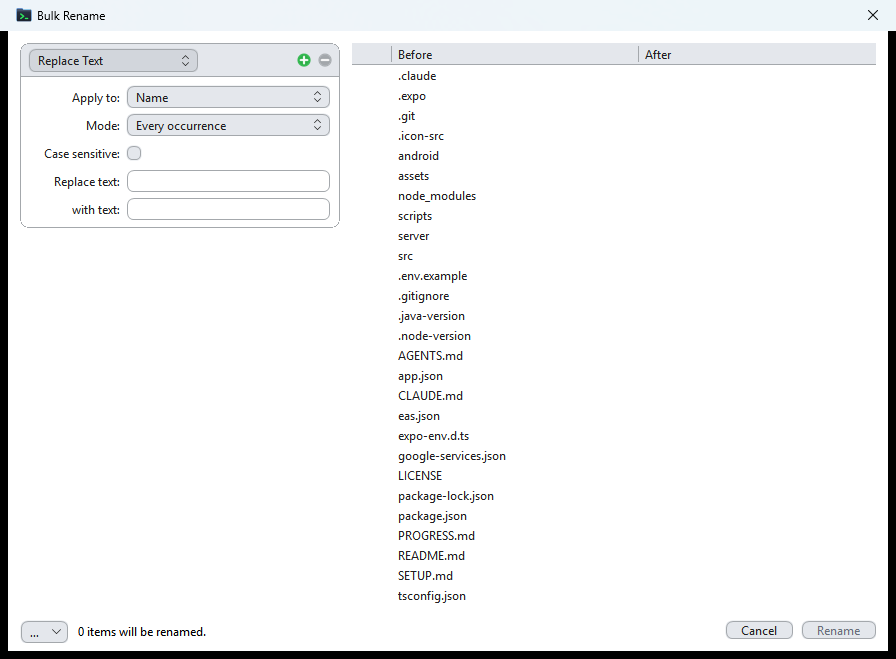
- Batch rename Combine a pipeline of 10 actions (replace, regex, case, insert, sequence number, date, move segment, change extension, remove characters, clean up spaces) with a live preview and presets.
- WASM preview plugins Swap per-extension previews with .wasm plugins. They run isolated in the wasmi runtime under a fuel limit, and a Markdown viewer (GitHub-like rendering + Mermaid) is included as a reference implementation.
- Linux integration An xdg-based right-click menu (default app, open with other app, compress, properties, terminal, show in file manager, email, Nautilus scripts), X11 · XWayland drag and drop in both directions, and a freedesktop trash that also supports other disks.
- macOS integration Finder-rule drag and drop (⌥ copy · ⌘ move) and dragging out to other apps, bundles handled like files, OS icons and kind names, a Finder-style right-click menu, and in-app Quick Look (⌘Y) (v0.28.0 onward).
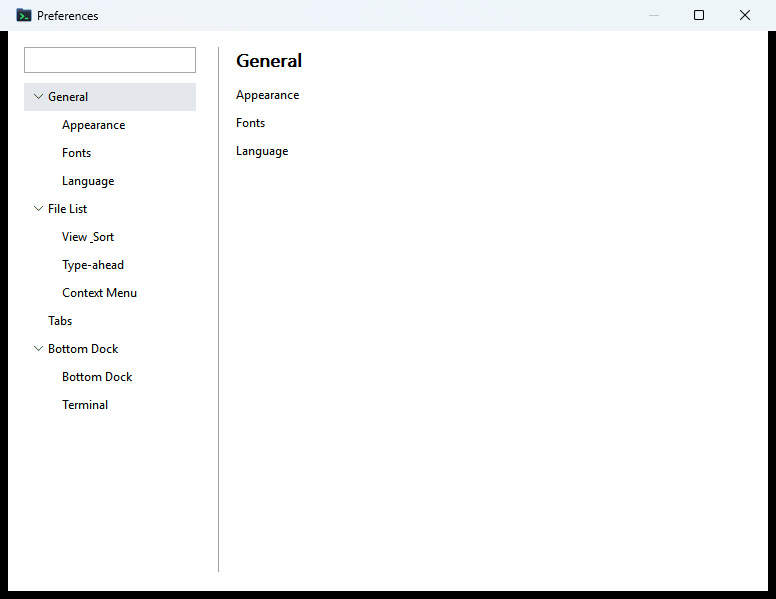
- Customization & instant switching Instantly change the order and visibility of the toolbar, columns, and context menu, the quick launcher, the theme (System · Light · Dark), the language (Korean · English · Japanese), and window transparency. The settings window supports search, instant apply, and export/import.
- Cloud connection (Windows-only edition) Cloud links and direct connection (OneDrive, Google Drive, Dropbox) are available in the Windows-only edition (0.22.0) · not ported to the current edition. The current edition does no network communication.
Features in Detail
File list and views
The file list is the heart of this app. 3 view modes and a column system sit on a virtualized list that draws only the visible rows, however many items there are.
- 3 view modes — Tree · Flat · Tile Tree view (default) expands folders in place inside the list with no separate tree pane, Flat view is a plain list without hierarchy, and Tile view is an icon grid. The view mode is saved in the session as per-tab state, and new tabs inherit the current mode.
- Virtualized list Only rows in the visible area are drawn. Frame cost scales only with window height, so scrolling does not slow down no matter how many items there are.
- Column system The default columns are Name · Status · Size · Date modified, and you can add Extension, Type, and others. "This PC" adds the
Total sizeandFree spacecolumns. Dragging a header boundary resizes only that column, dragging a header reorders it, and double-clicking a boundary fits it to its content. - Multi-column sort · natural sort Clicking a header cycles through 3 states, ascending → descending → off, and
Shift+click stacks columns (no sort = by name). Natural sort (on by default ·file2comes beforefile10) is the fifth tab view option. New and duplicated tabs inherit the current tab's sort, and per-tab sorting persists across restarts (v0.24.0). - Inline expansion — the basis of multi-selection across folders Click the ▸/▾ marker or use
→/←at the cursor to expand and collapse folders in place. The triangle marker (= expand) and the row body (= select) are separate, so you can pick items from different folders at the same time. - Sync column widths Keeps the left and right column widths of dual panes matched in real time (on by default · persistent). When off, each pane is independent.
- Quick filter (v0.27.0)
Ctrl+F(macOS⌘F) opens a search box inside the pane. The default is fuzzy matching, with Aa (case) · ab (whole word) ·.*(regular expression) · Search Subfolders toggles. You can use*?patterns and;(or), and the filter is per tab. - Background folder reading (v0.26.0) Folders are enumerated on a worker thread, so large or network folders do not freeze the window. The previous list stays until the new one is ready, and "Reading folder…" is shown.
- NFD name handling (v0.25.0 onward) Decomposed names from macOS or SMB are displayed composed, and the search box and type-ahead also find them with composed input. Right-click Convert name to NFC changes the actual name.
Navigation
There are several ways to reach a path, so use whichever is handy at the moment.
- Path bar — breadcrumbs ↔ edit Clicking a segment goes to that folder, and edit mode shows an autocomplete dropdown. Variable expansion such as
%VAR%·$HOME·~· relative paths is supported (v0.23.0).Entersubmits ·Esccancels. - Favorites (v0.23.0)
Ctrl+Dadds the current folder to favorites andCtrl+Bopens them (⌘on macOS). The list can be exported to and imported from a text file (v0.27.0). Recent Folders in the Go menu shows up to 20 visited folders, newest first. - Back · Forward · Up · history Supports
Alt+←/Alt+→/Alt+↑, the mouse Back and Forward buttons, and per-pane navigation buttons. History is independent per tab. - "This PC" Windows shows the list of drives; macOS and Linux show root · home · mounted volumes. Tile view shows capacity bars, and details view shows total and free capacity columns.
- Type-ahead search With the list focused, typing letters jumps straight to the item, and repeating the same prefix cycles through matches. Korean input works too.
- Command palette (v0.23.1) Open it with
Ctrl+Shift+P(macOS⌘⇧P) and run commands by name. Recently run commands rise to the top.
Panes · tabs · session
- Single / dual file panes Commander-style left and right panes let you copy or move straight from one to the other. Even when collapsed to a single pane, the right pane's tabs and locations are preserved.
- Independent per-pane tabs Each pane has its own tab strip, and each tab has its own view and history.
Ctrl+Tnew tab ·Ctrl+Wclose ·Ctrl+Tabnext tab ·Tabswitch pane. There are settings for single-row tab mode and minimum tab width (tabs.min_width). - Dragging tabs between panes Drag a tab onto the other pane's tab strip to move it. The drop position is previewed as you drag, and
Escreturns the tab to its original place. - Lock · Pin · Duplicate tabs From the tab right-click menu, choose Lock to prevent accidents, Pin (📌), or Duplicate for a new tab at the same location.
- Tab status bar — item count · git summary (v0.23.0 onward) Each pane shows the folder item count and a git summary with Starship-style symbols (
⇡⇣+!?$), updating when the repository changes or when you return to the window. In settings, you can turn off the display, turn off untracked file counting, and adjust query load (settling wait, failure backoff, time limit, pausing while inactive). - Session restore When you restart the app, each pane's tab list, the active tab, expanded state, sorting, column visibility and widths, and the active pane all come back as they were. They are saved in
session.confin the settings folder.
File operations
From copy and move to undo, everything runs through one transfer engine and one undo stack.
- Multi-selection across folders (★ flagship) With the tree expanded, select items from different parent folders at the same time. Supports
Ctrl+click toggle ·Shift+click range ·Ctrl+Aall ·Ctrl+Shift+Ainvert selection · rubber-band dragging in an empty area, and Select by Pattern (*.log;*.tmp, v0.27.0). - Copy · move (transfer engine) A single transfer path with progress and conflict handling (Overwrite / Overwrite all / Skip / Cancel), with support for fast copy. Right-click Copy to folder… / Move to folder… opens a picker starting at the other pane's folder. For same-named folders, choose Merge (default) · Replace · Keep both (v0.29.0). Copying a folder into itself is refused, and pasting it in place duplicates it as "Name (2)".
- Transfer queue · resume (v0.28.0) Copies and moves started during a transfer wait in a queue, and the progress window lets you reorder or remove them. Unfinished transfers are kept in
queuein the settings folder and resumed or discarded at the next launch (ask · resume automatically · discard). - Virtual file paste (v0.30.0 · Windows) Receives items with no real path, such as Outlook attachments and messages, items inside Explorer zip folders, MTP devices, and browser images, by drag and drop or
Ctrl+V. They go through the transfer engine, so progress · name conflicts · undo all work, and items that programs such as 7-Zip create only at the moment of the drop are secured first. Hands-on testing covers only Outlook attachments · zip contents · 7-Zip. - Paste destination rules
Ctrl+Vpastes into the folder if one folder is selected, and into the containing folder if one file is selected. With nothing or multiple items selected, it pastes into the current folder. - Drag and drop
Ctrl= copy /Shift= move (on macOS,⌥= copy /⌘= move) / with no modifier, the receiving side's default rule applies. Supports auto-scrolling at the edges while dragging and switching to another tab by hovering over it. Exchanges items with other programs on Windows, macOS, and Linux (X11 · XWayland); Wayland-only environments work only within the app window. Dragging with the right button shows a menu where you drop (v0.25.0), and dropping text navigates to the path or sends it to the terminal. - Undo / Redo Undoes move, copy, rename, create new, and even delete to Recycle Bin/Trash. Batch rename also undoes the whole batch at once.
Ctrl+Z/Ctrl+Y. Only permanent delete cannot be undone (by design). - Delete · rename · create new
Delsends to the Recycle Bin/Trash (on Linux, the freedesktop trash, including other disks), andShift+Deldeletes permanently. Permanent delete runs in the background, and even if some items cannot be deleted, it deletes the rest to the end and then shows the failed items with [Retry] (v0.30.1).F2edits a name inline, andCtrl+Shift+Ncreates a new folder. - Folder watching When the current folder changes from outside, the change appears without a refresh, and expansion, selection, and scroll position are preserved. You can refresh manually with
F5at any time.
Tools — checksums · duplicates · compare · compression · nexa-copy
Everyday tools newly built into the current edition (v0.23.0 onward).
- Checksum Lists multiple files in a table and calculates in parallel per algorithm. You can set an auto-calculation limit, and [Save .sha256] and right-click Verify checksums… write and read verification files (v0.27.0).
- Find duplicate files Finds files with the same content in the selected folders and shows them in groups. It also opens from the empty-area right-click menu, and you choose whether to include subfolders and the criterion (content SHA-256 · name + size · size only) (v0.27.0).
- Folder compare · sync Compares with the folder in the other pane, shows the differences, and makes one side match the other by copying. It compares by size and time or by content, and turning on the mirror option (off by default) sends files that exist only at the destination to the Recycle Bin/Trash (v0.27.0).
- Folder size · extraction Folder sizes are calculated in a job queue (folders passed quickly are skipped · "Waiting to measure" is shown), with an option to show them in the Size column. Extracts zip · tar · gz (several in turn), and right-click Compress creates a zip with the built-in writer (deflate · up to 4GiB, v0.27.0). You can also preview the list inside an archive without extracting it.
- Log window · memory window The
F10log window filters the app's internal records, kept in memory only, by type and saves them to a file. The memory window shows the app's memory use (including private working set), terminal shell processes, and tool window surfaces (v0.30.0). - System load in the status bar The status bar gains CPU, memory, disk, and network load (C·M·D·N), app memory, transfer progress (T), and a license field. Notices on the left stay for 4 seconds (v0.29.0), and markers blink only when the transfer rate reaches a threshold (default 1MB/s).
- Command-line copy tool nexa-copy (v0.27.0 onward) A CLI that uses the same transfer engine as the app. Supports
--move·--verify(size + SHA-256) ·--dry-run·--include/--exclude·--mirror(items only at the destination are permanently deleted, and only with--yes) ·--dir-conflict·--max-bps·--journal/--resume·--job/--progress/--report. It is also included as the C libraryndir_xfer.
Bottom dock — Info · Preview · Terminal
A full-width strip below the file lists switches between Info, Preview, and Terminal.
- Info pane Shows the selected item's name · type · size · dates · path and updates automatically when the selection changes. Switch between dual (left and right independent) and single (follows the active pane).
- Preview — text · images · archives Draws text and images (png · jpg · bmp · gif · ico, etc.), and shows the list inside archives without extracting. F3 opens a large view in a separate window.
- WASM preview plugins Swap per-extension previews with
.wasmplugins. They run isolated in the wasmi runtime under a fuel limit, so a plugin cannot freeze the app. A Markdown viewer (GitHub-like rendering + Mermaid) is included as a reference implementation. - Built-in terminal Starts a shell at the current location with no separate program. Supports color, full-width characters, scrollback, and mouse selection, and the font, size, and line wrap (off by default) are adjustable in settings.
Batch rename
Stack action cards into a pipeline applied from top to bottom, check the result live, and apply it all at once. Open it with Ctrl+Shift+R.
- Pipeline of 10 actions Replace (text) · Replace (regex,
$1references) · Change case · Insert text (prepend · append) · Add sequence number · Insert date (${YYYY}-${MM}-${DD}tokens) · Move segment · Change extension · Remove characters · Clean up spaces. Add, remove, and drag cards, turn them on or off, and duplicate them (v0.27.0). Sequence numbers can restart per folder. - What each action applies to (scope) For each action, choose which part of the name it applies to: name / name+extension / extension / extension including the dot.
- Live preview · conflict flags Before → after appears immediately, and empty names, forbidden characters, duplicates, and names that already exist are flagged as conflicts. The [Rename] button is enabled only when there are 0 conflicts and at least 1 change.
- Presets · undo all at once Save frequently used pipelines by name and load them again. Applying is a single transaction, so one
Ctrl+Zundoes the whole batch.
Toolbar · menus · customization
- Toolbar · quick launcher Edit the toolbar's group layout, order, and visibility, and detach groups into floating windows (v0.27.0). Keep frequently used external programs as quick launcher buttons (right-click to edit). Putting a folder path in a launcher entry moves the active pane to that folder. Custom icons are also available.
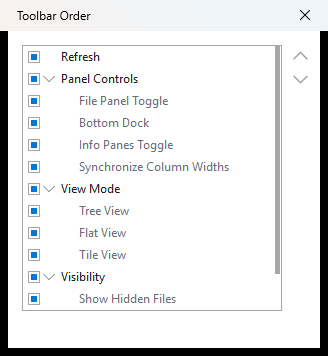
- Order / visibility editing Change the visibility and order of the toolbar · file columns · context menu (including OS items on Linux) with checkboxes and dragging in the same editor window.
- Right-click menu Windows merges the shell menu (including shell extensions) with the app's own items, and you choose when shell extension items are included (Always · Only on Shift+right-click · Never). Linux provides xdg-based default app · open with other app · compress · properties · terminal · show in file manager · email · Nautilus scripts, and macOS provides a Finder-style menu (Open With · Show in Finder · Terminal · Get Info · Show Package Contents). Copy as ▸ (quoted path · slash path · name without extension · folder path) is common to all three OSes.
- Acting on mouse release (v0.24.0) Menus, settings switches, and buttons act when you release the mouse button; pressing, moving outside, and releasing cancels.
Settings · theme · language
- Settings window — search + instant apply The sidebar categories come with a search box, and most options are applied and saved as soon as you change them. Open it with
Ctrl+,. When another setting (such as Performance mode) decides a value, the forced value and the reason are shown. The Changed switch shows only settings that differ from their defaults, and settings can be exported to and imported from a JSON file (v0.27.0). - Theme — System · Light · Dark The default is System, which on Windows also follows OS theme changes while running (v0.23.2). Change it from the Theme ▸ submenu in the View menu.
- Window transparency (v0.27.0) Set separate values for when the window is focused (default 5%) and unfocused (default 10%) (up to 90%; the defaults changed from 0/20 in v0.30.2). It does not dim when focus moves to the app's own dialogs or tool windows (v0.29.0), unless you turn off Appearance › "Keep the main window active while a dialog is open" (v0.30.2). It is turned off in Performance mode.
- 3 built-in languages · dynamic switching Korean · English · Japanese are built in, and choosing
Systemfollows the OS language. The change applies without restarting. - Font slots · fallback chain Set fonts per area (list · status bar · menu · dialog). When you enter several fonts separated by commas, characters missing from the first font are drawn with the next, so symbols and Korean text do not appear as □. On Linux, installing
fonts-noto-cjkis recommended. - Storage location Settings and session are created in the OS user settings folder: Windows
%APPDATA%\nexa-dir· macOS~/Library/Application Support/nexa-dir· Linux~/.config/nexa-dir. On portable builds, if adatafolder already exists next to the executable, it is used (installed builds ignore it; the folder is not included in the portable zip, so create it yourself), and the environment variableNDIR_HOMEtakes top priority.
Features exclusive to the Windows-only edition (0.22.0)
The features below are available in the Windows-only edition (through v0.22.0) and have not been ported to the current edition (v0.30.2) yet. If you need them, keep using Windows-only edition 0.22.0. The current edition does no network communication. Virtual file paste was ported to the current edition in v0.30.0 and has been removed from this list.
- Cloud links · direct connection — available in the Windows-only edition (0.22.0) · not ported to the current edition Links add the sync folders installed on the PC (OneDrive · Google Drive · Dropbox) to "This PC", and direct connection attaches through a browser sign-in (OAuth 2.0 + PKCE) with no sync client, browsing, uploading, downloading, and copying between accounts without using the disk. Refresh tokens were stored encrypted with Windows DPAPI. See the Privacy Policy for details.
- Shell change notifications · instant OneDrive reflection — available in the Windows-only edition (0.22.0) · not ported to the current edition The moment OneDrive or SharePoint brought a cloud change down to the local disk, the app received it through the same channel as Explorer and reflected it immediately, even when inactive. In the current edition, changes are reflected through folder watching and
F5.
Performance budget · distribution
Because "the budget is the identity", the numbers are measured and used as a merge gate.
- Measurements Measured on the v0.30.1 release: Windows executable 8.2MB (8,155,648 bytes, budget 10MB or less) · MSI 3.7MB · portable zip 4.6MB · deb 4.0MB · rpm 5.3MB · macOS pkg 8.1MB · dmg 8.9MB. 2026-10-08 Windows development measurement (on the v0.23 line at the time): private memory about 11.25MB · input→screen 2.1ms (p95 4.3ms).
- Verification gate Records 835 full-gate tests passed · 0 failures and 45 app scenario tests passed (2026-11-04).
- Automated distribution for three OSes Windows MSI (whole computer ·
Program Files\Nexa Dir) · portable zip · macOS Universal pkg/dmg · Linux deb/rpm: 9 assets (includingsha256sums.txt). It continues on to winget · Chocolatey · Homebrew Cask · pkg.sosomlab.com, and channels with an earlier submission still under review are skipped automatically. - License PolyForm Noncommercial 1.0.0: personal and non-commercial use is free. Commercial use requires a separate paid license (contact
kiros33@sosomlab.com). The license is verified offline by signature. See the Terms of Service for the full conditions.
About
Nexa Dir is a lightweight file explorer built around dual panes and a tree that expands inside the list. Its lineage has three stages: the initial version (C# · WinUI 3) refined the features; the Windows-only edition (v0.1.0–v0.22.0) rebuilt it in all Rust (direct Win32 calls), removing the managed runtime and UI framework; and the current edition (v0.23.0 onward) brought the same features and layout to three OSes, Windows · macOS · Linux. Version numbers continue from 0.22.0, and the winget · Chocolatey package names carried over.
The current edition uses no native OS controls and draws every screen itself (winit + softbuffer + its own CPU rasterizer). It therefore looks the same on all three OSes, while behavior conventions (modifier keys, shortcut notation, Recycle Bin/Trash, right-click menus) follow each OS. It runs as a single executable with no separate runtime to install.
The principle that "the budget is the identity" still holds. The v0.30.1 Windows executable is 8.2MB, and the installers are MSI 3.7MB · portable zip 4.6MB · deb 4.0MB · rpm 5.3MB · macOS pkg 8.1MB · dmg 8.9MB. Private memory of about 11MB and 2.1ms from input to screen (p95 4.3ms) are from a 2026-10-08 Windows development measurement (on the v0.23 line at the time).
It covers most everyday file management: inline tree expansion + multi-selection across folders (the flagship feature), dual file panes and per-pane tabs, file operations (undo/redo, Recycle Bin/Trash, drag and drop), the bottom dock (Info, Preview, Terminal), batch rename, archive preview, and WASM preview plugins.
The current edition also adds many new tools: system load in the status bar (CPU, memory, disk, network) and the memory window, a per-pane tab status bar (item count · git summary), the command palette, the log window, checksums and verification files, a duplicate file finder, folder compare and sync, archive extraction and zip compression, favorites, recent folders, and quick filter (Ctrl+F). v0.28.0 brought the transfer queue, resume after restart, and macOS integration (Finder-rule drag and drop · Quick Look), and v0.30.0 ported Windows virtual file paste (Outlook attachments · zip contents).
Cloud links and direct connection (OneDrive, Google Drive, Dropbox) and instant reflection of OneDrive changes through shell change notifications are available only in the Windows-only edition (0.22.0) and have not been ported to the current edition yet. The current edition does no network communication at all (the license is also verified offline).
It is distributed as a Windows MSI installer + portable zip, macOS Universal pkg/dmg, and Linux deb/rpm, and can also be installed through winget · Chocolatey · Homebrew · the SosomLab package repository (APT/DNF). Every package includes the command-line copy tool nexa-copy and the transfer engine C library. Settings are stored in the OS user settings folder; on portable builds, creating a data folder next to the executable makes it use that folder (installed builds always use the OS user folder). The repository wiki documents the Windows-only edition. Under the PolyForm Noncommercial 1.0.0 license, personal and non-commercial use is free, and commercial use requires a separate paid license (contact kiros33@sosomlab.com).
Release Notes
v0.30.2 2026-11-06 Fix for copies stalling on a full macOS volume · setting to keep the main window active during dialogs · new window transparency defaults.
Fixed
- On macOS, copying or moving onto a volume that ran out of space (or hit another write error) never finished — the transfer stalled at high CPU and could only be cancelled. The error is now reported and the item fails, as on other systems.
- On macOS, application bundles (.app) showed "96 B" in the size column before their folder size was calculated. The cell now stays empty until the size is known, like a folder.
Added
- Appearance → Keep the main window active while a dialog is open (
window.dialog_keeps_active· on by default). On keeps the current behavior: while one of Nexa Dir's own dialogs has focus, the main window keeps its focused transparency. Off applies the unfocused transparency as soon as a dialog takes focus.
Changed
- Window transparency defaults: focused 0% → 5%, unfocused 20% → 10%. Values you already changed in settings are kept.
Distribution
- Homebrew · pkg.sosomlab.com (APT/RPM) · Chocolatey (both packages approved 2026-11-06) have 0.30.2 (checked 2026-11-07). On winget, 0.29.0 is the latest; 0.30.x has not been submitted yet because an earlier portable 0.28.1 submission (#468006) is stuck on a Defender scan error.
v0.30.1 2026-11-04 Windows hang fix · permanent delete runs to the end · nexa-copy option fixes.
Fixed
- On Windows, the main window could stop responding for good after a Remote Desktop reconnect or an Explorer restart (a deadlock in the window library when the taskbar is recreated).
- Permanent delete stopped when it hit an item it could not delete inside a folder, leaving it only partly deleted.
nexa-copy --dir-conflicthad no effect in plain runs and dry runs,--movewith a name filter on the same volume moved even items that should have been filtered out, and byte totals included filtered files.settings.confwas rewritten on exit even when nothing changed, and Paste in the file picker stayed enabled when the clipboard held no text.
Changed
- Permanent delete now deletes everything it can despite failures and lists the failed items by path (the first 10). [Retry] deletes all failed items again.
nexa-copy --dir-conflictnow actually applies, so scripts that passedreplaceorkeepand relied on the old merge behavior will see different results.--movewith a name filter now moves folders by copying, even on the same volume.
Distribution
- Homebrew · pkg.sosomlab.com (APT/RPM) · Chocolatey have 0.30.1 (checked 2026-11-05). On winget, 0.29.0 is the latest, and 0.30.x has not been submitted yet because an earlier portable submission (#468006) is stuck in review.
v0.30.0 2026-11-03 Windows virtual file drag and drop and paste · text drops · background permanent delete · memory window additions.
Added
- Receiving virtual files — Outlook attachments and messages, items inside Explorer zip folders, MTP devices, and browser images are extracted into the drop folder (progress · name conflicts · undo). Items that programs such as 7-Zip create only at the moment of the drop are secured first.
Ctrl+Vvirtual file paste — background extraction · progress on the status bar · undo sends them to the Recycle Bin.- Text drops — A folder path navigates, a file path selects, and other text goes to the terminal dock.
- "Shell processes" line in the memory window, and all tool windows counted under "Other window surfaces".
Improved
- Dragging out now also offers paths as text and a shell item list (an elevated Windows Terminal refuses them, a Terminal limitation).
- Permanent delete of many or locked items no longer freezes the main window — progress on the status bar · [Retry] for failed items.
v0.29.0 2026-11-03 Same-named folder policy · status bar notice hold · transparency across the app's windows · no more console window flashes.
Added
- Setting "When a folder with the same name exists" — Merge (default) · Replace · Keep both ("Name (2)"),
nexa-copy --dir-conflict. - Status bar notice hold time (default 4 seconds).
Improved
- The main window no longer dims when focus moves to the app's own dialogs or tool windows.
- On Windows, the app's internal helper processes no longer open a console window.
Changed
- The transfer completion window closes after 0.5 seconds instead of 2 (settings imported from the previous edition keep their value).
Fixed
- With a folder selected,
Ctrl+C→Ctrl+Vcopied it into itself endlessly. It now creates "Name (2)" beside it, and the engine refuses copies into itself or a subfolder on every path.
v0.28.1 2026-11-01 Refreshing free space in "This PC" · expand marker click fix.
Fixed
- Free space in "This PC" did not change on refresh.
- In Tree view, clicking the expand marker of a selected folder opened rename.
v0.28.0 2026-11-01 macOS integration · transfer queue and resume · folder merge · nexa-copy extensions · C library.
Added
- macOS drag and drop — Finder rules (
⌥copy ·⌘move), dragging out to Finder and other apps, text drops. - macOS integration — Bundles behave like files (Show Package Contents) · dropping on an app row opens with it · OS icons and kind names · Finder-style right-click menu · Disk field · in-app Quick Look (
⌘Y). - Transfer queue — Jobs started during a transfer wait, and unfinished transfers can be resumed or discarded at the next launch.
nexa-copy—--job·--progress·--report·--journal/--resume·--max-bps·--mirror --by-content. C libraryndir_xferbundled.- NFD names — The search box and type-ahead match composed input, plus an Info pane line and an "NFD n" field in the pane status bar.
Improved
- macOS IOSurface presentation (Retina 24ms → 1ms) and partial redraws, and a status bar marker blink threshold (default 1MB/s).
- Window transparency when unfocused applies reliably on Linux X11. The self-check actually tests the terminal, fonts, preview, and archives.
Changed
- Overwriting a folder now merges, keeping items that exist only at the destination (before: the whole folder was replaced).
- Dropping onto a different mount on Linux and macOS now defaults to copy (before: move).
nexa-copy --move --verifyverifies cross-volume moves before removing the source. Redo on macOS is⌘⇧Zonly (⌘Y= Quick Look).
Fixed
- Moving to a different file system failed on Linux and macOS ("Invalid cross-device link"), folder compare [by content] showed files unreadable on both sides as "same", and an interrupted folder overwrite could lose items that existed only at the destination.
v0.27.0 2026-10-26 Quick filter · recent folders · nexa-copy · zip compression · checksum verification files · window transparency · settings export.
Added
- Quick filter (
Ctrl+F) · Recent folders · Select by pattern · Copy as ▸ · Calculate folder size (option to show it in the Size column). nexa-copycommand-line copy tool bundled in every package.- Zip compression (built in · deflate) · extracting several archives in turn · checksum verification files · duplicate finder criteria · folder compare mirror option (to the Recycle Bin/Trash).
- Window transparency · floating toolbar group windows · Reset Toolbar Layout · settings export/import · "Changed" view in settings · favorites export/import.
- Batch rename — Move segment · Change extension · Remove characters · Clean up spaces cards, turning cards on/off and duplicating them, per-folder sequence restart.
- Transfer field (T) in the status bar · current-file line in the progress window · undo from the completion toast · terminal cursor shape and pixel scrolling.
Improved
- Per-area fonts · sort arrows drawn as shapes · a plain header click sorts by that column only (the previous behavior is available as a setting) · Windows reserved names and names over 255 characters refused up front · zip CRC-32 verification.
v0.26.0 2026-10-20 Perceived speed — background folder reading · partial redraws · menu behavior settings.
Improved
- Folders are read in the background, so large or network folders do not freeze the window.
- Redrawing only changed areas · ignoring the echo of the app's own changes · a choice of idle trim scope.
- Mutual exclusion between menu areas, and a setting for what the menu-closing click does.
v0.25.0 2026-10-18 Right-button drag and drop menu · NFC display and conversion · Quick Look integration · batch rename preset menu.
Added
- Right-button drag and drop menu — Copy · Move · Shortcut (Windows) · Link · Extract here · Scripts (macOS · Linux), and Windows drop handlers (7-Zip, etc.).
- NFC display · NFD identification · NFC conversion, Quick Look integration (macOS thumbnails · Open in Preview · Linux Sushi).
- Batch rename preset menu, edit window, overwrite confirmation, dragging cards, and multiple windows; toast position setting; memory window switches; a file image while dragging on Windows.
Fixed
$1group references did not work in batch rename regex.
v0.24.0 2026-10-10 Linux drag and drop completed · Linux right-click menu phase 2 · Copy/Move to folder · tab sort inheritance and persistence.
Added
- Linux drag and drop completed — Exchange files with other programs such as Nautilus on X11 · XWayland. While dragging, a name box such as "Copy · name" / "Move · name and N more" follows along, and switching only
Ctrl/Shiftwhile holding still takes effect immediately. With no modifier, the receiving side's default rule applies. - Drag and drop within the app window on macOS and Linux (including Wayland).
- Right-click Copy to folder… / Move to folder… — A folder picker starting at the other pane's folder (all three OSes).
- Linux right-click phase 2 — Background menu (Terminal · file manager · Properties), item menu (Terminal · Show in file manager · Email), Nautilus Scripts ▸, item icons, and order/visibility editing for OS items.
- Settings for minimum tab width (
tabs.min_width, default 80) and the margin after the close button, and a setting for when shell extension items appear in the right-click menu (Always · Only on Shift+right-click · Never).
Improved
- New and duplicated tabs inherit the current tab's sort (including multiple columns), and per-tab sorting persists across restarts.
- When another setting (such as Performance mode) decides a value, the settings window shows the forced value and the reason.
- Menus, settings switches, and buttons act when the mouse button is released (pressing and releasing outside cancels).
- Memory savings — preview images kept as downscaled copies, Windows shell extension DLLs cleaned up.
Fixed
- Files on other disks (USB,
/tmp, etc.) could not be sent to the trash on Linux. - "Find duplicate files" and "Compare folder with other pane" were missing from the Windows empty-area right-click menu.
Distribution
- 9 assets · winget 2 channels merged the same day, 10-10 · Homebrew and pkg.sosomlab.com updated. On Chocolatey, 0.23.1 is the latest approved version, and 0.24.0 has not been submitted yet. Starting with this version, release notes are written in English.
v0.23.3 2026-10-08 Natural sort as a tab view option · load control for tab status bar git queries.
Improved
- Natural sort = the fifth tab view option — The toolbar toggle applies within the scope of "How view options are managed", and the setting value becomes the default for new tabs. Per-tab values persist across restarts.
- Load control for git queries — Settling wait, failure backoff, time limit, pausing while the window is inactive, and instant branch name updates (Settings ▸ Folder watching, advanced items).
v0.23.2 2026-10-08 Console helper executable ndir.exe · live following of the System theme · parallel checksum calculation · git options.
Added
ndir.exe— A helper executable used in the Windows console (PowerShell), as inndir --selfcheck. Output order and pipe capture work correctly.- 3 git summary options — turn off display, turn off counting untracked files, combined ahead/behind marker (⇕).
Improved
- The System theme follows OS theme changes on Windows while running (about every 2 seconds + when returning to the window).
- Multiple checksum algorithms are calculated simultaneously, per algorithm.
- Tidied up the memory window's size and layout, reduced memory used for zip handling, and removed unnecessary redraws during folder size calculation.
v0.23.1 2026-10-07 Command palette · log window · Starship notation for the git summary · checksum window redesign · local time display fix.
Added
- Command palette (
Ctrl+Shift+P· macOS⌘⇧P) — Run commands by name, with recent commands at the top. - Log window (
F10) — The app's internal records, kept in memory only, with type filters and save to file. Toggle with ≡ at the far right of the toolbar. - Theme ▸ · Language ▸ submenus in the View menu (the current OS value is shown on the System item), a "Private working set" row in the memory window, and flash message settings.
Improved
- The git summary is shown with Starship-style symbols (
⇡⇣+!?$) and updates on repository changes and when returning to the window. - Job queue for folder size calculation (limits concurrency · skips folders passed quickly · "Waiting to measure"), and a multi-file table and auto-calculation limit in the checksum window.
- Putting a folder path in a launcher entry moves the active pane to that folder.
Fixed
- File times were shown in UTC (list · info dock · archive window), the System theme kept looking dark after starting in dark (Windows), and the link arrow was attached to items that were not actual links.
v0.23.0 2026-10-05 First cross-platform release — the same UI on Windows, macOS, and Linux. New tools such as checksums, duplicate file finder, folder compare, archive extraction, and favorites.
Changed
- The first version of the current edition, which brings the features and layout of the Windows-only edition (0.22.0) to three OSes as they are. The UI is self-drawn with no OS controls (winit + its own rasterizer), and version numbers continue from 0.22.0.
- The Windows installer changed from Inno Setup → MSI (
Program Files\Nexa Dir· whole computer). The settings location is%APPDATA%\nexa-dir(on portable builds, thedatafolder next to the exe, if it exists). - Changed defaults — System theme, default columns Name · Status · Size · Date modified, view option scope Folder, natural sort on, protected OS files hidden.
Added
- System load in the status bar (CPU, memory, disk, network), app memory and license fields, the memory window, and the per-pane tab status bar (item count · git summary).
- Favorites (
Ctrl+D/Ctrl+B) · Invert selection (Ctrl+Shift+A) · Folder size · Checksum · Archive extraction (zip · tar · gz) · Find duplicate files · Folder compare · sync · Fast copy. - Path bar variable expansion (
%VAR%·$HOME·~· relative paths), Performance mode, custom icons, toolbar group arrangement, editing the quick launcher via right-click, single-row tab mode, Korean type-ahead. - "This PC" for macOS and Linux (root · home · mounted volumes), and a Linux right-click menu (default app · open with other app · compress · properties).
Notice
- Cloud links and direct connection, virtual file paste (RDP · Outlook · zip contents), and instant reflection of OneDrive changes have not been ported yet. If you need them, keep using Windows-only edition
0.22.0.
Distribution
- Windows MSI · portable zip · macOS Universal pkg/dmg · Linux deb/rpm. Channels: GitHub Releases · winget (names carried over) · Chocolatey · Homebrew Cask
kiros33/tap/nexa-dir· pkg.sosomlab.com.
v0.22.0 2026-10-02 The final version of the Windows-only edition — trackpad pixel scrolling · fast scroll · faster right-click menu · detailed Info pane.
Added
- Trackpad pixel scrolling — Across all areas (file list · info/preview · terminal · F3 window · archive grid), vertical and horizontal.
- Fast scroll — Step size ×2, ×3… with a speed badge when spinning the wheel rapidly or holding arrow keys (Settings ▸ Fast scroll).
- Info pane with 8 default lines (including size on disk and created/accessed dates) + detailed properties per file format.
Improved
- The right-click menu is now prepared in advance on a dedicated thread, cutting response time from 0.7–2.1 seconds → 16–42ms.
Fixed
- In 0.20.0, right-clicking a folder where shell extensions (.NET, etc.) were installed caused the app to exit.
- 34 issues from automated quality checks — infinite loops on corrupted archives, data loss during drag and drop, clipboard contention, junctions shown as folders, and more.
v0.21.0 2026-10-01 Right-click menu for text editing · clipboard in the Edit menu · fix for exiting on Korean input in the path bar.
Added
- Right-click menu for text editing — Path bar editing and the rename input box (Undo · Cut · Copy · Paste · Delete · Select all), info/preview and the F3 window (Copy · Select all), and the terminal (Copy · Paste · Select all).
- Cut · Copy · Paste · Select all in the Edit menu — They act on whatever currently has focus.
Fixed
- Typing Korean in the path bar and pressing
Entercaused the app to exit.
v0.20.0 2026-09-08 Built-in terminal themes (light palette · 15 schemes) · HTML and RTF copy formatting · 6 immediate fixes from round 1 of the periodic review.
Added
- Built-in terminal themes — Added 15 schemes, including a light palette (GitHub Light), and split the selector into system · dark · light · a specific scheme. In light themes, the inverted selection highlight that reveals each item's color as the background was settled through user QA.
- Terminal copy formatting — Copying publishes HTML and RTF at the same time for formatted paste (default is plain text only · 4 options in settings).
Fixed
- 6 immediate fixes from round 1 of the periodic review — Overwriting now stages and then replaces, preserving the old target on cancel or failure (#1); drops during transfers are refused and secured files are returned to their original place (#2); settings saves are atomic (#6); the ConPTY shell runs by full path (#3); CFG, CET, and
/DEPENDENTLOADFLAGmitigations and the manifest were reinforced (#4); and a wall-clock limit for plugins, fuel charging for host imports, and a circuit breaker were added (#5). - Also addressed 4 parser defects caught by adversarial tests, along with 3 regression tests.
Distribution
- 6 assets · portable exe 3.92MB · installer 3.38MB · 3-way hash match · 333 tests green · 3-OS checks green. winget 2 channels live the same day, 09-08 (0 open PRs).
- On Chocolatey, once the backlogged 0.18.1 was approved on 09-08, both 0.20.0 packages were resubmitted, bringing the catalog up to 0.20.0 (final approval scan wrapping up).
v0.19.0 2026-09-04 Settings window scrolling rebuilt (flicker · trackpad · overlay bar) · font fallback chain actually applied · overlay scrollbars in the main file list.
Improved
- Settings window body scrolling rebuilt — Resolved three problems at once: the whole window flickered on every wheel notch, slow trackpad pushes did not move pixel by pixel, and there was no scrollbar. The cause was a structure that destroyed and recreated all item controls on every wheel notch; the body container was separated so that its children move all at once. Values being edited, focus, and the caret are preserved too.
- Overlay scrollbars — Following the same convention as the file grid (shown only while scrolling · disappear shortly after), they add semi-transparency · stepped fade · thicker on hover · dragging · track click = page. They came to the settings window first, and the same bars were then added to the main file list, vertical + horizontal. Only the bar for the scrolled axis appears, and scrolling vertically while the horizontal bar is visible shows both.
- Font fallback chain actually applied (no more tofu) — The comma-separated list in font slots worked only in the terminal, and on other screens not even the first choice was applied. DirectWrite slots now chain fallbacks in order, and preview (GDI) finds missing characters and draws them glyph by glyph with the next font.
Fixed
- Clicking left-side categories in the settings window in quick succession left the previously selected row highlighted — a latent defect exposed by not redrawing the tree after a rebuild.
- The scrollbar thumb flickered during fine scrolling in the settings window — the container is now double-buffered and default background erasing is blocked.
Distribution
- 6 assets · portable exe 3.85MB · installer exe 3.35MB · 321 tests green · 3-OS checks green. winget 2 channels (PR
#429155installer ·#429156portable) merged the day they were submitted. - On Chocolatey, the first listing of 0.8.1 was approved on 09-01, opening up
choco install nexa-dir, and only 0.18.1 was resubmitted, skipping the backlogged intermediate versions (under review). 0.19.0 was left out to avoid a double queue.
v0.18.1 2026-08-24 Installer exe version resource improved — resolves a Windows Defender machine-learning false positive.
Fixed
- The installer exe was falsely flagged by Windows Defender — The executable's version resource (VERSIONINFO) was thin, tipping the machine-learning verdict toward suspicious. It was improved by filling in the product name, company name, description, and version, and measurement confirmed that the downloaded installer no longer gets a quarantine flag.
- Documented a standing procedure for reporting and resolving false positives if they recur — with unsigned distribution, recurrence is a constant, so this avoids researching it from scratch each time.
v0.18.0 2026-08-24 Archive preview — built-in support for zip · tar · cab · rar · 7z + bundled ISO · ar · cpio plugin.
Added
- Archive preview — See the list inside an archive without extracting. zip · tar · cab · rar · 7z and single-stream compression are supported out of the box, and the preview dock shows an item count and size summary.
- Large view in a separate grid window — Long lists can be opened as a table in a dedicated window. Password-protected archives can be opened through a password entry modal.
- Plugin archive ABI v2 — Opens up
nx_archiveand theread_at·file_size·passwordimports, so formats beyond the built-in support can be added as plugins. An ISO 9660 · ar · cpio plugin (archive.wasm, 31KB) is included as a reference implementation. - 2 preview plugins bundled in the distribution — They are in both the portable zip and the installed version, so there is no need to download them separately.
Improved
- Session-scoped secret type
Secretintroduced — Blocks at the type level any human-entered secret, such as an archive password, from leaking in plain text into logs, debug output, or error messages. It disappears when the process ends. - Archive listing uses synchronous parsing, so the first view on slow paths such as UNC or remote drives may be delayed — this has been recorded for observation.
Distribution
- winget 2 channels both merged 0.18.0 within 40 minutes of submission, followed by 0.18.1, so the catalog is up to date.
v0.17.0 2026-08-23 Virtual file paste (RDP · Outlook · zip) · instant reflection of cloud changes · empty folder glyph · Always on top.
Added
- Virtual file paste — Sources with no real path can also be pasted: files copied over Remote Desktop (RDP), Outlook attachments, items inside Explorer zip folders, and phone (MTP) files. It follows the same virtual file convention as Explorer.
- Virtual files transfer in the background, so the window does not freeze even for large files, and a progress window with per-item progress bars and Cancel appears. This is especially useful on slow channels such as RDP.
- Pasted results can be undone with
Ctrl+Z, and dropping by drag works too (dragging Outlook attachments and zip contents onto a pane — always a copy). Pasting into a cloud tab goes through a temporary folder and uploads automatically. - Shell change notification subscription — The moment OneDrive or SharePoint brings a cloud change down to the local disk, the app receives it immediately through the same channel as Explorer. It appears in the list even when the app is inactive.
- Tab or window activation = refresh — Changes made while a tab was inactive or while you were in another app are resolved by a non-disruptive re-read the moment that tab or window is visible again (expansion, selection, cursor, and scroll are preserved).
- Hiding the expand glyph on empty folders — ▸ is not drawn on folders with nothing to show in the current view, so you can tell in advance which folders will be empty when expanded. It can be turned off in settings (on by default).
- Always on top — Pin the window above other apps with the toolbar's pin button or the View menu. The two checks stay in sync and persist across restarts.
Improved
- Collapsed folders on screen are now watched and probed too, catching changes in subfolders you have not expanded.
- Even when the window is inactive, polling continues while it is visible (3 seconds active · 30 seconds inactive). It stops completely only when minimized.
- Slow paths (UNC · remote drives · optical) skip the empty-folder probe to prioritize 60fps painting — in that case, the marker always stays.
Fixed
- The list occasionally failed to refresh, requiring F5 — Measurement narrowed down the cause: creating a OneDrive placeholder changes neither the parent folder's modified time nor triggers an OS folder change notification (deletion does notify). This was the root cause of the "only creations do not appear" asymmetry, closed by the shell change notification channel above.
- Refreshing is now structured with events as line 1 (shell notifications + folder change notifications), backed by a decelerating sweep as line 2 (insurance probe).
Distribution
- winget v0.16.0 is merged and live on both channels (portable 2026-08-11 · installer 2026-08-14 — the installer's first version update since the initial 0.8.1 listing).
- 2 v0.17.0 manifests have been submitted and are under review (winget-pkgs PR
#422930portable ·#422931installer).
v0.16.0 2026-08-11 Separate heights for the toolbar and quick launcher bar — settled through 3 rounds of hands-on QA.
Improved
- Settled on toolbar 28px (icons 20×20) · quick launcher bar 24px (icons 16×16). Previously the launcher bar reused the toolbar height, so one could not be enlarged without the other; separating the two heights is the actual structural change.
- Added a 24px raster bucket for high-DPI displays, ending the stretching of the 20px original for toolbar icons at 125% scale.
Distribution
- v0.16.0 submitted on both winget channels (PR
#415214portable ·#415215installer) — portable merged 2026-08-11, installer merged 2026-08-14. - For the installer, this is the first version update since the initial 0.8.1 listing. The listing description had stopped at the 0.8.1 state (no mention of cloud · 2 languages), so it was updated to the current features as well.
v0.15.0 2026-08-11 Fixes external and cloud changes not refreshing — a second refresh trigger that does not rely on notifications.
Added
- Automatic refresh on window activation — When you save a file elsewhere and come back, the folder is re-read at that moment (the same convention as Explorer). Previously this trigger did not exist at all, so a stale list remained until
F5. - Change probe (insurance) — A low-cost signature check of the folder state runs every 3 seconds. This is the second trigger for paths such as cloud virtual drives and networks, where no notification arrives even after a successful subscription. If nothing changed, nothing is reloaded.
- Polling runs only while the window is active and stops when inactive or minimized to preserve idle battery. Staleness from while you were away is resolved by an immediate probe at the next activation.
Fixed
- The list never refreshed during a burst of sync activity — When changes poured in more often than every 300ms, the debounce timer kept getting pushed back, and no reload happened until the sync finished. An extension limit of 1 second now ensures at least one refresh within at most 1.3 seconds even during a burst.
- A dead folder watch did not come back — Resubscribing was tied only to user interaction, so if the watch died while you were idly viewing a folder, nothing could revive it. Resubscription is now checked on every polling tick.
Improved
- Reduced the button cells of the toolbar and quick launcher bar to 24×24 (icons stay at 16×16). After hands-on checks, the sizes of the two bars were later settled separately in v0.16.0.
v0.14.0 2026-08-02 Choice of view option scope · dragging tabs between panes · 7-Zip drop defects fixed.
Added
- 3 choices of view option scope — Choose how far the hidden files, dot files, and folders-first toggles apply: Global / Left/right pane / Active tab, with Left/right pane as the default. The toolbar check states follow immediately whenever you move between tabs and panes.
- Drag and drop of tabs between panes — Drag a tab onto the other pane's tab strip to move it. As you drag, where it will land is previewed at its actual position, and ESC returns it to its original pane and place.
- Folders first toolbar button — Toggle it directly from the toolbar (the third button, in the order hidden → dot files → folders first). It syncs both ways with the same item in the settings window.
Fixed
- Dragging from 7-Zip created only an empty folder — 7-Zip actually extracts only after the drop is confirmed (delayed rendering), so the list received in advance contained only a temporary folder. It now queries again at drop time.
- Dragging several items at once brought in only some of them — Extraction raced with 7-Zip deleting its temporary folder, so only the first items survived. Items are now secured in a safe location before the drop finishes. Files inside folders also come through correctly.
v0.13.0 2026-08-02 Cloud connection — sync folder links + direct connection to OneDrive, Google Drive, and Dropbox.
Added
- Cloud links (Link) — Automatically finds sync clients installed on the PC (OneDrive personal and business, Google Drive, Dropbox) at startup and adds them to the "This PC" list. They are handled as plain local folders with no network requests, so they work offline.
- Direct cloud connection (Connect) — Browse OneDrive, Google Drive, and Dropbox with only a browser sign-in and no sync client. It does not use the disk at all, and you can attach several accounts for the same service.
- Direct connection supports browsing, download, upload (recursive for folders), delete, rename, and new folder, and copies and moves within the same account are handled on the server without downloading.
- Copying between accounts — For example, move straight from Google Drive to OneDrive.
- During transfers, the same progress window as for local copies appears (per-file segments · actual bytes · cancel), and when a folder takes time to open, a
Loading…row and badge are shown. - Add and remove connections, and run shortcut, view online, and copy URL, from the Cloud menu and the right-click menu in "This PC".
- Added a pane [Home] navigation button.
Security
- Sign-in uses only OAuth 2.0 Authorization Code + PKCE — The app neither sees nor stores your password. The redirect is received once on the
127.0.0.1loopback, which then shuts down immediately. - Refresh tokens are encrypted with Windows DPAPI and stored in
data\secrets\. The key is tied to the user account + that PC, so moving the portable folder to another PC requires signing in again — an intentional safeguard so that tokens do not leak if a USB drive is lost. - Published a new Privacy Policy and Terms of Service, disclosing the requested permissions, storage location, and how to revoke access.
Improved
- Added 2 ZIP files and
SHA256SUMSto the Release assets, so integrity can be checked after download. - Stability audit of all source — Proactively cleaned up 7 points where threads or processes could hang.
- At startup, the left and right pane column widths now align to the left pane, and the Home button icon and navigation glyph sizes were polished.
Fixed
- The program opened for a file hid behind the explorer — Foreground permission is now handed over so it comes to the front.
\uXXXXescapes in cloud responses were not interpreted, so Korean names appeared garbled.- Uploads and downloads with Korean paths failed on Dropbox, and connections disappeared from the list when an account lookup failed.
- Many defects found during use: large upload chunk handling, progress shown in item counts rather than bytes, copying between accounts not creating the destination folder, inactive tabs not refreshing, path bar segment clicks, and more.
Notice
- Undo (Ctrl+Z) does not apply to the cloud. Recover mistakenly deleted items from each service's trash.
- The bundled default Client ID is shared by all users, so each service has limits: 100 users for Google Drive, 500 users for Dropbox, and restricted consent for OneDrive organization (work · school) accounts. If you are blocked, put your own Client ID in
data\settings.cfg, or use the Link method, which does not need OAuth.
Distribution
- winget portable v0.13.0 listed (merged 2026-08-06) — Install with
winget install SosomLab.NexaDir.Portable. - New registration of the winget installer
SosomLab.NexaDirapproved (2026-08-06), about 3 weeks after submission on 2026-07-19. However, only the first submitted version, 0.8.1, is listed, so if you need the installer, it is better for now to downloadNexaDir-Setup-<version>.exefrom GitHub Releases.
v0.12.0 2026-07-27 WASM preview plugins · Markdown viewer · right-click New · delete failure notices.
Added
- WASM preview plugins — Swap per-extension previews with
.wasmfiles. They run isolated in the wasmi runtime under a fuel limit, so a plugin cannot freeze the app. - Markdown viewer reference plugin — Draws GitHub-like styled rendering and Mermaid diagrams (flowchart · sequence) at image quality.
- 6 preview UX additions — ↗ overlay image button, separate preview window (F3), scrolling, drag selection and auto-scroll, and copying with formatting preserved.
- Plugins page in settings — Manage the list of installed plugins and whether each is used.
- Item right-click "New" submenu — Goes straight into name editing as soon as the item is created.
Fixed
- Delete to Recycle Bin failed silently — The app now checks for locks before deleting, tells you why on failure, and lets you try again.
- Subfolders expanded inline did not refresh — Visible folders are now watched again.
- Entering edit mode by clicking again after finishing a rename was delayed once, and right-click "New" templates were inserted flat into the main menu.
Distribution
- winget portable v0.12.0 released — Install the latest version with
winget install SosomLab.NexaDir.Portable. (winget-pkgs PR #408280, merged the day it was submitted)
v0.11.0 2026-07-22 Resizing a single column + paste destination fix.
Improved
- Resizing a single column — Dragging a column boundary widens or narrows only that column, leaving neighboring columns as they are (total width varies).
Fixed
- When pasting with Ctrl+V with a file selected, the destination is now the folder containing that file.
Distribution
- winget portable v0.11.0 released — Install the latest version with
winget install SosomLab.NexaDir.Portable. (winget-pkgs PR #405973 merged) - The winget installer and the 2 Chocolatey packages are still awaiting review for new registration.
v0.10.0 2026-07-22 4 clipboard and drag-and-drop UX improvements.
Improved
- Cut items shown dimmed — See at a glance which items are waiting to be moved.
- Paste directly into the selected folder — Pasting with a folder selected puts the items inside that folder.
- Auto-scroll at the edges while dragging — Reach the destination in a long list without stopping the drag.
- Automatic folder switch on drag hover — Hovering briefly over a folder enters it.
v0.9.0 2026-07-21 Built-in Japanese · transfer progress UX overhaul · tabs/About · delete responsiveness.
Added
- Built-in Japanese language pack — Following Korean and English, Japanese brings the built-in languages to 3.
- Transfer progress UX overhaul — A per-file segmented progress bar cycling through 5 colors, destination locking during transfers, and a setting in ms (0–10000, default 2000) for when the transfer window closes automatically.
- Tab enhancements — New Tab menu, multi-row tabs, and reordering by dragging up and down.
- Added the About window and character-level selection and copying of bottom dock text.
Fixed
- The UI froze for 3–4 seconds when deleting to the Recycle Bin with DEL — shell API calls moved to a worker thread, and deleted items are hidden from the screen immediately, removing the perceived delay.
- Batch rename now blocks selecting an ancestor and a descendant folder at the same time.
&in the "View & Sort" label in settings rendered as an underline, and the toolbar button hover background color was inconsistent.
v0.8.1 2026-07-19 Package manager distribution channels set up — Chocolatey · winget manifests registered.
Distribution
- 2 Chocolatey packages (
nexa-dirinstaller ·nexa-dir.portable) created and submitted. - 2 winget manifests (
SosomLab.NexaDirinstaller ·SosomLab.NexaDir.Portable) submitted — the portable one was approved and merged on 2026-07-21, becoming the first package manager distribution channel.
Terms & Policies
Contact: kiros33@sosomlab.com