
Overview
Nexa SQL bundles a lightweight SQL client (IDE) that looks and behaves the same on Windows, macOS, and Linux with the command-line tool nsql. Everything is written in Rust as a single executable, and the UI is drawn by its own CPU rasterizer — no Qt, WebView, or Electron.
It aims to be the tool DB developers and DBAs use every day.
- SQL*Plus-style scripts on every DBMS —
VAR·EXEC :V := …·SELECT … INTO :V·PRINT·DEFINE/&substitution· REF CURSOR ·CONNECTinside the editor work with the same syntax not only on Oracle but also on SQL Server, PostgreSQL, and SQLite. On SQL Server, the same variables carry over across multiple batches (GO). - GUI and CLI share one engine — a script you ran on screen can be batch-run as-is with
nsql run, and the GUI and CLI share connection profiles, settings, and bookmarks. - An editor built on Sublime Text conventions — the default shortcuts match Sublime Text (Goto Anything
Ctrl+P· Command PaletteCtrl+Shift+P· multiple cursors), and extensions install into a folder structure similar to Sublime packages. - Edit and filter right in the result grid — results from a single table can be edited cell by cell and applied in one transaction, and an Excel-style value filter and a condition bar narrow down results.
- Supported DBMSs (v0.1.9) — four drivers are built in: Oracle · SQL Server · PostgreSQL · SQLite. MySQL and the ODBC family (Tibero · Altibase · CUBRID) do not have drivers yet (see DBMS Support Levels).
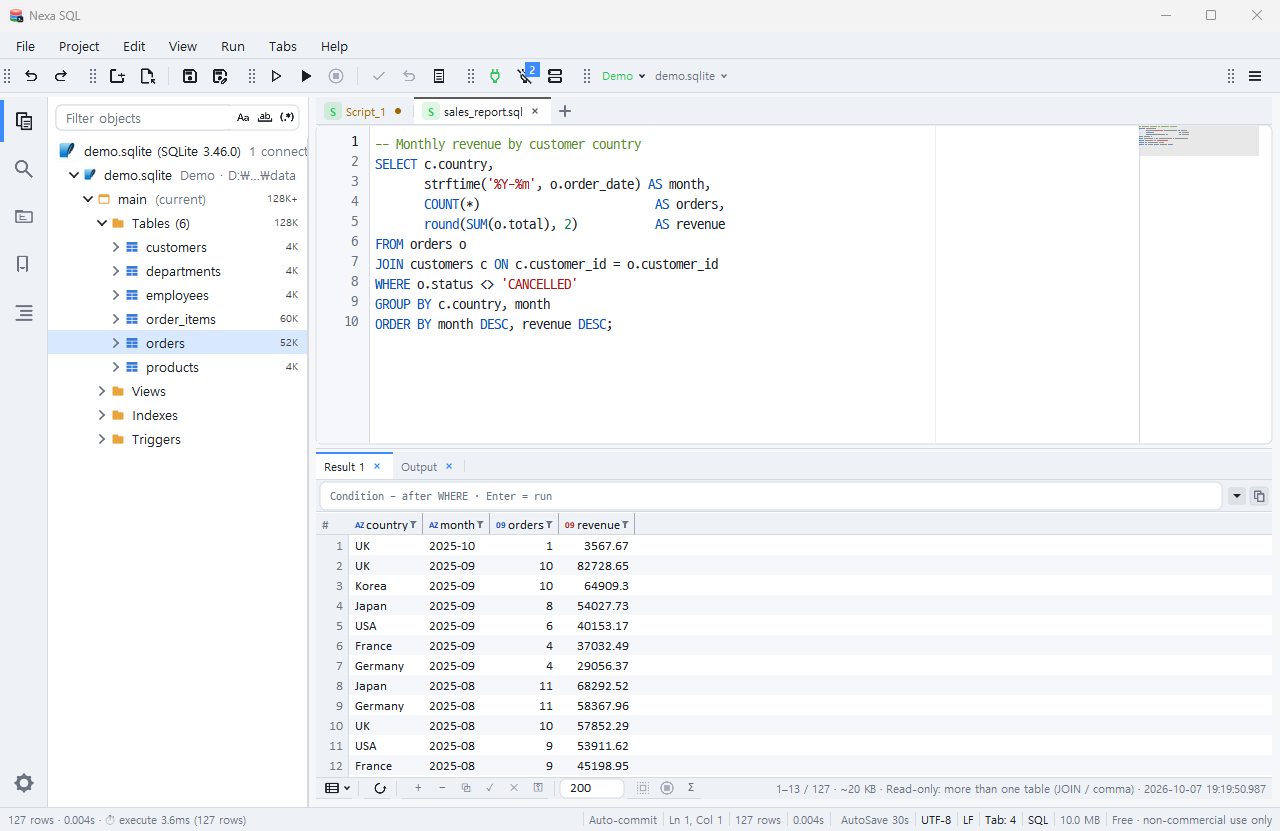
Note The app’s introduction page is at /apps/nexa-sql. Source code and releases are in the GitHub repository, and detailed per-feature documentation is in the wiki.
System Requirements
| OS | Requirements | Installers provided |
|---|---|---|
| Windows | Windows 10 1809 (build 17763) or later · x64 | .msi (per-machine install) |
| macOS | macOS 11 Big Sur or later · Apple Silicon and Intel (Universal) | .pkg · .dmg · Homebrew Cask |
| Linux | x86_64 · glibc 2.17 or later | .deb · .rpm · APT/DNF repositories |
- Recommended Linux packages:
libx11-6·libxkbcommon0·libwayland-client0, plusfonts-noto-cjkfor displaying Korean (for RPM:libxkbcommon·google-noto-sans-cjk-fonts), are installed together as recommended dependencies. - There is no portable (no-install) edition. Only installers are distributed.
Extra requirements per DBMS
| DBMS | What to install separately |
|---|---|
| Oracle | Oracle Instant Client is required (Windows oci.dll · Linux libclntsh.so · macOS libclntsh.dylib). It is not included in the installer, so download the Basic package from Oracle’s website. Without it, connecting fails with a DPI-1047 error. To connect with a TNS alias, you also need a TNS_ADMIN folder containing tnsnames.ora. |
| SQL Server | Nothing (driver built in) |
| PostgreSQL | Nothing (driver built in) |
| SQLite | Nothing (SQLite engine built in) |
Note Tibero, Altibase, and CUBRID are planned to connect via ODBC, which will then require an ODBC driver manager plus each vendor’s ODBC driver and DSN. ODBC connections do not exist at all yet in v0.1.9.
Installation and Removal
All installers are on GitHub Releases, and you can verify your downloads with the accompanying sha256sums.txt.
Caution Current builds are not code-signed. If you download and run them directly, Windows SmartScreen or macOS Gatekeeper will show a warning. Follow the OS-specific instructions below.
Installation channel status
Results of checking the release documents and each channel on 2026-10-12.
| Channel | Command | Status |
|---|---|---|
| GitHub Releases | Download the installer directly | 0.1.9 |
| Homebrew Cask (macOS) | brew install --cask kiros33/tap/nexa-sql | 0.1.9 |
| APT · DNF repositories (Linux) | sudo apt install nexa-sql / sudo dnf install nexa-sql | 0.1.9 (repository registration required) |
| Chocolatey (Windows) | choco install nexa-sql | Stuck at 0.1.5 — submissions on hold since 0.1.6 |
| winget (Windows) | winget install SosomLab.NexaSQL | Not yet listed — awaiting first review |
Note To get the latest version on Windows, download the MSI from GitHub Releases for now. Installing via Chocolatey gives you 0.1.5.
Windows
- Download
nexa-sql-0.1.9-windows-x64.msifrom Releases. - Double-click it to install. During setup you can choose to add
nsqlto PATH and to associate.sqlfiles (optional). - If SmartScreen shows the “Windows protected your PC” dialog, click More info → Run anyway.
Silent install (for management scripts):
msiexec /i nexa-sql-0.1.9-windows-x64.msi /qnVerify the downloaded file:
Get-FileHash .\nexa-sql-0.1.9-windows-x64.msi -Algorithm SHA256Removal: Uninstall Nexa SQL from Settings ▸ Apps (Add or remove programs).
macOS
Install with Homebrew (recommended)
brew install --cask kiros33/tap/nexa-sqlThe Cask removes the macOS quarantine flag during installation, so the app runs right away without warnings, and nsql is linked into Homebrew’s bin. To update, run brew upgrade --cask kiros33/tap/nexa-sql.
Install from an installer file
nexa-sql-0.1.9-macos-universal.pkg— running the installer creates/Applications/Nexa SQL.appand a/usr/local/bin/nsqllink.nexa-sql-0.1.9-macos-universal.dmg— drag the app into the Applications folder. See the instructions inside the dmg for linking the CLI.
If Gatekeeper blocks an app you downloaded directly, remove the quarantine flag.
xattr -dr com.apple.quarantine "/Applications/Nexa SQL.app"Removal
# If installed from pkg/dmg
sudo "/Applications/Nexa SQL.app/Contents/Resources/uninstall.sh"
# If installed with Homebrew (add --zap to also delete settings and profiles)
brew uninstall --cask kiros33/tap/nexa-sql
Linux
Register the package repository and install (recommended — update with apt upgrade/dnf upgrade)
# APT (Debian · Ubuntu)
sudo curl -fsSLo /usr/share/keyrings/sosomlab-archive-keyring.gpg https://pkg.sosomlab.com/sosomlab-archive-keyring.gpg
sudo curl -fsSLo /etc/apt/sources.list.d/sosomlab.sources https://pkg.sosomlab.com/apt/sosomlab.sources
sudo apt update && sudo apt install nexa-sql

# RPM (Fedora · RHEL family)
sudo curl -fsSLo /etc/yum.repos.d/sosomlab.repo https://pkg.sosomlab.com/rpm/sosomlab.repo
sudo dnf install nexa-sql
Install from an installer file
sudo apt install ./nexa-sql_0.1.9_amd64.deb       # or sudo dpkg -i …
sudo dnf install ./nexa-sql-0.1.9-1.x86_64.rpmRemoval: sudo dpkg -r nexa-sql or sudo dnf remove nexa-sql.
Note Removing the app leaves your settings and connection profiles in your user folder (Settings and Data Locations). To remove everything, delete that folder manually.
Getting Started
First launch
- Launch the app. The display language defaults to System, so it appears in Korean on a Korean OS and in English otherwise. Each press of
Ctrl+Alt+L(macOS⌘⌥L) cycles System → English → Korean. - On first launch, it asks “Create a local SQLite demo?” Click Create now to get a
Demoprofile you can try right away without a server (the SCOTTdept/emptables and 5,000 rows ofsales). You can also create it later via Help ▸ Create Sample Data (Demo Profile)…. - In the Connect dialog (
Ctrl+Shift+N, macOS⌘⇧N), pickDemoor enter a connection string and click Connect. - Type a statement in the editor, then press
Ctrl+Enter(macOS⌘↩) to run the statement at the caret, orF5to run the whole script.
SELECT * FROM emp ORDER BY sal DESC;Opening directly with launch arguments
nexa-sql Demo                                   # start and connect with a saved profile
nexa-sql -c "oracle://scott@dbhost:1521/ORCL"    # connect with a connection string (password asked in a dialog)
nexa-sql sqlite:demo.sqlite                      # SQLite file
nexa-sql --fill prod                             # only fill in the connect form, do not connect
nexa-sql .                                       # use the current folder as the working folder (folder mode)
Managing Connections
Connection string format
The GUI Connect dialog, CONNECT in the editor, and the CLI’s -c all accept the same format.
| DBMS | Format | Example |
|---|---|---|
| Oracle | oracle://user:pass@host:port/service | oracle://scott:tiger@dbhost:1521/ORCL |
| Oracle (SQL*Plus style) | user/pass@host:port/service | scott/tiger@dbhost:1521/ORCL |
| Oracle (administrator) | append as sysdba | oracle://sys@dbhost:1521/ORCL as sysdba |
| SQL Server | mssql://user:pass@host:port/db | mssql://sa@srv:1433/mydb |
| PostgreSQL | postgres://user:pass@host:port/db (postgresql:// · pg:// also work) | postgres://app@dbhost:5432/appdb |
| SQLite (file) | sqlite:<path> | sqlite:C:\data\app.db · sqlite:./app.db |
| SQLite (memory) | sqlite::memory: | For testing without a server |
- Default ports when omitted: Oracle 1521 · SQL Server 1433 · PostgreSQL 5432.
- If you leave out the password, you are asked for it in a hidden-input dialog when connecting. This is the recommended approach when typing by hand.
- If the password contains special characters, percent-encode them in URL format (
scheme://):@→%40,/→%2F,:→%3A,#→%23,%→%25. The SQL*Plus style does not decode, but it uses the last@as the host separator, so an@inside the password works as-is. - To specify only the dialect without a scheme, append something like
?dialect=oracle. The@still cannot be omitted (with no user:@dbhost:1521/ORCL).
Caution Passwords typed on the command line remain in shell history and the process list. Save servers you use often as connection profiles (below).
Connection profiles
A profile stores dialect, host, port, DB, user, and password under a single name. The GUI and CLI share the same profile folder, so a profile saved in one is immediately usable in the other.
- GUI: In the Connect dialog, fill in the name field and connection details, then save. From then on, just pick the name to connect.
- CLI:
nsql conn add prod "oracle://scott@dbhost:1521/ORCL"     # password asked via hidden input
nsql conn add pg1 -d postgres --host dbhost --port 5432 --db appdb --user app
nsql conn list                                           # name · dialect · password saved (✓/-) · target
nsql conn test prod                                      # actually try connecting
nsql conn env prod prd                                   # mark the server type as production (PRD)
nsql conn rm prod- Profile names are 1–64 characters of letters, digits,
_,., and-, and can be used wherever a connection string goes, as in-c prodorCONNECT prodin a script. - If you set a server type (None · Development DEV · Test TST · Production PRD), production servers show a PRD chip, their result grids become read-only, and changing the type requires double confirmation.
How passwords are stored
- Only the profile’s password is encrypted with ChaCha20-Poly1305; host and user name are plaintext because they must appear in the list.
- The encryption key is derived from this PC’s device key (
device.key). On Windows it is protected by DPAPI and can only be unlocked by the same Windows account. On macOS and Linux it is kept as an owner-readable-only (0600) file — be careful, since copying the whole folder elsewhere may let it be unlocked there too. - A password you enter when connecting without saving it to a profile is held encrypted in memory for the current run only and reused for new tabs, reconnects, and the Object Explorer on the same server and account. It is never written to disk; turn off the setting
connect.remember_session_passwordto be asked every time.
Specifying the Oracle client
In Settings ▸ DBMS ▸ Oracle, choose Automatic (default) or Specify manually. In automatic mode it searches NSQL_ORACLE_CLIENT_DIR → ORACLE_HOME → the OS library search path → well-known install folders, in that order, and shows the library found, its version, and whether tnsnames.ora and sqlnet.ora exist, as read-only information.
# Specify with an environment variable (restart the app to apply)
export NSQL_ORACLE_CLIENT_DIR=/opt/oracle/instantclient_21_13      # macOS · Linux
set NSQL_ORACLE_CLIENT_DIR=C:\oracle\instantclient_21_13            # Windows cmd
Sessions and disconnections
- By default, multiple tabs share one connection. A tab that ran
CONNECTin the editor gets its own dedicated session. Check open sessions in the Sessions window. - If the server becomes unreachable, for example when a VPN drops, all sessions and explorers for that server are marked as disconnected, and they recover automatically when the server responds again (setting
net.watch· Windows · macOS). Click the toast to reconnect immediately. - Auto-commit is on by default (
session.autocommit). If you turn it off, finalize changes yourself withCtrl+Alt+C(commit) ·Ctrl+Alt+R(rollback).
Editor
The editor follows Sublime Text conventions. Its default shortcut set is also the same as Sublime Text’s (Keyboard Shortcuts).
Key features
- Multiple cursors and multiple selections —
Ctrl+D(add next occurrence) ·Alt+F3(all occurrences) ·Ctrl+Shift+L(split selection into a cursor per line) ·Ctrl+Alt+↑/↓(add a cursor on the line above/below). - Line editing — duplicate, delete, move up/down, and join lines; toggle comment (
Ctrl+/); convert case (Ctrl+K, Ctrl+U/Ctrl+K, Ctrl+L). - Soft Undo —
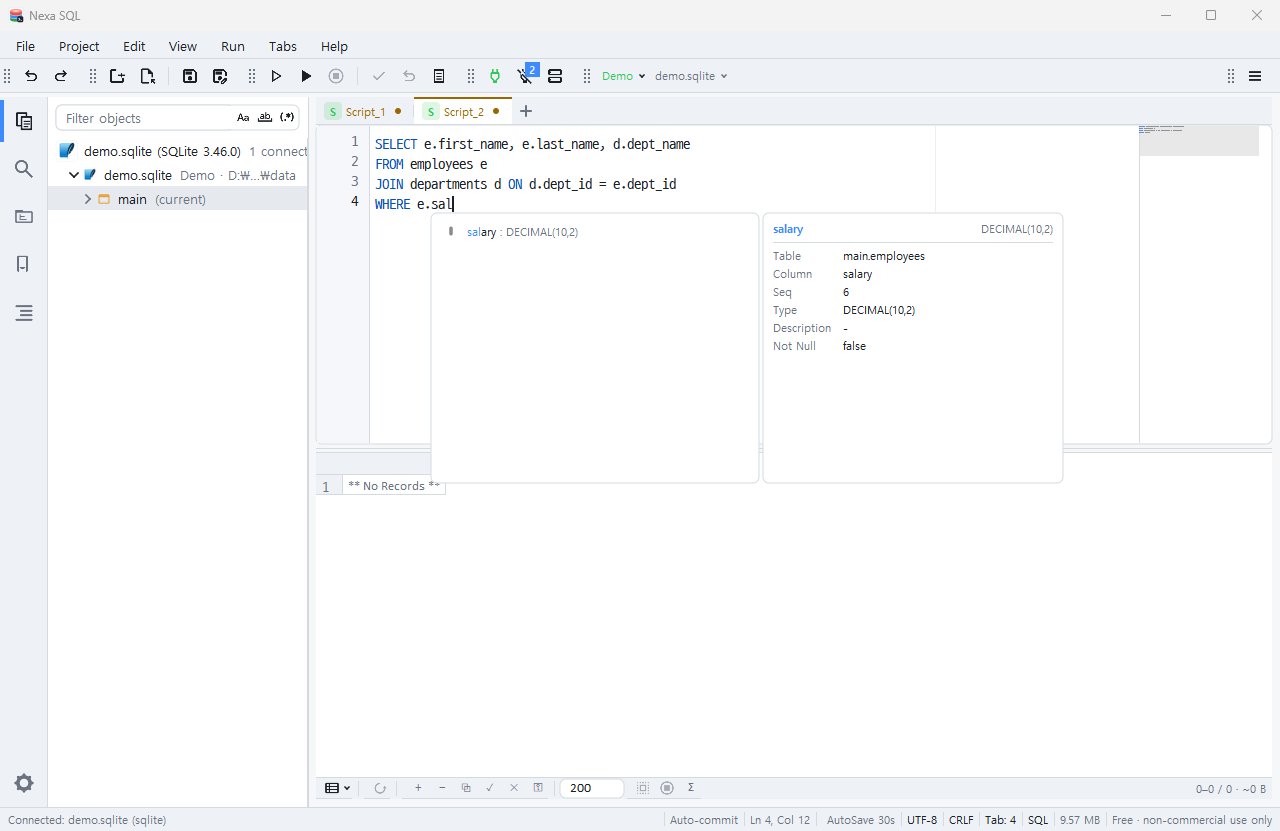
Ctrl+Uundoes only cursor and selection movements. - Code completion (IntelliSense) — suggests tables, columns, routines, data types, and keywords that fit the context. It builds JOIN conditions from foreign keys and shows function arguments in a signature card. Invoke it manually with
Ctrl+Space(macOS⌃Space); reload the metadata cache withCtrl+Shift+R. - Ctrl object links — while you hold
Ctrl(macOS⌘), table, column, and routine names become links that open a card with a comment tooltip and action buttons (Show in Explorer · View 200 rows · Copy description).F4= Show in Object Explorer. - Goto Anything —
Ctrl+Pfuzzy-searches files across open tabs → recent files → project folders, in that order. Prefixes select the mode:>commands ·:line number ·@symbols ·%text ·?help; thename:lineformat is also accepted.Ctrl+Rjumps straight to a symbol. - SQL formatting —
Shift+Alt+Fapplies the built-in Basic formatter (selection · statement at caret · whole document). There are common options (format.*) such as comma position, spaces/tabs,WHERE 1=1, and alias alignment, and a preview tab lets you see the result first. You can also set an extension formatter as the default. - Bookmarks —
Ctrl+F2toggle ·F2/Shift+F2next/previous ·Ctrl+Shift+0~9set a numbered bookmark ·Ctrl+0~9jump to that number. They appear in the gutter, minimap, and as end-of-line labels, and are collected in the Bookmarks panel (Ctrl+Shift+B). - Find in files —
Ctrl+Shift+Fsearches an entire folder (some.gitignorerules are honored). It uses the same engine as the CLI’snsql grep. - Font size —
Ctrl+=/Ctrl+-/Ctrl+wheelchange only the focused area (editor or result grid). - Korean input — text being composed by the IME and undo are each handled as a single unit.
Projects and workspaces
| Mode | How to enable | Where state is kept |
|---|---|---|
| File mode | Just launch the app | User settings folder |
| Folder mode | nexa-sql <folder> | That folder’s .nsql/ |
| Project mode | Open a <name>.nsql-project file | Inside the project file |
A project file holds the folder list plus the order of open tabs, caret positions, bookmarks, and even the text of unsaved scripts, so reopening it restores your last working state. Autosave (project.autosave) is on by default and saves every 30 seconds only when something has changed. The connection that was last open is only remembered as a marker; it is not reconnected automatically.
Large files
As a script grows, each tab gets a level that turns off only the costly extra features. Editing, selecting, finding, and running work the same regardless of size.
| Level | Threshold (either) | What is turned off |
|---|---|---|
| L1 | 5 MB or 100,000 lines | Minimap · same-word highlighting · line change markers · bracket colors |
| L2 | 20 MB or 300,000 lines | The above + syntax highlighting |
| Confirm before opening | 50 MB | — |
To turn everything back on for just this tab, run Toggle Large File Optimizations (This Tab) from the Command Palette.
Running Queries and the Result Grid
Running
| Action | Windows · Linux | macOS |
|---|---|---|
| Run statement at caret | Ctrl+Enter | ⌘↩ |
| Run into a new result tab | Ctrl+\ | ⌘\ |
| Run whole script | F5 | F5 |
| Next / previous statement | Alt+↓ / Alt+↑ | ⌥↓ / ⌥↑ |
- Statements are split by
;, a standalone/, andGO, just as in SQL*Plus. - While running, the execution status card shows the statement, start time, elapsed time, row count, and transfer volume. Stop with ■; if the server does not respond to the cancel, press ■ once more to force-stop.
- In a tab for a procedure, package, view, etc. opened with Open Source from the Object Explorer,
F5sends the body as a single unit without splitting it, compiling it in one go. - View the execution plan with Execution Plan in the toolbar’s run group or with the CLI’s
nsql explain(OracleEXPLAIN PLAN+DBMS_XPLAN· SQL ServerSHOWPLAN· PostgreSQLEXPLAIN· SQLiteEXPLAIN QUERY PLAN).
Result grid
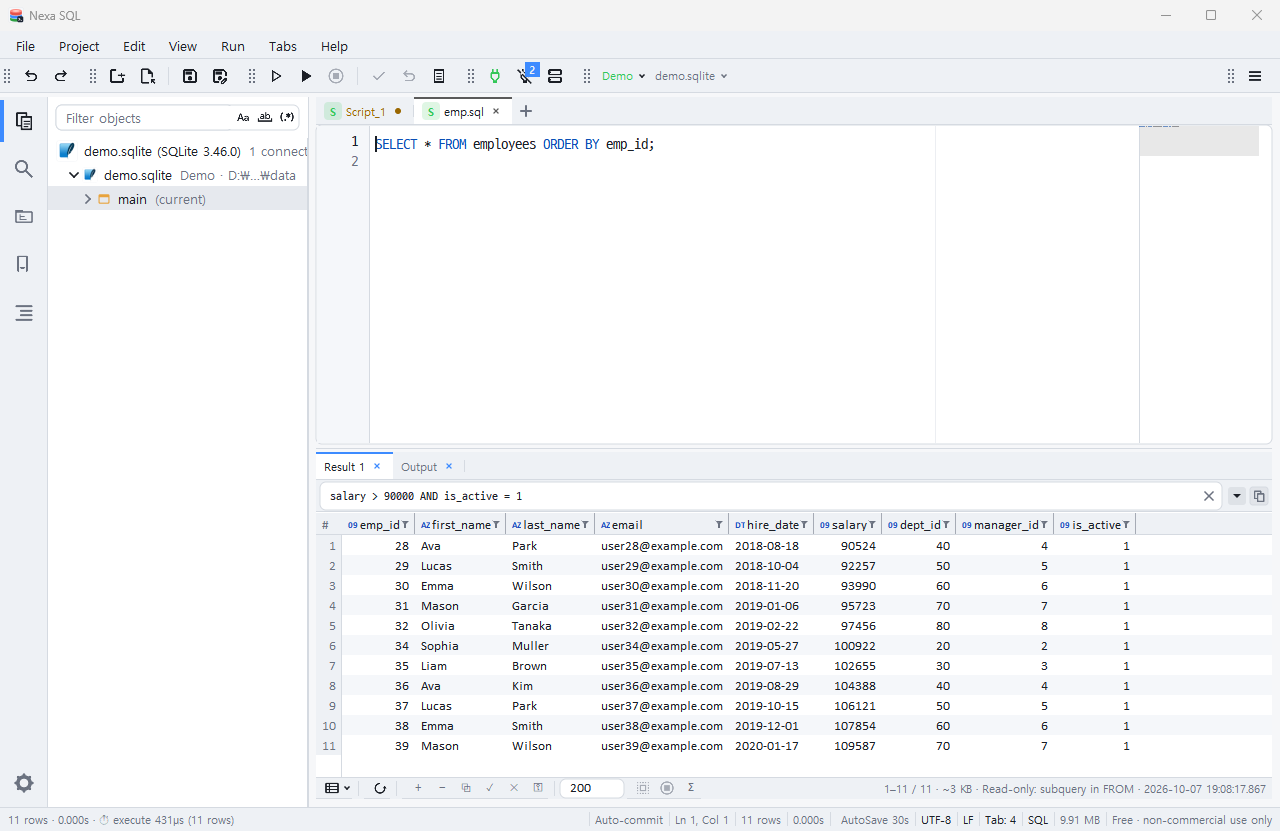
- Fetching: By default it fetches 200 rows at a time (
grid.max_rows) and reads the next 200 when you scroll to the end. Count rows with Σ, and read to the end with Fetch All. With the row limit set to 0, the first batch appears immediately and the rest is appended as it arrives. Result memory stops at 1 GB (grid.memory_budget_mb). - Multiple results: With REF CURSORs or multiple result sets, tabs
Result1·Result2… open. - Column header type badges:
AZ(text) ·09(number) ·DT(date) ·ID·TF·BI·EXshow each column’s type at a glance; hover over a header to see a data type card. - Filters: The funnel on a column header opens an Excel-style value list (Select All · search · multi-select), combined with filter chips and OR mode. Type an expression in the condition bar below the grid and press Enter to re-query the server (you can also drag and drop a column header).
- Natural sort: Numeric parts are compared by value, as in
ITEM2 < ITEM10(ui.sort_natural). - Output tab:
DBMS_OUTPUT·PRINT/RAISERROR·RAISE NOTICE· compilation results · errors · statement completion lines are collected here (Ctrl+Shift+O). Double-click an error line to go to that line in the editor. - Transaction log: Records time, row count, result, and transaction outcome (committed · rolled back · pending) for each statement run; click a row to see three layers: statement sent / bind variables / statement with values substituted.
Editing data in the grid
Results queried from a single table can be edited directly in the cells. Your edits are not sent to the server until you click Apply (✓), and applying is wrapped in one transaction — if any part fails, everything is rolled back.
- Start editing: Enter ·
F2· double-click · just start typing. Confirm: Enter · Tab. Cancel: Esc. - Supports adding, duplicating (
Ctrl+D), and deleting rows, pasting tab/line-delimited tables, grid-specific undo, and previewing the SQL to be sent. - Rows are identified in this order: PK/UNIQUE key → (if the key is not in the result) a hidden key column → the DBMS row identifier (Oracle
ROWID· SQLiterowid· PostgreSQLctid) → all comparable columns. - Results with JOIN · GROUP BY · DISTINCT · UNION · expression columns, results from views and procedures, and production (PRD) servers are read-only.
Session Variables (SQL*Plus Style)
This is Nexa SQL’s signature feature. The engine rewrites SQL*Plus variable syntax into each dialect so you can use it as-is on DBMSs other than Oracle.
Two kinds of variables
| Kind | Syntax | Where it is handled |
|---|---|---|
| Bind variables | VAR v NUMBER · EXEC :v := value · EXEC :v := expression · :v inside statements | Literal assignment on the client (no server round trip); expressions evaluated on the server. Values are passed as real binds |
| Substitution variables | DEFINE v = text · &v · &&v · ${v[:format]} · ${env:NAME} | The client replaces the text before sending the statement |
Example
-- Declaration and literal assignment (no server round trip)
VAR V_LIMIT NUMBER = 3
EXEC :V_DEPT := 'IT'

-- Assignment from a server expression
EXEC :V_CNT := (SELECT COUNT(*) FROM emp)

-- One row into several variables (error on 0 rows or multiple rows)
EXEC SELECT MAX(sal), MIN(sal) INTO :V_MAX, :V_MIN FROM emp WHERE dept = :V_DEPT;

-- Use as binds in later statements
SELECT * FROM emp WHERE sal >= :V_MIN AND ROWNUM <= :V_LIMIT;

PRINT V_MAX
SHOW VARIABLES
The same script is rewritten and run as BEGIN … END; blocks with OUT binds on Oracle, as sp_executesql with a trailing SELECT on SQL Server, and as $n binds with single-row queries on PostgreSQL and SQLite. You can preview the rewrite without a server using nsql plan -d mssql file.sql.
Note In SQL Server,
@nameis T-SQL’s own variable and disappears when the batch (GO) ends. To carry a value across batches, use:name.
Scopes (layers) and clearing
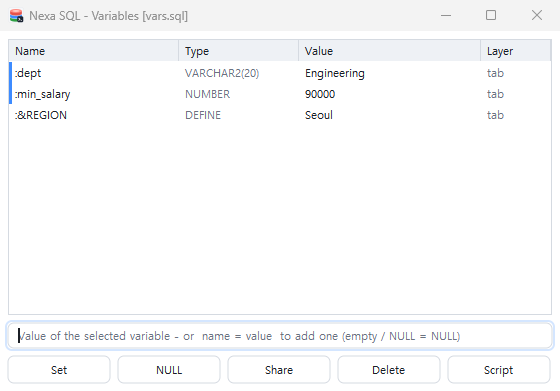
- Variables live in the tab → connection-shared (SHARE) → global (GLOBAL) layers, and the tab value wins when names collide. You can set the layer when declaring:
VAR A NUMBER = 10 GLOBAL·VAR x VARCHAR2(30) SHARE. - Assignment goes into the layer where the variable lives. To use a different value in just this tab, first declare it in the tab with
VAR A. - Clearing:
VAR name DROP [GLOBAL]·VAR CLEAR·VAR CLEAR GLOBAL·VAR CLEAR ALL. - A variable created without a type changes type according to its value; declaring it with a type fixes the type.
- In the Variables window (View ▸ Variables) you can view and edit the name, type, and value in every layer. Names that look secret, such as
PASSWORD, are masked.
Substitution variables and &
${v:q}= wrap as an SQL string literal ·${v:id}= quote as an identifier ·${env:PATH}= OS environment variable.- Script arguments are received as
&1 &2 …(nsql run file.sql arg1 arg2). - Default
&behavior per DBMS (v0.1.9+): Oracle, like SQL*Plus, prompts for an undefined&namein an input dialog. SQL Server, PostgreSQL, and SQLite replace only names defined withDEFINE·:setvarand send undefined&xas-is, so'R&D'does not trigger a prompt. Change this with the settingscript.define(auto · on · off) or withSET DEFINE ON/OFFin a script. - Built-in variables:
${workspaceFolder}·${file}·${fileBasenameNoExtension}·${profile}·${dialect}·${config:key}and others, with the same names as in VS Code, can be used in scripts and path settings.
SPOOL ${workspaceFolder}/out/${fileBasenameNoExtension}.log
SELECT '${profile}' AS who FROM dual;
SPOOL OFF
Common SQL*Plus-style commands
CONNECT target · SET DEFINE OFF · SHOW ERRORS · DESC name · @file args… · @@file (relative to the calling script’s folder) · SPOOL file [APPEND] / SPOOL OFF · WHENEVER SQLERROR EXIT. For psql, sqlite3, and sqlcmd users, aliases such as \d · \dt · .tables · \i · :r · \c are also supported.
Exporting Data
Copying from the screen
From the result grid’s right-click menu, copy as Copy with Headers · CSV · Text · Markdown · JSON · SQL (SELECT/INSERT/UPDATE/DELETE/MERGE). The SQL formats choose the key in the order PK → first unique index → first 3 columns, and add a warning comment when falling back to the first 3 columns.
Caution If you see the “first 3 columns” warning, check the
WHERE/ONclause yourself before running. If those 3 columns do not uniquely identify a row, more rows than intended will be changed.
Exporting to a file (nsql export)
nsql export -c prod -t EMP -f csv -o emp.csv
nsql export -c prod -q "SELECT * FROM emp WHERE deptno=10" -f json -o dept10.json
nsql export -c prod -t EMP -f insert:EMP_BACKUP -o seed.sql
nsql export -c pg1 -t big_table -f csv --fast -o big.csv    # uses PostgreSQL COPY TO
Formats: csv (default) · tsv · json · jsonl · insert[:table]. --fast has the server generate the csv/tsv itself (PostgreSQL); if unsupported, it tells you and exports via the normal path. You can also capture script results straight into a file, as in nsql run -f csv query.sql > out.csv.
Importing from a file (Import)
CSV, TSV, and JSON Lines are loaded into a table with INSERT only (existing rows are not modified).
- On screen: In the Object Explorer, right-click a table ▸ Import Data… → choose a file → check the preview, column mapping, batch size, and commit interval → Start.
- Command:
nsql import -c prod -t EMP emp.csv
nsql import -c prod -t EMP -f tsv --map emp_no=EMPNO,name=ENAME --commit-every 5000 emp.tsv
The auto path picks the DBMS’s fast route: Oracle array DML · PostgreSQL COPY … FROM STDIN · SQL Server TDS bulk load · SQLite multi-row INSERT. If a batch fails, it retries row by row to tell you which row and line of the file caused which error, and reports how many rows were committed before it. For all-or-nothing behavior, set the commit interval to 0.
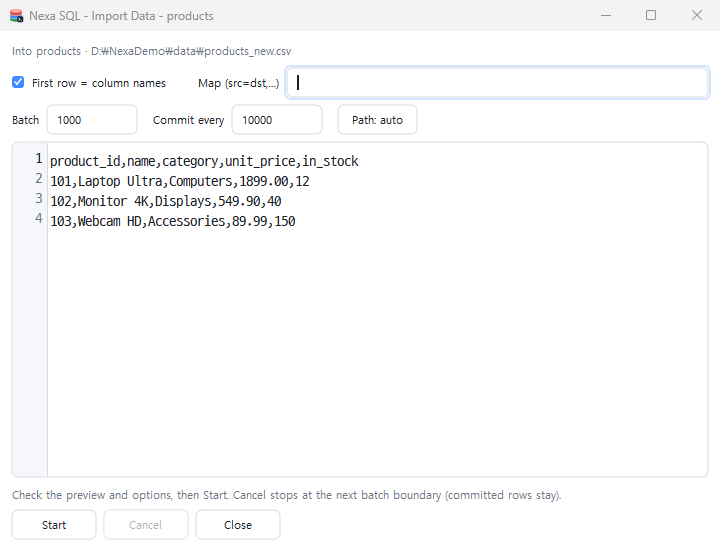
CLI nsql
nsql is a command-line tool that uses the same engine, the same profiles, and the same settings file as the GUI. Result data goes to stdout, while connection notices, progress, and warnings go to stderr, so you can capture just the data with > file.
Command list
| Command | What it does |
|---|---|
run | Run a script (a file, or - = standard input) and print the results |
shell | Interactive shell (sqlplus/psql style · variables kept for the session) |
export | Export a query or an entire table to a file |
import | Bulk-load csv/tsv/jsonl into a table |
format | Tidy SQL with the built-in formatter |
explain | Execution plan |
plan | Analyze a script without connecting (statement splitting · variables · per-dialect rewrite) |
conn | Manage connection profiles |
cat | Catalog — schemas · objects · columns · source · compilation errors · DDL generation |
config | View and change settings (shared with the GUI) |
grep | Search file contents (same engine as the GUI’s Find in Files) |
bookmark | Bookmarks (same workspace file as the GUI) |
license | License status · request code · installation |
nsql --help and nsql <command> --help are the definitive reference for arguments, options, and examples. The last line of nsql --help lists the drivers included in this build.
Examples
# Try it right away without a server
echo "SELECT 'hello' AS a, 1+1 AS n;" | nsql run -c "sqlite::memory:" -

# Running scripts · output formats
nsql run -c prod report.sql
nsql run -c prod -f markdown query.sql > result.md
nsql run -c prod --max-rows 1000 --timing big.sql
nsql run -c prod -v deptno=10 report.sql          # define a substitution variable before running (&deptno)

# Interactive shell
nsql shell -c prod

# Catalog
nsql cat -c prod tables
nsql cat -c prod -s HR columns EMPLOYEES
nsql cat -c prod source packages PKG_ORDER
nsql cat -c prod gen merge EMPLOYEES

# See the per-dialect rewrite without connecting
nsql plan -d mssql session-vars.sql

# Settings
nsql config set ui.lang ko
nsql config get grid.max_rows
Passing passwords
The lookup order is -p → environment variable NSQL_PASSWORD → (in a terminal) hidden input. With --no-prompt, it fails instead of asking (for CI). To keep the password out of the command line and shell history, use --password-stdin to read it from the first line of standard input.
echo "$PW" | nsql run --password-stdin -c "oracle://scott@dbhost:1521/ORCL" script.sql
NSQL_PASSWORD='s3cr3t' nsql run -c "postgres://app@dbhost:5432/appdb" --no-prompt migrate.sql
Output formats and exit codes
-f:grid(default) ·markdown·csv·tsv·json·jsonl·sql:select|insert|update|delete|merge·insert:<table>.- Table layout:
--width <n|auto>·--max-col-width <n>·--overflow none|wrap|truncate|expanded·-x(record view). Inside the shell:set format markdown·\x·copy markdown(copies the last result to the clipboard). - Set persistent defaults like
nsql config set cli.format markdown. Precedence is shellset> command-line flags >cli.*settings. - Exit codes: 0 = all succeeded · 1 = one or more failed (line number on stderr for each failure) · 2 = usage or connection error.
- By default, the CLI does not use global variables (so batches are not affected by values from the GUI). To share them, run
nsql config set vars.cli_global on.
Extensions (Sublime Packages)
Nexa SQL extensions work much like Sublime Text’s Package Control. The package list is read from a repository’s (folder or URL) index.json, and each package’s extension.json declares its files and SHA-256 hashes, which are verified before installation.
Enabling the Extension Manager
The Extension Manager is off by default (extensions.enabled). Run Extension Manager: Enable Extension Manager from the Command Palette (Ctrl+Shift+P) to turn it on, then use the Install Extension · Remove · List · Enable/Disable · Add Repository commands. Repositories are read only when you run a manager command; they are never queried automatically.
Extensions in the official repository (as of v0.1.9)
| Extension | Version | Description |
|---|---|---|
| Rainbow Pairs | 1.1.1 | Colors bracket and quote pairs by depth · navigate to pair/sibling/parent/child |
| SQL Formatter for kiros33 | 1.3.3 | A formatter with tab-aligned AS and operators, WHERE 1=1, and set-operator separator lines |
| Project Explorer Menus | 0.1.0 | Adds commands to the Project Explorer right-click menu (starter skeleton) |
| Hello Extension | 0.1.1 | SDK example — a command that writes one log line |
- Code extensions run as WASM within fuel, memory, and time limits. Installing or removing them does not require restarting the app.
- Data packages such as syntaxes, themes, snippets, and keymaps are placed in
<settings folder>/Packages/<package>/. A user syntax definition placed as<settings folder>/Packages/<package>/<name>.nexa-syntaxoverrides the built-in syntax. - The default repository is
https://raw.githubusercontent.com/SosomLab/nexa-sql/main/extensions, and you can add folders or URLs with the same structure via Add Repository. To build an extension, seeextensions/sdk/in the repository (Rust →wasm32-unknown-unknown).
Note Contrary to the README’s “
.sublime-syntaxas-is” wording, the syntax file format in v0.1.9 is its own.nexa-syntax. Only the package folder layout follows Sublime.
Keyboard Shortcuts
Ctrl on Windows and Linux is ⌘ on macOS. The tables below list the macOS column separately (⌃ = Control, ⌥ = Option). Every shortcut can be changed with the setting key.<command id> or in the shortcut capture dialog, and key.preset (auto · windows · macos · linux) selects the default set.
Files, tabs, and view
| Action | Windows · Linux | macOS |
|---|---|---|
| Command Palette | Ctrl+Shift+P | ⌘⇧P |
| Goto Anything (files · commands · symbols) | Ctrl+P | ⌘P |
| New tab | Ctrl+N / Ctrl+T | ⌘N / ⌘T |
| Open · Save · Save As | Ctrl+O · Ctrl+S · Ctrl+Shift+S | ⌘O · ⌘S · ⌘⇧S |
| Close tab | Ctrl+W | ⌘W |
| Next · previous tab | Ctrl+Tab · Ctrl+Shift+Tab (Ctrl+PgDn/PgUp) | ⌃Tab · ⌃⇧Tab (⌘⌥→/←) |
| Preferences | Ctrl+, | ⌘, |
| Connect dialog | Ctrl+Shift+N | ⌘⇧N |
| Object Explorer | Ctrl+Shift+E | ⌘⇧E |
| Find in Files panel | Ctrl+Shift+F | ⌘⇧F |
| Bookmarks panel | Ctrl+Shift+B | ⌘⇧B |
| Output tab | Ctrl+Shift+O | ⌘⇧O |
| Log window | F10 | F10 |
| Switch theme · display language | Ctrl+Alt+T · Ctrl+Alt+L | ⌘⌥T · ⌘⌥L |
| Larger · smaller font | Ctrl+= · Ctrl+- | ⌘= · ⌘- |
Running and results
| Action | Windows · Linux | macOS |
|---|---|---|
| Run statement | Ctrl+Enter | ⌘↩ |
| Run into a new result tab | Ctrl+\ | ⌘\ |
| Run all | F5 | F5 |
| Commit · rollback | Ctrl+Alt+C · Ctrl+Alt+R | ⌘⌥C · ⌘⌥R |
| Close result tab | Ctrl+Shift+W | ⌘⇧W |
| Next · previous result tab | Ctrl+Alt+→ · Ctrl+Alt+← | ⌃⌥→ · ⌃⌥← |
| Show in Object Explorer | F4 | F4 |
| Open object info in a tab | Shift+F4 | Shift+F4 |
| Object Explorer: menu for selected item | Shift+F10 | Shift+F10 |
Editing
| Action | Windows · Linux | macOS |
|---|---|---|
| Add · skip next occurrence | Ctrl+D · Ctrl+K, Ctrl+D | ⌘D · ⌘K, ⌘D |
| Select all occurrences | Alt+F3 | ⌃⌘G |
| Split selection into lines | Ctrl+Shift+L | ⌘⇧L |
| Add cursor on line above · below | Ctrl+Alt+↑/↓ | ⌃⇧↑/↓ |
| Select · duplicate · delete · join lines | Ctrl+L · Ctrl+Shift+D · Ctrl+Shift+K · Ctrl+J | ⌘L · ⌘⇧D · ⌃⇧K · ⌘J |
| Move line up · down | Ctrl+Shift+↑/↓ | ⌃⌘↑/↓ |
| Line comment · block comment | Ctrl+/ · Ctrl+Shift+/ | ⌘/ · ⌘⌥/ |
| Indent · outdent | Ctrl+] · Ctrl+[ / Shift+Tab | ⌘] · ⌘[ |
| Uppercase · lowercase | Ctrl+K, Ctrl+U · Ctrl+K, Ctrl+L | ⌘K, ⌘U · ⌘K, ⌘L |
| Format SQL | Shift+Alt+F | ⇧⌥F |
| Code completion | Ctrl+Space | ⌃Space |
| Refresh IntelliSense cache | Ctrl+Shift+R | ⌘⇧R |
| Go to symbol · go to line | Ctrl+R · Ctrl+G | ⌘R · ⌃G |
| Jump to matching bracket · select inside brackets | Ctrl+M · Ctrl+Shift+M | ⌃M · ⌃⇧M |
| Undo · redo | Ctrl+Z · Ctrl+Y / Ctrl+Shift+Z | ⌘Z · ⌘⇧Z |
| Soft undo · soft redo | Ctrl+U · Ctrl+Shift+U | ⌘U · ⌘⇧U |
Find and bookmarks
| Action | Windows · Linux | macOS |
|---|---|---|
| Find · replace | Ctrl+F · Ctrl+H | ⌘F · ⌘⌥F |
| Find next · previous | F3 · Shift+F3 | ⌘G · ⌘⇧G |
| Toggle case · whole word · regex | Alt+C · Alt+W · Alt+R | ⌥C · ⌥W · ⌥R |
| Find all · replace all | Alt+Enter · Ctrl+Alt+Enter | ⌥↩ · ⌘⌥↩ |
| Toggle bookmark | Ctrl+F2 (Ctrl+K, Ctrl+K) | ⌘F2 (⌘K, ⌘K) |
| Next · previous bookmark | F2 · Shift+F2 | F2 · Shift+F2 |
| Set · jump to numbered bookmark | Ctrl+Shift+0~9 · Ctrl+0~9 | ⌘⇧0~9 · ⌘0~9 |
Note When the result grid has focus,
F2= edit cell andCtrl+D= duplicate row.
Settings and Data Locations
User settings folder
| OS | Path |
|---|---|
| Windows | %APPDATA%\nexa-sql |
| macOS | ~/Library/Application Support/nexa-sql |
| Linux | ~/.config/nexa-sql |
If you set the environment variable NSQL_HOME, that folder is used instead (for testing or isolation). Check the folder path with nsql config path · nsql conn path.
| Item | Location | Contents |
|---|---|---|
| Settings | settings.conf | The GUI Preferences window and nsql config use the same file |
| Connection profiles | profiles/ | One file per profile · only the password is encrypted |
| Device key | device.key | Material for the password encryption key (DPAPI-protected on Windows · 0600 elsewhere) |
| Global variables | vars/global.sql | GLOBAL-layer variables (persisted to disk) |
| License | license/ | Installed license file |
| Demo DB | demo.sqlite | SQLite file for the Demo profile |
| Extensions | extensions/ · Packages/ | Installed extensions and placed package files |
- Folder-mode state (bookmarks, etc.) is saved in that folder’s
.nsql/, and project-mode state in the.nsql-projectfile. - The Preferences window (
Ctrl+,) consists of search plus a category tree, and changes are saved and applied immediately. Use the copy-key-name button on a card to copy the key and use it directly withnsql config get/set. Rarely changed settings are shown only when you turn on the Advanced switch.
Privacy and network
- Nexa SQL connects only to the DB servers you specify. It sends no usage statistics or telemetry.
- Licenses are verified as offline files without contacting a license server.
- The only exception that uses the network is the Extension Manager. When it is enabled, it reads the extension repository (GitHub by default) only when you run a manager command.
DBMS Support Levels
| DBMS | Status in v0.1.9 | Driver · notes |
|---|---|---|
| Oracle | Supported (first-class) | ODPI-C · Instant Client required · TNS aliases · AS SYSDBA · REF CURSOR · DBMS_OUTPUT · package overloads · compilation error display |
| SQL Server | Supported (first-class) | Pure Rust (TDS) · variables shared across batches · real-time PRINT/RAISERROR · SSMS-style explorer (databases · linked servers · server security) · three-part name completion · TDS bulk load |
| PostgreSQL | Supported | Pure Rust · real-time RAISE NOTICE · refcursor · COPY load/export · no TLS support |
| SQLite | Supported | Built-in engine · each file shown as one server in the explorer · extension module loading disabled |
| MySQL · MariaDB | Not supported | Only the dialect (syntax · formatting · completion · & rules) exists; no connection driver yet |
| Tibero · Altibase · CUBRID | Not supported | Planned via ODBC — v0.1.9 has no ODBC driver |
Troubleshooting
I get a DPI-1047 error when connecting to Oracle
Oracle Instant Client could not be found. After installing Instant Client (Basic), either specify its folder in Settings ▸ DBMS ▸ Oracle or set the NSQL_ORACLE_CLIENT_DIR environment variable, then restart the app. The client library is loaded once per run, at the first Oracle connection.
I get ORA-12154 when connecting with a TNS alias
Check in the read-only fields of Settings ▸ DBMS ▸ Oracle whether tnsnames.ora exists in the TNS_ADMIN folder. Connections in host:port/service format work without tnsnames.ora.
The PostgreSQL server refuses the connection
The PostgreSQL driver in v0.1.9 does not support TLS. If the server’s pg_hba.conf allows only hostssl, you cannot connect. Also, ~/.pgpass and pg_service.conf are not read, so provide the password through a profile or the input dialog.
A profile moved to another PC or Windows account won’t open
“Cannot open the password envelope” means the profile was encrypted with the device key of another account or PC (Windows DPAPI unlocks only for the same account). Save it again from that account with nsql conn add <name> ….
An input prompt appears for strings like 'R&D'
In Oracle tabs, & is treated as a substitution variable, just as in SQL*Plus. Put SET DEFINE OFF at the top of the script or change the setting script.define to off. In tabs for other DBMSs, since v0.1.9 an undefined &x is sent as-is.
Results stop at 200 rows
The default fetch unit is 200 rows (grid.max_rows). Scroll to the end to read more, or use Fetch All to fetch everything. In the CLI, raise it with --max-rows N; when output is truncated, it explicitly says “more rows available”.
Runs keep failing after the VPN dropped
Since v0.1.8, tab-dedicated (CONNECT) sessions also reconnect automatically when the network comes back. If you are on an older version, upgrade to v0.1.9. You can also click the toast to reconnect immediately.
macOS shows an “unidentified developer” warning
This is because the build is not yet signed or notarized. Install with Homebrew Cask, or remove the quarantine flag with xattr -dr com.apple.quarantine "/Applications/Nexa SQL.app".
The SQLite path won’t open
On Windows, use a plain Windows path (sqlite:C:\data\app.db). Windows executables cannot read Git Bash’s /c/... style paths.
I want to switch the language to Korean
Switch with Ctrl+Alt+L (macOS ⌘⌥L) or run nsql config set ui.lang ko. The setting applies to both the GUI and the CLI.
Version History
Version flow summary — 2026-09-28 v0.1.0 first public release (5 installers + Homebrew) → v0.1.2 SQL formatter · Ctrl object links · grid filters → v0.1.3 Output tab · SSMS-style SQL Server explorer · server types → v0.1.4 DBMS icons · “System” display language → v0.1.5 Linux repositories · Chocolatey · winget channels launched → v0.1.6 Goto Anything · condition bar · Excel-style value filter → v0.1.7 progressive result display · data type completion · CREATE statement comparison → v0.1.8 automatic reconnection of dedicated sessions → v0.1.9 macOS network and folder watching, and per-DBMS & substitution rules.
v0.1.9 — 2026-10-10
Added
- Icons in the Object Explorer right-click menu (
ui.menu_icons). - Copy Name + Shift = copy full name (
schema.object·schema.package.member· SQL ServerDB.schema.object; quoting followseditor.quote_idents). - Package member ▸ Generate SQL ▸ Call = a named-bind call statement for that overload. Call for a whole package generates a block per overload.
Changed
- Per-DBMS default for
&namesubstitution (new settingscript.define= auto · on · off): Oracle prompts for undefined names as SQL*Plus does, while the SQL Server, PostgreSQL, SQLite, and MySQL dialects replace only names defined withDEFINE·:setvar, so'R&D'does not trigger a prompt. The CLI follows the same rule. - The default text of package metadata, install/uninstall instructions, and bundled notices is now English (Korean added as a localization).
Improved (macOS)
- Network change detection: detects VPN connect/disconnect and Wi-Fi changes and checks server responsiveness before the next action (previously Windows only).
- Folder change watching: files created, changed, or deleted outside the app are reflected immediately in the Project Explorer and the Goto Anything index.
- When the window is idle for a while, the drawing surface is shrunk, reducing idle memory by about 40 MB.
Fixed
- Dragging the scrollbar on results with hundreds of thousands of rows overflowed the position calculation, crashing the app or jumping to the wrong position.
- Oracle package overloads showed the arguments of two members combined — each member now shows
#1·#2and only its own arguments. - The Arguments folder of PostgreSQL functions was always empty — unnamed arguments are now shown as
$1·$2. - After the first consonant of Korean composition deleted a selection, undo did not restore it.
v0.1.8 — 2026-10-09
Fixed
- Tab-dedicated (
CONNECT) sessions did not reconnect automatically after network recovery, causingDPI-1010: not connectedevery time. Reconnect targets are now remembered without the password, and the password is taken from the in-memory encrypted store. - When there was no information to reconnect with, the display looked recovered; it now correctly shows “disconnected”.
v0.1.7 — 2026-10-09
Added
- Progressive result display (default): with the row limit at 0, the first batch appears immediately and the rest is appended as it arrives. Stop, progress, and the memory budget apply per batch (settings group Result Fetch).
- Natural sort (
ui.sort_natural):ITEM2 < ITEM10in the result grid, explorer, bookmarks, and more. - CREATE statement ↔ server object comparison: a side-by-side diff viewer (background colors for added, deleted, and changed lines, synchronized scrolling, next/previous change).
- Data type completion: in
CAST(x AS,DECLARE @x, PL/SQL declarations, column definitions, etc., suggests each dialect’s built-in types and the server’s user-defined types. Also suggests functions and packages of the current schema without a prefix,COLLATEnames, and named arguments.
Improved
- Server state propagation: when the network drops, all sessions and explorers for the same server are marked as disconnected, and they recover automatically when the server responds (Windows).
- If the server does not respond to a cancel, press ■ once more to force-stop.
- Clicks now act on button release, minimum heights can be set for the editor and result areas, and right-click menus can be made exclusive.
Fixed
- Re-running the same query after stopping with a row limit of 0 returned only 200 rows.
- Edits to CLOBs over 32 KB were not committed correctly on Oracle, PostgreSQL, and SQL Server.
- The data type popup in SQL Server
ALTER TABLEstayed stuck on “Loading”.
v0.1.6 — 2026-10-08
Added
- Goto Anything (
Ctrl+P): fuzzy file search ·name:line·>commands ·:line ·@symbols ·%text ·?help. Enumerating large folders went from 45 seconds to 0.3 seconds; excluded folders viaproject.exclude. - Condition bar: type a condition below the grid and press Enter to re-query; drag and drop column headers; cell right-click ▸ Condition.
- Excel-style value filter (Select All · search · multi-select) · filter chips · OR mode · server re-query. Column header type badges and data type cards.
- Font size
Ctrl+=/Ctrl+-/Ctrl+wheel, shortcuts shown in menus, tab navigation history (MRU). - Action buttons on object link cards, FK-based JOIN condition snippets, signature cards, SQL Server three-part names.
- Variables:
VAR x DROP [GLOBAL]·VAR CLEAR [GLOBAL|ALL]· declaration and layer on one line · Active column inSHOW VARIABLES. Global variables in the CLI are opt-in (vars.cli_global). - A toast when a file is changed externally (accept · reload · 3-way merge).
Improved
- Memory window: group subtotals · change indicators · heap cleanup. Idle CPU usage while the window is open is greatly reduced.
Fixed
- SQL Server bulk load stopped on three-part table names and Decimal precision mismatches.
- Auto-typed variables for Oracle
SELECT INTO; files with unknown extensions now open as plain text.
v0.1.5 — 2026-10-05
Added
- More distribution channels: Linux APT/RPM repositories (pkg.sosomlab.com) launched; Chocolatey and winget submissions started.
- Run object actions from
Shift+F10and the Command Palette, signature cards, view referencing rows, picking result filter values · re-query · OR.
Improved
- Release notes are now provided in both English and Korean.
v0.1.4 — 2026-10-04
Added
- 173 DBMS icons (light/dark themes) shown in Object Explorer server headers and connection rows.
- Status bar item editing (order · visibility), right-click menus for the toolbar and status bar, and toolbar settings.
- “System” display language (default): follows the OS display language.
Improved
- SQL formatter:
EXECstatements,${name:format},N'…'/q'[…]',::casts, statements after PL/SQL blocks. Extension SQL Formatter for kiros33 1.3.3.
Fixed
- An input prompt wrongly appeared when running
${name:format}, execution stopped at certain lines insideEXECblocks, and the toolbar appeared small on macOS Retina displays.
v0.1.3 — 2026-10-02
Added
- Output tab (server messages · compilation results · errors · completion lines) and
F5= run as a single unit in object source tabs. - Object deletion (delete after backing up the DDL · on production servers, nothing is deleted if the backup fails), server types (NON · DEV · TST · PRD).
- SQL Server SSMS-style explorer (database layer · linked servers · server security · DB size), switching the working scope (DB/schema) from the toolbar, three-part name completion.
- Ctrl link ▸ Show in Object Explorer, links for system objects.
Changed
- Time settings reorganized under a millisecond-unit convention (old keys are migrated automatically).
v0.1.2 — 2026-09-30
Added
- SQL formatter (
Shift+Alt+F· built-in Basic · preview tab). - Ctrl object links with comment tooltips, grid filters and filter queries, fast scrolling, object size display, extension management.
Note v0.1.1 remained only as a GitHub release draft and was never published. Homebrew went straight from 0.1.0 to 0.1.2.
v0.1.1 — 2026-09-28
Changed
- Default display language = OS display language (English if unsupported).
- Feature gating off by default, so all features work without a license.
Improved
- The Object Explorer shows each SQLite file as one server, improved autosave behavior, Korean support in panel type-ahead.
v0.1.0 — 2026-09-28
Added
- First public release. Windows
.msi· macOS.pkg/.dmg(Universal) · Linux.deb/.rpminstallers and the Homebrew Cask channel. - Oracle · SQL Server · PostgreSQL · SQLite connections, the SQL*Plus-style session variable engine, result grid, Object Explorer, and the
nsqlCLI.
Known Limitations
- MySQL and ODBC (Tibero · Altibase · CUBRID) connections are not available yet. The drivers included in v0.1.9 are the four: Oracle · SQL Server · PostgreSQL · SQLite.
- Oracle requires a separate Instant Client installation (not included in the installer).
- No PostgreSQL TLS support — you cannot connect to servers that allow only
hostssl. - SQL Server server certificates are not validated (treated as trusted). Support for Windows integrated authentication and Kerberos has not been confirmed.
- No code signing — Windows SmartScreen and macOS Gatekeeper warnings appear.
- On macOS and Linux, the device key is a 0600 plaintext file (Keychain and Secret Service integration is at the planning stage). If you copy the entire settings folder, saved passwords may be unlocked along with it.
- Windows is provided for x64 only and Linux for x86_64 only. There is no portable edition.
- winget is not yet listed and Chocolatey remains at 0.1.5.
- The GUI has no menu to save results directly to a file. Use the copy menu,
nsql export, orSPOOL. - Network change detection and folder change watching work on Windows and macOS (Linux support is not stated in the documentation).
License
Nexa SQL is licensed under PolyForm Noncommercial 1.0.0 (unofficial Korean translation — the English version prevails).
- Free for personal and non-commercial use. Use by nonprofit organizations, education, public research, and government institutions is also permitted.
- Commercial use requires a separate paid license. Contact: kiros33@sosomlab.com
- The free edition shows
Free · non-commercial use onlyin the status bar. Currently all features work without a license (the feature-gating settinglicense.gatesis off by default). Some convenience features may be limited to Pro in the future.
Getting a license file
A license is a signed offline file and never contacts a server.
- In the app, go to Help ▸ License… (or the status bar badge), enter your name and email, and click Copy Request Code. On the command line:
nsql license request "Name" email. The request code contains only a hash of this PC’s device ID. - Send the one-line request code to kiros33@sosomlab.com and you will receive a
nexa-sql.licensefile. - Install it via License window ▸ Open License File… or
nsql license install <file>, then confirmlicensedwithnsql license status.
A personal license is valid on registered PCs (up to 5), with a default validity of 3 years from the issue date. Back it up with nsql license export <file> and remove it with nsql license remove.