
Overview
Nexa MemKeeper stays in the Windows system tray, continuously shows how memory is being used, and reclaims idle memory when needed. It shows what is taking up memory using the same criteria as Task Manager, and lets you reclaim memory from, or end, just the processes you choose.
The principle behind this tool is that the tool itself must be the lightest thing running. A program meant to manage memory defeats its own purpose if it uses a lot of memory.
- Built with pure Rust + the Win32 API, it runs as a single executable with no managed runtime such as .NET, no UI framework, and no external DLLs.
- The part that always stays in the tray (the resident shell) only observes and triggers. Heavy work, such as the process list window and the actual cleanup, is handled by a separate process (the worker), and when it finishes, the OS reclaims all of its memory. As a result, resident memory returns to its original level even after you use these features.
- The development budget is 5 MB or less of idle resident memory, an executable of 3 MB or less, and zero external DLLs. The v0.7.1 executable is about 0.67 MB.
Note This tool does not promise that “cleaning memory makes your PC faster.” When we measured it during development, periodic cleanup actually made app launches and file reads slightly slower. That is why periodic cleanup is off by default, and this tool is meant for observation (seeing who is using memory), cleanup at the moment you need it, and reclaiming from specific apps only. For details, see Cleanup Areas and Their Effects.
Product page: /apps/nexa-memkeeper
System Requirements
| Item | Details |
|---|---|
| Operating system | Windows 10 / 11 (x64) |
| Additional installs | None — no .NET or Visual C++ Redistributable required |
| Privileges | Runs with standard user privileges. Administrator privileges are optional (they increase the amount reclaimed) |
Installation and Removal
There are two editions, installer and portable, and both contain the same single NexaMemKeeper.exe, so the program itself is identical. The only differences are how it is installed and where the settings file is stored.
Install with a package manager (winget · Chocolatey)
Both installer and portable packages are available on winget and Chocolatey.
| Channel | Installer | Portable |
|---|---|---|
| winget | winget install SosomLab.NexaMemKeeper | winget install SosomLab.NexaMemKeeper.Portable |
| Chocolatey | choco install nexa-memkeeper | choco install nexa-memkeeper.portable |
The upgrade and uninstall commands are as follows.
# winget
winget upgrade SosomLab.NexaMemKeeper
winget uninstall SosomLab.NexaMemKeeper

# Chocolatey (administrator PowerShell)
choco upgrade nexa-memkeeper
choco uninstall nexa-memkeeper
Things to know when installing with a package manager:
- The installer package is installed for all users (machine scope) and with auto-start turned off. This is because package managers run in an administrator session, so the account that installs it may differ from the account that actually uses it. If you need auto-start, turn it on yourself as described in Auto-start.
- The portable package is extracted to your user folder without elevation. The winget portable package also creates a
nexamemkeepercommand alias, so you can run it from a terminal withnexamemkeeper. - Chocolatey portable deletes the whole folder on uninstall, so your settings are removed too. To keep your settings, use the installer package.
- The Chocolatey portable package name uses dot notation (
nexa-memkeeper.portable).
Caution The Chocolatey installer v0.7.0 package had a bug in its uninstall script, causing
choco uninstall nexa-memkeeperto fail. This was fixed in v0.7.1, so if you installed with Chocolatey, upgrade to v0.7.1 or later withchoco upgrade nexa-memkeeper. The portable package and winget are not affected.
Download and install manually
Download from GitHub Releases.
| File | Description |
|---|---|
NexaMemKeeper-<version>-setup.exe | Installer. Registers in the program list, adds a Start menu shortcut, and lets you choose auto-start |
NexaMemKeeper-<version>-setup.zip | The installer above wrapped in a zip — for when your browser blocks exe downloads |
NexaMemKeeper-<version>-portable.zip | Portable. Extract and run right away |
SHA256SUMS.txt | Checksums of the files above |
Installer steps
- Run
NexaMemKeeper-<version>-setup.exe. The setup screens are shown in English. - No administrator privileges are needed. It is a per-user install, so no UAC prompt appears, and it is installed to
%LOCALAPPDATA%\Programs\Nexa MemKeeper. - On the additional tasks screen, choose from the following:
- Start Nexa MemKeeper when I sign in — Start automatically at sign-in (checked by default)
- Create a desktop shortcut — Desktop shortcut (unchecked by default)
- When setup finishes, leave Launch Nexa MemKeeper checked and finish, and it appears in the tray right away.
Portable steps
- Extract
NexaMemKeeper-<version>-portable.zipto a folder of your choice. - Run
NexaMemKeeper.exe. - Settings are saved to
data\settings.ininext to the exe, so if you move the whole folder, your settings move with it (you can carry it on a USB drive). It starts with auto-start turned off.
Verifying the downloaded file — Compare the release’s SHA256SUMS.txt with the result of the command below to confirm the file has not been tampered with.
Get-FileHash .\NexaMemKeeper-0.7.1-setup.exe -Algorithm SHA256Uninstalling
- Installer (manual install, winget or Chocolatey installer): Remove Nexa MemKeeper from Windows Settings → Apps → Installed apps, or use the
winget uninstall/choco uninstallcommands above. If it is running, it is closed automatically during uninstall, and the auto-start registry value is removed as well. - Your settings remain after uninstalling. If you reinstall, your previous settings come back as they were. To remove everything, manually delete the
datafolder in the install folder and the%LOCALAPPDATA%\NexaMemKeeperfolder (if it exists). - Portable: If you turned on auto-start, first turn it off (see Auto-start), then exit from the tray menu and delete the folder.
Getting Started
- When you run it, no window opens; instead an icon appears in the tray (the notification area on the right side of the taskbar). The icon shows the current memory usage (%) as a number.
- If you don’t see the icon, click ∧ (Show hidden icons) on the taskbar.
- The UI is shown in English at first. To switch to Korean:
- Right-click the tray icon → Settings…
- Under Language at the bottom, choose 한국어 (Korean), or Auto (system) to follow the OS language.
- Click Save, exit with Exit in the tray menu, and run it again. Language changes take effect after a restart.
- Left-click the tray icon to see the 5 processes using the most memory. For more detail, click [Show List…].
This guide refers to menus by the names shown in the English UI.
Screen Layout
There are four screens — tray icon · Top 5 popup · process list (main window) · settings window.
Tray icon
The current memory usage (%) is drawn directly on the icon, and its color changes by level.
| Level | Threshold (default) |
|---|---|
| Normal | Below 80% |
| Warning | 80% or higher |
| Danger | 90% or higher |
| Action | Result |
|---|---|
| Left-click | Open the Top 5 popup |
| Right-click | Open the tray menu |
| Hover | Tooltip — usage rate, used/total, amount reclaimed by the last cleanup and time elapsed since |
The icon updates every 5 seconds by default (the observation interval in settings), and it is not redrawn if the value to display hasn’t changed, so it uses almost no CPU while idle.
Tray menu
Appears when you right-click the tray icon.
| Menu | Korean UI | Action |
|---|---|---|
| Clean Now | 지금 정리 | Immediately cleans memory using the configured cleanup areas. Disabled while a cleanup is running |
| Show List… | 목록 보기… | Opens the process list (main window) |
| Settings… | 설정… | Opens the settings window |
| Restart as Administrator… | 관리자 권한으로 재시작… | Restarts with administrator privileges after UAC confirmation. Not shown if already running as administrator |
| Exit | 종료 | Exits the program |
Top 5 popup
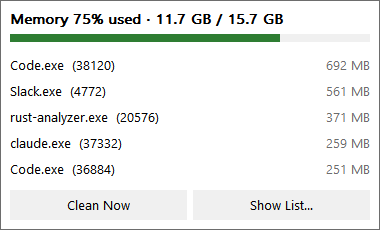
Left-click the tray icon to show the 5 processes using the most memory.
- Overall usage and used/total are shown at the top.
- Processes are sorted by private working set. It doesn’t double-count memory shared with other processes, so it’s the closest measure of “how much would actually come back if I closed this program.”
- It refreshes automatically every 2 seconds by default (the list refresh interval in settings).
- There are two buttons: [Clean Now] and [Show List…].
- Right-click an item to reclaim memory from, or end, just that process.
- You can change the number of items shown with
topn(3–10) in the settings file.
Process list (main window)
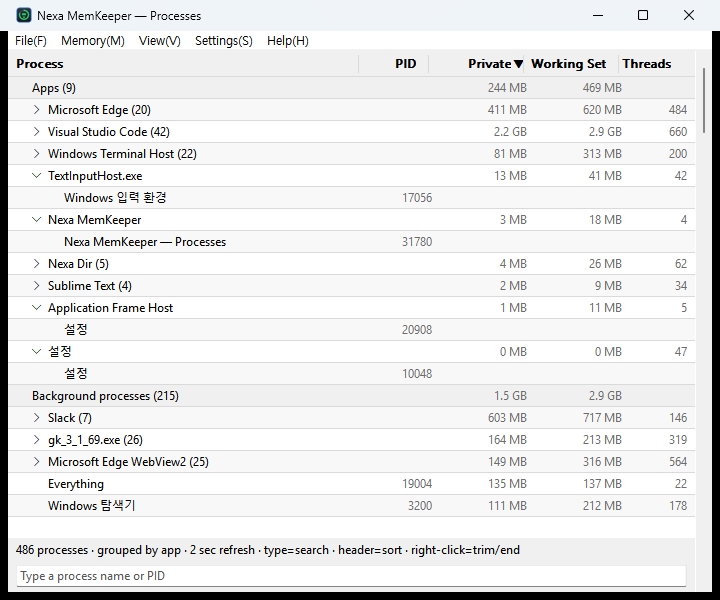
Open it with Show List… in the tray menu or [Show List…] in the popup. It shows processes using the same criteria as Task Manager.
- Three-section grouping — Apps / Background processes / Windows processes. A process with a visible window is classified as an app; a process in session 0 or a kernel pseudo-process is a Windows process; everything else is background.
- Grouping the same program — Multiple instances of the same program are combined into one entry, such as
Visual Studio Code (42), with their memory summed. An app entry also includes that app’s windows and helper processes. However, programs launched from Explorer (explorer.exe) are not grouped under Explorer. - Display names — Shows the same names as Task Manager, such as
Sublime Textrather thansublime_text.exe. - Columns — Process · PID · Private · Working set · Threads. Click a header to sort, and drag a header border to change the column width.
- The window position, size, view mode, and column widths are remembered for next time. If no monitor is present at the saved position, such as after unplugging an external monitor, the window opens at the default position so it never ends up off-screen.
- The status bar at the bottom shows the number of processes, the current view mode, and the selected item.
Menu layout
| Menu | Items |
|---|---|
| File | Refresh (F5) · Close |
| Memory | Clean Now — All · Cleanup History… · Reclaim Memory of Selected Process · End Selected Process… · End Selected Process Tree… · End Selected Thread… |
| View | Group by App · Process Tree · Flat List · Show Threads · Expand All · Collapse All · Clear Search (Esc) |
| Settings | Start with Windows · List Refresh Interval (1 s/2 s/5 s) · Hide Pseudo-processes |
| Help | SosomLab Website · GitHub Repository · App Website · About |
Settings window
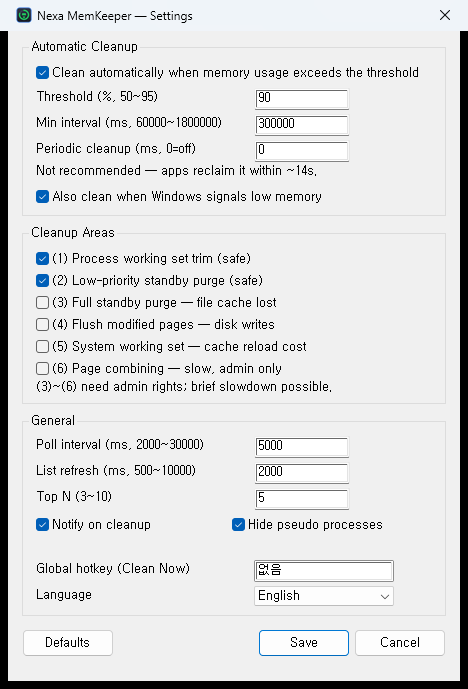
Open it with tray right-click → Settings…. It has three groups — Auto Cleanup · Cleanup Areas · General — and each item is described in detail under Settings. When you click Save, the changes apply to the running program immediately (only the language requires a restart), and the Defaults button restores the initial values.
Finding Processes and Switching Views
Three view modes
Change them in the View menu.
| Mode | Use |
|---|---|
| Group by App (default) | The same view as Task Manager. For a quick look at what is using how much |
| Process Tree | Parent-child relationships as they are. For tracing which program launched what |
| Flat List | Every process on its own row. For sorting and looking at only the top entries |
- Click the arrow to the left of a group or tree node to expand or collapse it. You can also change everything at once with Expand All / Collapse All.
- Show Threads is off by default; when turned on, thread rows appear when you expand a process.
- Pseudo-processes such as
Memory Compression,Registry, andSecure Systemare hidden by default. Turning off Settings → Hide Pseudo-processes shows them, but they still cannot be acted on.
Live search
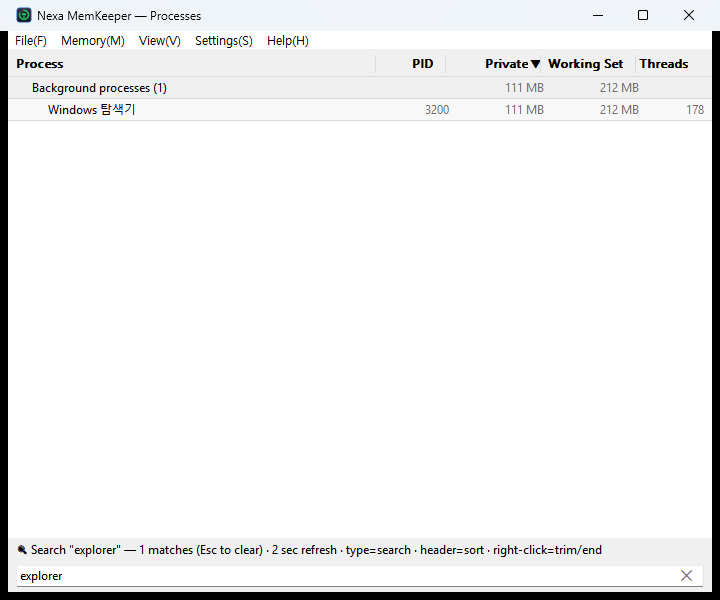
- In the list window, just start typing — your input goes into the search box at the bottom and the list is filtered instantly.
- It searches three things: process name · PID · window title. Even if you don’t know the process name, you can find it by part of its window title.
- The structure is preserved. If a window title matches, only that app row and the matching window remain; in tree view, if a child matches, its ancestors remain too so the hierarchy is visible.
- Collapsed groups are expanded while searching, and return to their collapsed state when you clear the search term.
- Press Esc or click the clear button in the search box to clear the search.
Cleaning Memory
Clean Now (all)
Run it in one of the following ways:
- Tray right-click → Clean Now
- [Clean Now] in the Top 5 popup
- Memory → Clean Now — All in the main window
- A global hotkey you assign yourself (see Keyboard Shortcuts)
Cleanup runs on the cleanup areas you turned on in Settings, and the actual work is done by a separate worker process. When it finishes, the result is shown as a notification, which disappears on its own after 6 seconds.
Reading the notification
- Two numbers may appear, as in
935MB reclaimed · apps released 5519MB(Korean UI:935MB 회수 · 앱이 놓은 양 5519MB).- The first number is the difference in Available memory before and after cleanup.
- The second number is the amount the apps actually released (decrease in Active). Some of the memory pushed out by working set trimming isn’t immediately counted as available memory, so both values are shown only when they differ noticeably. If measurement fails, it is omitted rather than filled in with an estimate.
- If “Some areas skipped (administrator privileges required)” is appended, some areas were skipped due to insufficient privileges. The tool tells you rather than silently pretending to succeed.
Reclaiming from or ending specific processes only
- In the Top 5 popup or the main window, select the target row and right-click it (in the main window, you can also use the Memory menu).
- Choose the action you want.
| Action | Description |
|---|---|
| Reclaim Memory | Makes the process release only its working set, without closing it |
| End Process… | Ends the process after confirmation |
| End Process Tree… | Ends the process together with its child processes |
| End Thread… | When a thread row is selected. A warning is shown because this can break the program’s state |
- Ending is a two-step process. It first requests a normal shutdown and waits 3 seconds before forcing termination. This avoids instantly discarding unsaved work.
- Long-running operations such as ending a process tree are handled in the background, so the window doesn’t freeze.
- Essential system processes are protected and cannot be acted on (“Protected — cannot be modified”).
Checking the cleanup history
You can view past cleanups in the main window under Memory → Cleanup History…. The history is stored in history.csv in the same folder as the settings file, and only the most recent 200 lines are kept.
| Column | Meaning |
|---|---|
time | Time of cleanup |
trigger | What triggered it — manual (manual) · hotkey (hotkey) · threshold (threshold) · interval (periodic) · lowmem (Windows low-memory notification) |
avail_mb | Increase in available memory (MB) |
active_mb | Amount released by apps (decrease in Active, MB) |
partial | Whether some areas were skipped due to privileges or similar reasons |
Auto Cleanup
With the default settings, it cleans up automatically only when needed.
| Trigger | Condition | Default |
|---|---|---|
| Threshold | When memory usage exceeds the threshold | On, 90% |
| Low-memory notification | When Windows reports low memory (even below the threshold) | On |
| Periodic cleanup | At a fixed interval | Off (not recommended) |
- The three triggers share a minimum interval (cooldown, 5 minutes by default). This prevents cleanups from repeating back to back.
- Defer auto cleanup during full screen (on by default) — Auto cleanup is postponed while a game or presentation is running full screen. Manual cleanups and the hotkey still run.
Caution We recommend leaving periodic cleanup off. In our measurements, half of the working set removed by cleanup came back within 14 seconds, and 96% within 4 minutes. Cleaning every 60 seconds increased the free memory figure by 688 MB, but app launches became 4.3% slower and file reads 12.6% slower. Re-measuring under memory pressure led to the same conclusion (app launch +7.0%, file read +14.4%). The settings window also shows “Not recommended — apps take it back within 14 seconds.” under the periodic cleanup item.
Watchlist — Targeted Reclaim for Specific Apps
The real problem is usually one or two apps whose memory has ballooned. If you list a process name and a threshold (MB) in the watchlist, only that process has its memory quietly reclaimed when its private working set exceeds the threshold. Other apps’ caches are left alone.
There is currently no editor for this in the settings window, so you must edit the settings file directly.
- Exit the program with Exit in the tray menu (so your edits don’t collide with settings saved while it runs).
- Open
settings.iniin Notepad (for its location, see Settings file location). - Add or edit the
[watch]section as shown below.
[watch]
enabled = true
entries = chrome.exe:1500;msedge.exe:1200- Save and run Nexa MemKeeper again.
- Write
entriesasexecutable-name:thresholdMBitems separated by;. Thresholds are clamped to the range 200 MB–64 GB, and malformed entries are ignored. - The same process is reclaimed at most once per auto cleanup minimum interval (
cooldown_ms). - Protected processes are excluded even if their names match.
- Watchlist reclaims do not show a notification.
- With
enabled = false(the default), the process list isn’t even queried, so there is no idle cost.
Cleanup Areas and Their Effects
“Memory cleanup” is actually six different operations. You can turn each one on or off in Cleanup Areas in the settings window; by default, only ① and ②, which have no side effects, are on.
| # | Area | What it does | Required privileges | Side effects | Default |
|---|---|---|---|---|---|
| ① | Process working set trim | Makes each process release the memory it is holding | Standard | Some reloading when the app uses it again | On |
| ② | Priority 0 standby purge | Discards only the lowest-priority standby pages | Administrator | Almost none | On |
| ③ | Full standby purge | Discards the entire standby list | Administrator | File cache lost — more disk reads afterward | Off |
| ④ | Modified page flush | Writes modified pages to disk and cleans them up | Administrator | Causes disk writes | Off |
| ⑤ | System working set | Releases the working set held by the kernel and drivers | Administrator | Cache reload cost | Off |
| ⑥ | Page combining | Merges memory pages with identical contents into one | Administrator recommended | Takes several seconds, modest effect | Off |
Things to know:
- What actually increases available memory is ① working set trim. Standby list purges (② ③) discard cache that is already counted as “available,” so they don’t increase the number.
- Administrator privileges are not required. Observation, the list, and trimming your own session all work with standard privileges. However, running as administrator lets it trim more processes; in measurements on a development PC, the amount reclaimed was about 2.6 times higher (standard +322 MB, administrator +847 MB). Use Restart as Administrator in the tray menu.
- If no cleanup area is turned on, a warning is shown when you save.
Note Don’t read the amount reclaimed in the notification as “how much faster it got.” Operations that discard cache, like ③, can increase the displayed number while making things feel slower. The measurement process and results are documented on the Effectiveness page in the Wiki.
Keyboard Shortcuts
| Where | Key | Action |
|---|---|---|
| Anywhere | A combination you assign (e.g. Ctrl+Alt+M) | Clean Now — none by default |
| Main window | Typing characters | Entered into the search box for live search |
| Main window | Esc | Clear search |
| Main window | F5 | Refresh |
| Menus | Alt + underlined letter | Select a menu item (e.g. C for Clean Now in the tray menu) |
Assigning a global hotkey
- Tray right-click → Settings…
- Click the Global hotkey (Clean Now) field in the General group.
- Press the combination you want. It must include a modifier key such as
Ctrl,Alt, orShift. - Click Save. If another program already uses the same combination, a “Hotkey registration failed” notification appears, so choose a different combination.
Settings
Settings window items
Auto Cleanup
| Item | Default | Range |
|---|---|---|
| Auto-clean when memory usage exceeds the threshold | On | — |
| Threshold (%) | 90 | 50–95 |
| Minimum interval (ms) | 300000 (5 minutes) | 60000–1800000 |
| Periodic cleanup (ms, 0 = off) | 0 (off) | 0 or 600000–14400000 |
| Skip auto cleanup while a game or presentation is full screen | On | — |
| Also clean when Windows reports low memory | On | — |
Cleanup Areas — Checkboxes ①–⑥ (see Cleanup Areas and Their Effects). ③–⑥ require administrator privileges and may temporarily make things feel slower.
General
| Item | Default | Range |
|---|---|---|
| Observation interval (ms) — tray icon and tooltip updates | 5000 | 2000–30000 |
| List refresh (ms) — popup and list auto-refresh | 2000 | 500–10000 |
| Cleanup result notification | On | — |
| Hide pseudo-processes | On | — |
| Global hotkey (Clean Now) | None | Combination including a modifier key |
| Language | English | Auto (system) · English · 한국어 |
Note All time values in the settings are in milliseconds (ms). For example, 5 minutes is
300000.
Settings file location
Settings are stored in a single settings.ini file, and the cleanup history history.csv is created in the same folder.
| Installation type | Location |
|---|---|
| Portable, or the installer installed manually | data\settings.ini next to the exe |
| When the exe folder isn’t writable (read-only folder, under Program Files, etc.) | %LOCALAPPDATA%\NexaMemKeeper\settings.ini |
The second location is used when the program is installed for all users and the exe folder isn’t writable, as with the winget and Chocolatey installer packages. If files exist in both places, the one next to the exe takes precedence.
Editing the settings file directly
Items not in the settings window (watchlist, warning levels, number of popup items, etc.) are changed by editing the file directly. Exit the program before editing.
| Section | Key | Default | Meaning |
|---|---|---|---|
[general] | warn_percent | 80 | Icon warning level (%) |
[general] | danger_percent | 90 | Icon danger level (%) |
[watch] | enabled / entries | false / empty | Watchlist (see Watchlist) |
[ui] | topn | 5 | Number of processes shown in the popup (3–10) |
[ui] | view_mode | grouped | Default list view — grouped · tree · flat |
[ui] | show_threads | false | Show thread rows |
- Out-of-range values are automatically clamped into range. If the warning level is greater than or equal to the danger level, both values revert to their defaults.
- Keys the program doesn’t recognize are preserved rather than deleted.
- If the file is missing or corrupted, the program starts with the defaults.
Auto-start
Turning it on and off
- Installer installed manually: Start Nexa MemKeeper when I sign in is checked by default during setup, so there’s nothing else to do.
- All other cases (portable, winget or Chocolatey packages): It starts with auto-start turned off.
The way to turn it on or off is the same.
- Open the main window with Show List… in the tray menu.
- Click Settings → Start with Windows to check or uncheck it.
Auto-start writes only a single NexaMemKeeper value to the current user’s HKCU\Software\Microsoft\Windows\CurrentVersion\Run, and removes that value when turned off. It uses the same name as the value the installer creates, so you can turn it off from this menu no matter where it was turned on.
Auto-starting with administrator privileges
When started automatically in the way above, it always starts with standard privileges. This is because Windows does not allow Run entries to elevate. To launch it with administrator privileges from startup, you need to use Task Scheduler.
- Open Task Scheduler from the Start menu.
- Click Create Task….
- On the General tab, check Run with highest privileges.
- On the Triggers tab, add At log on.
- On the Actions tab, choose Start a program and specify the path to
NexaMemKeeper.exe. - Since it is a resident program, it’s a good idea to remove the task’s execution time limit on the Settings tab.
Caution If you registered it with Task Scheduler, keep Start with Windows in the main window turned off. If both are on, it may launch twice when you sign in.
Data and Privacy
- Nexa MemKeeper has no network communication features. The process list and memory information are only queried and displayed on your PC, and there is no account sign-up or usage statistics collection.
- The only things it leaves on your PC are:
settings.ini— settingshistory.csv— cleanup history (time, trigger, amount reclaimed). Only the most recent 200 lines are kept- A single
NexaMemKeepervalue underHKCU\...\Runwhen auto-start is on
- The website and repository items in the Help menu simply open those pages in your default browser.
- To delete everything, remove the settings folder (
dataor%LOCALAPPDATA%\NexaMemKeeper) as described in Uninstalling, and turn off auto-start.
Troubleshooting
An “Unknown publisher” warning appears
A SmartScreen warning appears because there is no code signing certificate yet. Continue with More info → Run anyway. If your browser blocks the exe download itself, download the -setup.zip. You can confirm the file is genuine by comparing SHA256SUMS.txt with the result of Get-FileHash.
The UI is in English
The default language is English. If you prefer Korean, right-click the tray icon → Settings… → change Language to 한국어, save, and restart the program.
The numbers differ from Task Manager
- This tool’s default measure is the private working set (memory used only by that process). Task Manager’s memory column sometimes includes memory shared with other processes.
- Pseudo-processes such as
Memory Compressionare hidden by default. Memory Compression is where Windows stores compressed pages that aren’t used much, and it is not something to turn off or clean up.
Free memory barely increased after cleanup
- Standby list purges (② ③) don’t increase available memory. What actually increases it is ① working set trim, which is on by default.
- With standard privileges, ②–⑤ don’t run, and the notification shows “Some areas skipped (administrator privileges required)”. Using Restart as Administrator in the tray menu increases the amount reclaimed.
- Also check the second number in the notification (the amount apps released).
It auto-starts, but not with administrator privileges
That’s expected. Windows does not allow Run entries to elevate. See Auto-starting with administrator privileges.
The program I’m looking for isn’t in the list
- Try searching by name, PID, or window title.
- In Group by App view, instances of the same program are grouped into one. Click the arrow to expand it.
- Try turning off Settings → Hide Pseudo-processes.
The process doesn’t disappear right away after ending it
This is intended behavior. It requests a normal shutdown and waits 3 seconds before forcing termination.
Ending or reclaiming ends with “Failed”
It may require administrator privileges, or the process may be protected. Restart as administrator and try again. Essential system processes are excluded from any action from the start.
Settings aren’t saved
If “Failed to save settings” appears, check that you have write permission to the settings folder. Normally, if the exe folder isn’t writable, it automatically switches to %LOCALAPPDATA%\NexaMemKeeper, so this isn’t a problem. To see which of the two locations is used, see Settings file location.
”Memory cleanup failed — the worker exited abnormally”
The worker process responsible for cleanup exited abnormally. The resident part in the tray is not affected, so you can simply try again. If it keeps happening, please report it on GitHub Issues.
Uninstalling with Chocolatey doesn’t work
This is caused by a bug in the uninstall script of the v0.7.0 Chocolatey installer package. Upgrade to v0.7.1 or later with choco upgrade nexa-memkeeper and then uninstall, or remove it directly from Windows Settings → Apps → Installed apps.
Version History
Version summary
- v0.6.0 – v0.6.2 (2026-08-07) — First public release. Tray-resident shell, Top 5 popup, process list, settings window, and installer and portable distribution. v0.6.1 and v0.6.2 were release pipeline fixes.
- v0.7.0 (2026-08-08) — A set of features based on effectiveness measurements: watchlist, deferring auto cleanup during full screen, cleanup history, and improved reporting of reclaimed amounts in notifications.
- v0.7.1 (2026-09-29) — No app feature changes. A patch release fixing the Chocolatey uninstall bug.
v0.7.1 — 2026-09-29
The app behaves the same as v0.7.0; only the version information changed.
- Fixed
- Fixed a bug in the uninstall script of the Chocolatey installer package (
nexa-memkeeper) that madechoco uninstallalways fail. The already-approved v0.7.0 package couldn’t be re-uploaded, so the fix was released as a new version.
- Fixed a bug in the uninstall script of the Chocolatey installer package (
- Changed
- Both winget packages (installer and portable) and both Chocolatey packages were updated to 0.7.1.
v0.7.0 — 2026-08-08
- Added
- Watchlist targeted trim — List entries such as
chrome.exe:1500in the settings file, and only that process is quietly reclaimed when it exceeds the threshold. - Defer auto cleanup during full screen — Postpones auto cleanup while a game or presentation is full screen. Manual cleanups and the hotkey still work.
- Cleanup history — Records the time, trigger, and amount reclaimed in
history.csvat each cleanup, viewable in the main window under Memory → Cleanup History…. - Remembering window position, size, and view mode; adjustable column widths — Drag a header border to change column widths, which are kept for the next launch.
- Watchlist targeted trim — List entries such as
- Improved
- Cleanup notifications also show the amount apps actually released (decrease in Active).
- The settings window shows the hint “Not recommended — apps take it back within 14 seconds.” under the periodic cleanup item.
- Changed
- Started registering winget and Chocolatey packages (later merged into winget on 2026-09-01 and approved on Chocolatey on 09-02 and 09-03).
v0.6.2 — 2026-08-07
- Fixed
- Fixed the installer zip (
-setup.zip) missing from the release, so that all four files — installer, installer zip, portable zip, andSHA256SUMS.txt— are uploaded.
- Fixed the installer zip (
- Changed
- Prepared the winget portable package (
SosomLab.NexaMemKeeper.Portable). No changes to app behavior.
- Prepared the winget portable package (
v0.6.1 — 2026-08-07
- Changed
- A release for checking the release pipeline. The app behaves the same as v0.6.0, and this version was missing the installer zip (fixed in v0.6.2).
v0.6.0 — 2026-08-07
First public release.
- Added
- Tray resident — An icon showing the usage % (80%/90% color levels), a tooltip, and a right-click menu. The icon is restored when Explorer restarts.
- Top 5 popup — Top 5 by private working set, auto-refresh every 2 seconds, per-item reclaim and end.
- Process list — Task Manager-style three-section grouping and bundling, display names, three views, header sorting, thread display, and ending processes, trees, and threads.
- Live search — By name, PID, and window title.
- Individual selection of cleanup areas ①–⑥ (① ② by default).
- Auto cleanup — Threshold (90% by default), Windows low-memory notification, periodic cleanup (off by default), cooldown (5 minutes by default), and cleanup result notifications.
- Settings window · global hotkey · multiple languages (English by default, Korean supported).
- Two distributions — Installer (per-user install, optional auto-start) and portable zip.
Known Limitations
- There is no code signing. Downloaded files may trigger a SmartScreen warning.
- The default UI language is English, and language changes take effect only after a restart. The installer screens support English only.
- The watchlist can’t be edited in the settings window. You must edit the settings file directly. The same applies to the number of popup items and the icon warning levels.
- Auto-start always launches with standard privileges. To auto-start with administrator privileges, you must register it yourself with Task Scheduler.
- With standard privileges, cleanup areas ②–⑤ don’t run.
- The effect of cleanup is temporary. The memory processes actually use soon climbs back up, so don’t expect cleanup to be a “make it faster” button.
- License: PolyForm Noncommercial 1.0.0 — free for personal and non-commercial use; commercial use requires a separate paid license (contact kiros33@sosomlab.com).