Overview
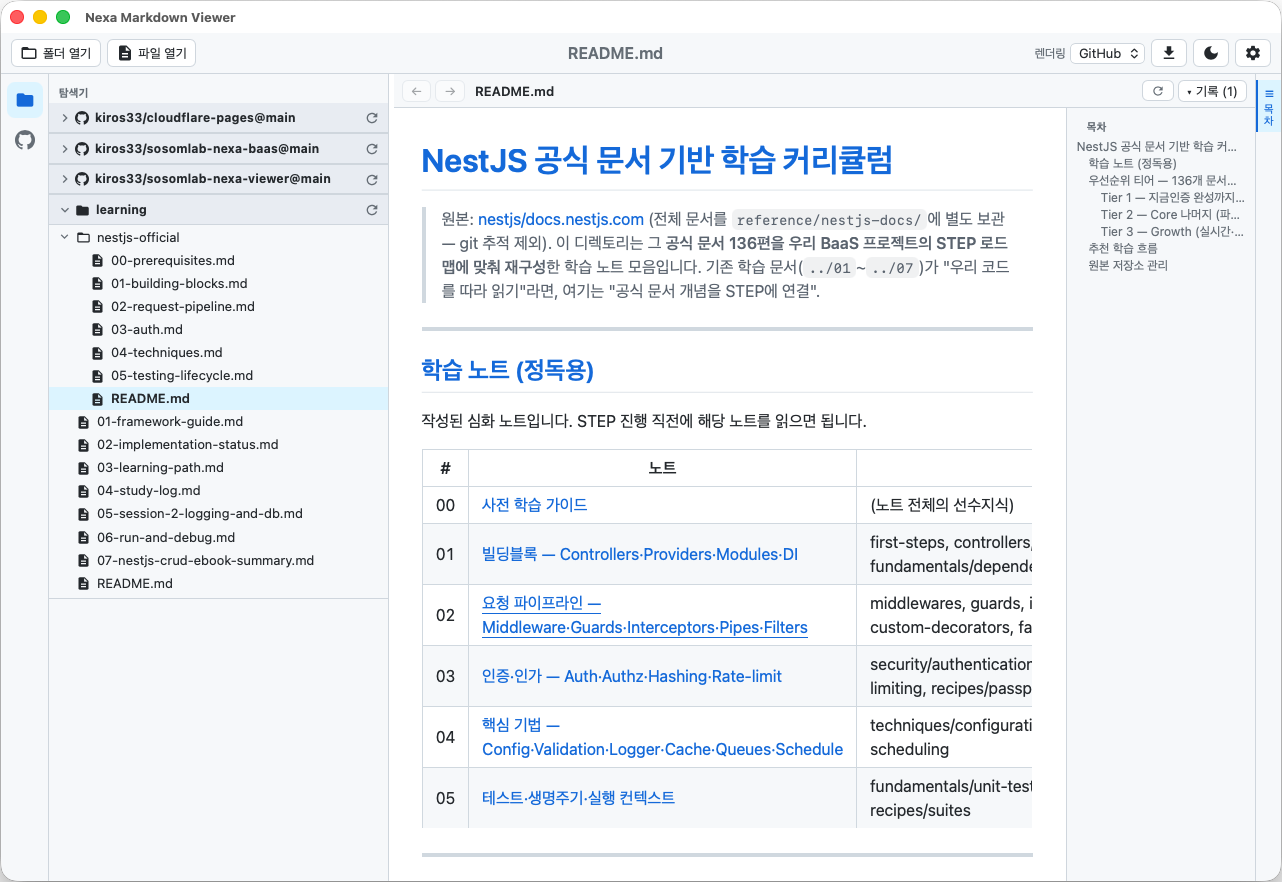
Nexa Markdown Viewer is a desktop viewer that displays Markdown documents from local folders and GitHub repositories just as they look on GitHub. It is built on Tauri 2 (the operating system’s native webview), so the installer is small and the app runs light, on Windows, macOS, and Linux. It is made by SosomLab.
This guide is based on v0.4.0 (released 2026-10-09). For an introduction to the app, see the product page.
Key features:
- GitHub-style rendering — GFM (tables, checkboxes, strikethrough, autolinks), per-language syntax highlighting, light/dark themes
- Multi-root explorer — register several local folders and GitHub repositories together as collapsible roots
- GitHub remote repository integration — public repositories without signing in, private repositories with a PAT
- Mermaid diagrams —
mermaidcode blocks are drawn as diagrams, with zoom and pan - MD/TX view toggle — switch between the rendered document and the Markdown source in one click
- Rich-text copy — paste into Word, PowerPoint, or Hangul exactly as rendered
- Content zoom (50–300%), table of contents (ToC), navigation history at file#anchor level
- HTML and PDF export
- File association — open
.mdfiles directly by double-clicking them or dropping them on the app icon
Note This app is a read-only viewer. It does not yet have document editing (the roadmap only includes an editor design).
System requirements
| Item | Requirement |
|---|---|
| macOS | macOS 12 or later (universal build for Apple Silicon and Intel) |
| Windows | Windows 10 / 11 (x64) |
| Linux | Major distributions, x86_64 (amd64) only, glibc 2.35 or later recommended |
| Runtime | Nothing extra to install (uses the operating system’s webview) |
| Network | Not needed for local documents. An internet connection is required only when viewing GitHub repositories |
Installation and removal
Distribution channel status
The latest release is v0.4.0 (2026-10-09). Each channel publishes at a different time (as of the repository documentation, 2026-10-09).
| Channel | OS | Published version | Status |
|---|---|---|---|
| Homebrew | macOS | 0.4.0 | Latest |
| APT / DNF (pkg.sosomlab.com) | Linux | 0.4.0 | Latest |
| winget | Windows | 0.3.4 | 0.4.0 submitted (PR #449305), awaiting validation |
| Chocolatey | Windows | 0.3.3 | 0.4.0 submitted (2026-10-09), awaiting moderation |
Note If you need 0.4.0 on Windows right now, use Direct download below. Once validation is complete, the same winget and Chocolatey commands will install 0.4.0.
Windows — winget
winget install SosomLab.NexaMarkdownViewer- Upgrade:
winget upgrade SosomLab.NexaMarkdownViewer - Uninstall:
winget uninstall SosomLab.NexaMarkdownViewer
Windows — Chocolatey
choco install nexa-markdown-viewer- Upgrade:
choco upgrade nexa-markdown-viewer - Uninstall:
choco uninstall nexa-markdown-viewer
Note Every new version on Chocolatey goes through community moderation, which has so far taken about a month per version. This is because antivirus engines flag the unsigned executable as a false positive, which sends it down the human-review path.
Windows — Direct download
- Download
NexaMarkdownViewer_<version>_x64-setup.exefrom GitHub Releases. - Run it and follow the setup wizard.
- If a SmartScreen warning appears, click More info → Run anyway.
To uninstall, go to Apps → Installed apps in Windows Settings.
macOS — Homebrew (recommended)
brew install --cask kiros33/tap/nexa-markdown-viewer- Upgrade:
brew upgrade --cask nexa-markdown-viewer - Uninstall:
brew uninstall --cask nexa-markdown-viewer - Tap repository: kiros33/homebrew-tap
Homebrew Cask removes the quarantine attribute automatically during installation, so the app launches right away without a security warning.
macOS — Direct download
- Download
NexaMarkdownViewer_<version>_universal.dmgfrom GitHub Releases. - Open the dmg and drag the app into the Applications folder.
- If an “unidentified developer” warning appears, right-click the app → Open (the first time only), or run the following in Terminal.
xattr -dr com.apple.quarantine "/Applications/NexaMarkdownViewer.app"To uninstall, move the app from the Applications folder to the Trash.
Linux — APT (Debian · Ubuntu)
Register SosomLab’s signed package repository pkg.sosomlab.com once, and new versions arrive with your regular updates.
# Register the repository (first time only) — signing key + source
sudo curl -fsSLo /usr/share/keyrings/sosomlab-archive-keyring.gpg https://pkg.sosomlab.com/sosomlab-archive-keyring.gpg
sudo curl -fsSLo /etc/apt/sources.list.d/sosomlab.sources https://pkg.sosomlab.com/apt/sosomlab.sources
sudo apt update && sudo apt install nexa-markdown-viewer- Upgrade:
sudo apt update && sudo apt upgrade - Uninstall:
sudo apt remove nexa-markdown-viewer - If you have already registered the repository for another SosomLab app, just run the last line.
Linux — DNF (Fedora · RHEL)
sudo curl -fsSLo /etc/yum.repos.d/sosomlab.repo https://pkg.sosomlab.com/rpm/sosomlab.repo
sudo dnf install nexa-markdown-viewer- Upgrade:
sudo dnf upgrade nexa-markdown-viewer - Uninstall:
sudo dnf remove nexa-markdown-viewer
Linux — Direct download (AppImage · deb · rpm)
Download the file from GitHub Releases.
| Format | Installation |
|---|---|
NexaMarkdownViewer_<version>_amd64.AppImage | Make it executable and run it directly (no installation needed) |
NexaMarkdownViewer_<version>_amd64.deb | sudo apt install ./NexaMarkdownViewer_<version>_amd64.deb |
NexaMarkdownViewer-<version>-1.x86_64.rpm | sudo dnf install ./NexaMarkdownViewer-<version>-1.x86_64.rpm |
chmod +x NexaMarkdownViewer_*.AppImage && ./NexaMarkdownViewer_*.AppImageAbout code signing
Windows builds are planned to be signed with a certificate that the SignPath Foundation provides free of charge to open-source projects; according to the repository documentation, the application is still in progress. Until signing is in place, or until the app builds up reputation, the operating system may show a security warning on first launch. macOS notarization has not been applied yet either, so for a directly downloaded dmg, get past the warning using the method above. Only proceed if you downloaded the app from a trusted source (the official Releases page or package channels).
Getting started
- Launch the app.
- Use Open Folder in the top toolbar to choose a folder containing documents; it is added as a root in the explorer on the left (collapsed at first).
- Click the ▸ to the left of the root to expand it, then click a
.mdfile to display it in GitHub style in the center. - Use the table of contents (ToC) on the right to jump between sections, and the ← / → buttons at the top to move back and forward.
To view a GitHub repository, click the GitHub (Octocat) icon in the activity bar on the left and enter owner/repo. For details, see GitHub repository integration.
Window layout
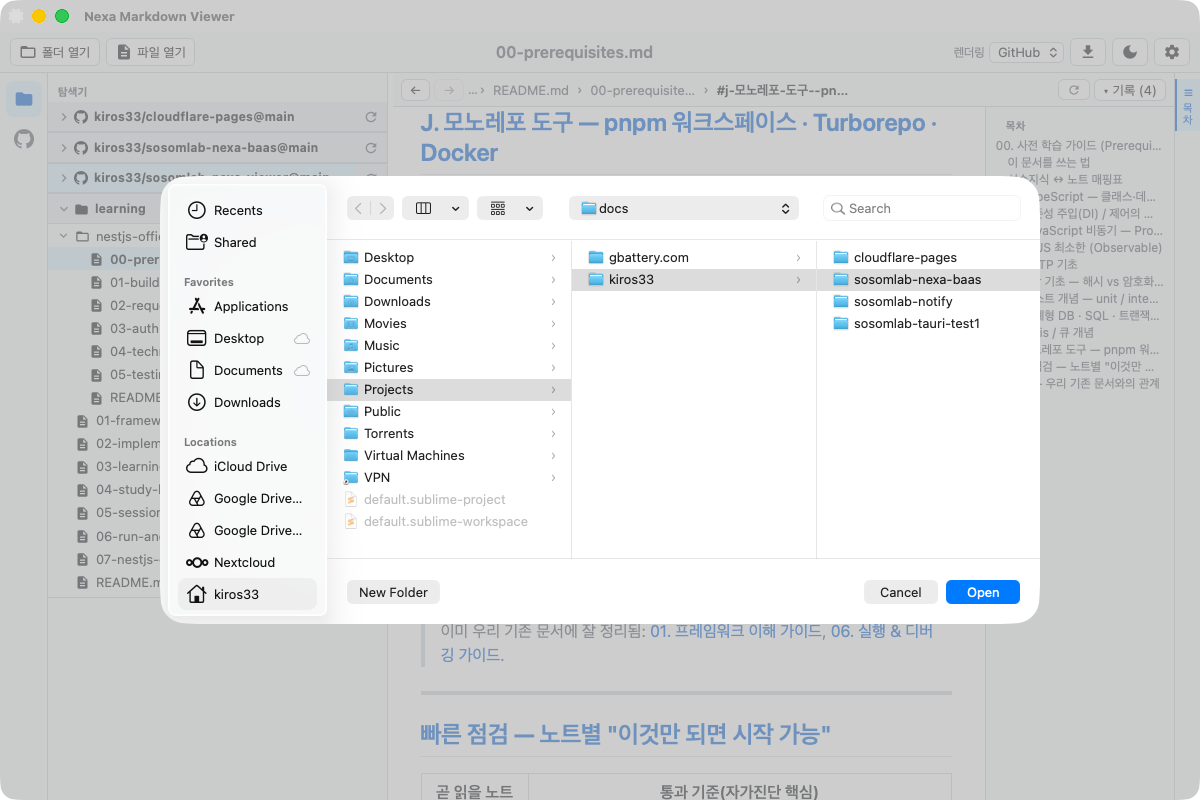
| Area | Location | Contents |
|---|---|---|
| Toolbar | Top | Open Folder · Open File · document title · Rendering (profile selection) · export · theme toggle · preferences (⚙️) |
| Activity bar | Far left | Explorer (folder icon) · GitHub (Octocat icon). Clicking the active icon again collapses the left panel |
| Left panel | Left | Explorer (multi-root tree) or GitHub panel |
| History bar | Above the content | ← / → · breadcrumbs · zoom (− % +) · MD/TX toggle · refresh · full history (▾) |
| Content | Center | Rendered document or source |
| Table of contents (ToC) | Right | List of the document’s headings. Click the ToC bar at the far right to collapse or expand it |
- Drag the borders between panels to resize them; the widths you set are saved.
- App information (version, publisher) is available under About in the menu.
Opening documents
Local folders and files
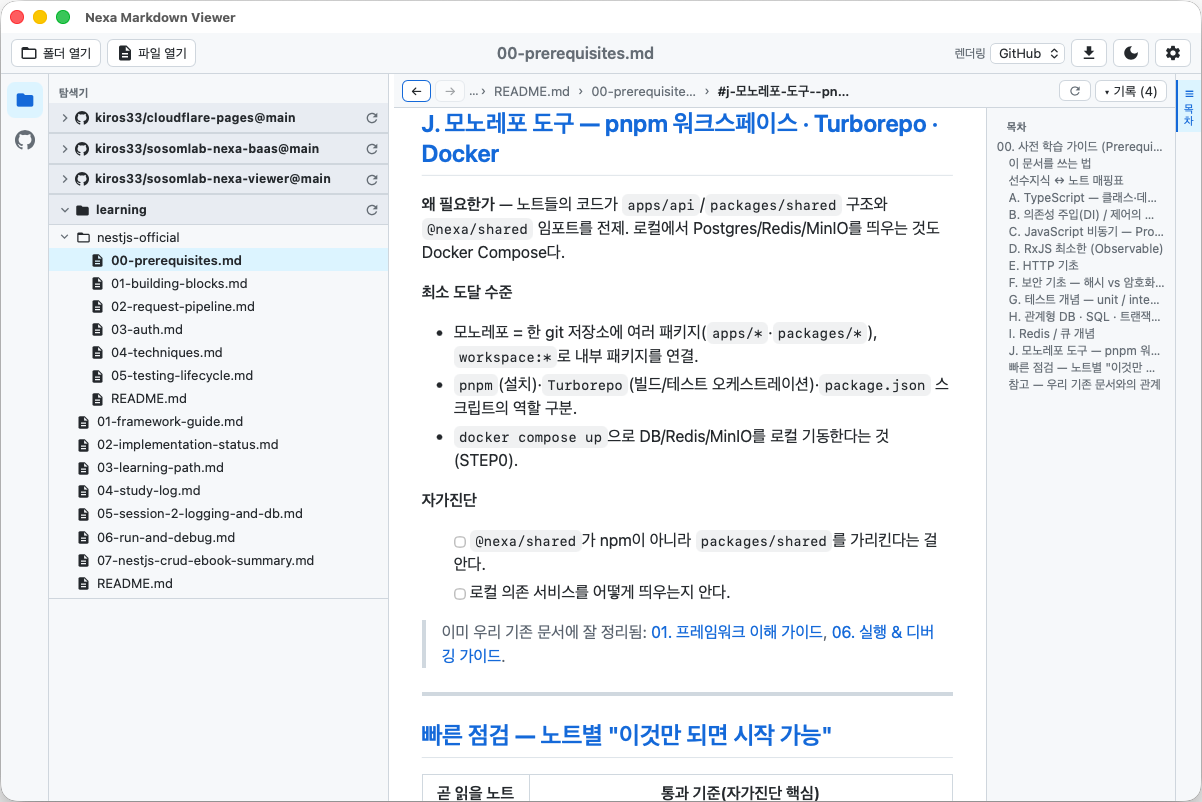
- Open Folder — choose a folder to add it to the explorer as a root.
- Open File — choose a
.mdfile to open it right away. The file’s parent folder is also registered in the explorer. - You can register multiple folders; each root is distinguished by its background color.
Note Starting with v0.4.0, the app reads only folders you open yourself. Folders opened with Open Folder, Open File, file association (double-click), or a command-line argument are added to the allow list. Folders registered in earlier versions and recent-document folders are migrated automatically on the first launch after updating.
Using the explorer
- Expand and collapse roots and folders with ▸ / ▾. Subfolder contents are loaded when you expand them.
- Clicking a folder only expands or collapses it (the content stays as is); clicking a file opens it in the content area.
- The 🔄 Refresh button to the right of a root reloads only that root’s tree. Expanded folders stay expanded.
- The expansion state of both roots and subfolders is saved and restored when you relaunch the app.
- Icons distinguish folders (📁/📂) from files (📄 Markdown / 📃 other).
Right-click menu
Right-clicking a repository name, folder, or file shows the following menu.
| Menu | Action |
|---|---|
| Refresh repository | Reload the tree |
| View online (in browser) / Open folder | For GitHub, opens the repository page in the browser; for local roots, shows the folder in the file manager |
| Remove (close) | Remove the root from the explorer |
| Show files | Display filter for this repository only (All / Markdown / Plain text / HTML·CSS) |
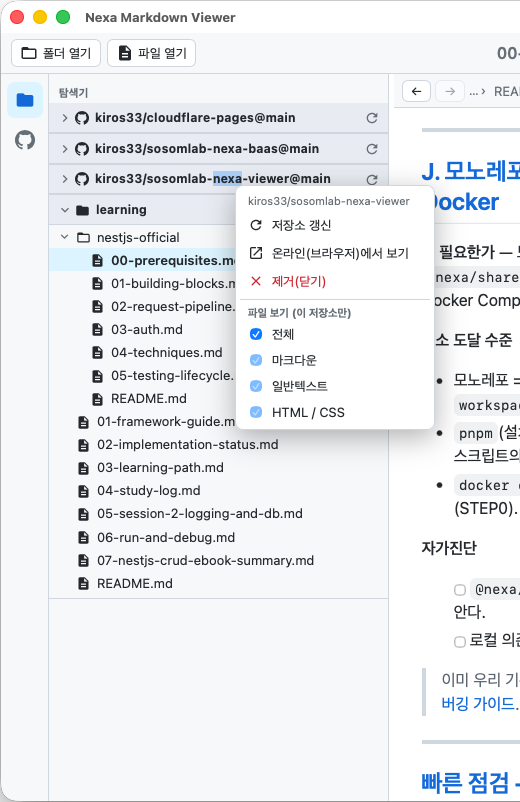
Choosing which files to show
By default, only Markdown files are shown (folders are always shown). To see other files, change ⚙️ Preferences → Files to show (applies to all roots) or right-click → Show files in the explorer (that root only).
Opening files directly via file association
You can open .md, .markdown, .mdown, and .mkd files directly with this app.
- Windows — drag a file onto the app or set the app as the “Open with” program. You can also run the executable from the command line followed by the document path.
- macOS — in Finder, right-click a
.mdfile → Open With → Nexa Markdown Viewer, or drop it on the Dock icon. If the app is already running, the file opens in that window. - If you pass a folder, it is registered in the explorer and expanded.
Recent documents and restoring previous state
State such as recent documents, registered folders and repositories, tree expansion, theme, and panel widths is saved automatically and restored on the next launch.
GitHub repository integration
Open the panel with the GitHub (Octocat) icon in the activity bar on the left. The panel has three sections.
- Registered repositories — the list of repositories added to the explorer. Each item’s ⋯ menu offers Hide from explorer (stays registered) or Delete (unregister).
- Add directly — enter
owner/repoand click +. Pasting a GitHub URL also works. Public repositories open without signing in. - My repositories — after signing in with a PAT, the repositories your account can access are listed, with live search. Click + to add an unregistered one, or − to remove a registered one.
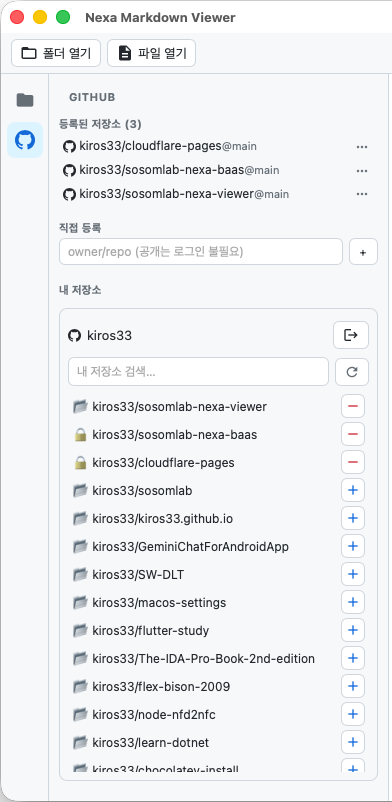
Which token (PAT) should I create?
| What you want to view | Recommended token |
|---|---|
| Personal repositories only | Fine-grained (Contents: Read-only) |
| Personal + organization repositories | Classic (repo scope) — recommended |
| Specific organization repositories only | Fine-grained (Resource owner = the organization) |
- If the organization uses SAML SSO, you must go to the GitHub token list and choose Configure SSO → Authorize for the organization.
- The app stores only one token. To change tokens, sign out → sign in again with the new token.
Online update detection — when a GitHub document is open and you refocus the window, the app compares it with the latest version. If it has changed, an update indicator appears on the refresh button; click it to reload the latest content.
Rate limits — without signing in, you can call the GitHub API 60 times per hour; signed in with a PAT, up to 5,000 times per hour.
Viewing Markdown
GitHub-style rendering
- GFM (tables, checkboxes, strikethrough, autolinks) and per-language syntax highlighting are displayed just as on GitHub.
- Images with relative paths are displayed, and YAML frontmatter at the start of a document is hidden.
- The content uses the full window width (in wide windows, tables and diagrams extend without a right margin).
- Choose a render profile from the Rendering drop-down in the toolbar (currently one: GitHub).
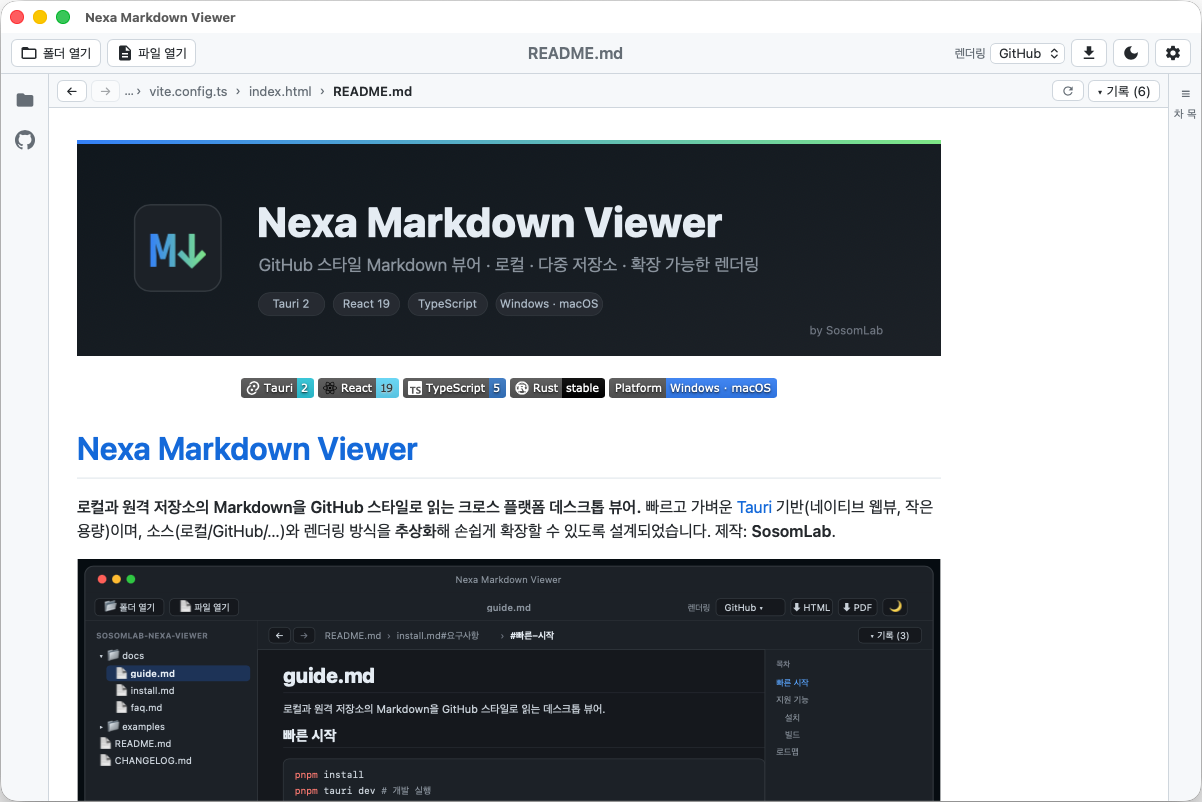
Following links
- In-document anchors (
#heading) — scroll to that section. - Links to other documents (
other.md,docs/guide.md#section) — go to a document in the same folder or repository. - External links (http/https) — open in the default browser.
- Starting with v0.4.0, the app also handles file names containing Korean characters or spaces (
[가이드](가이드.md)), images, anchors such as#한글-제목, queries such as?raw=true, and repository-root-relative links starting with/.
Table of contents (ToC)
The document’s headings are listed automatically in the right panel. Clicking an item jumps to that location, and the jump is also recorded in the navigation history. Click the ToC bar at the far right to collapse the panel and give the content more room.
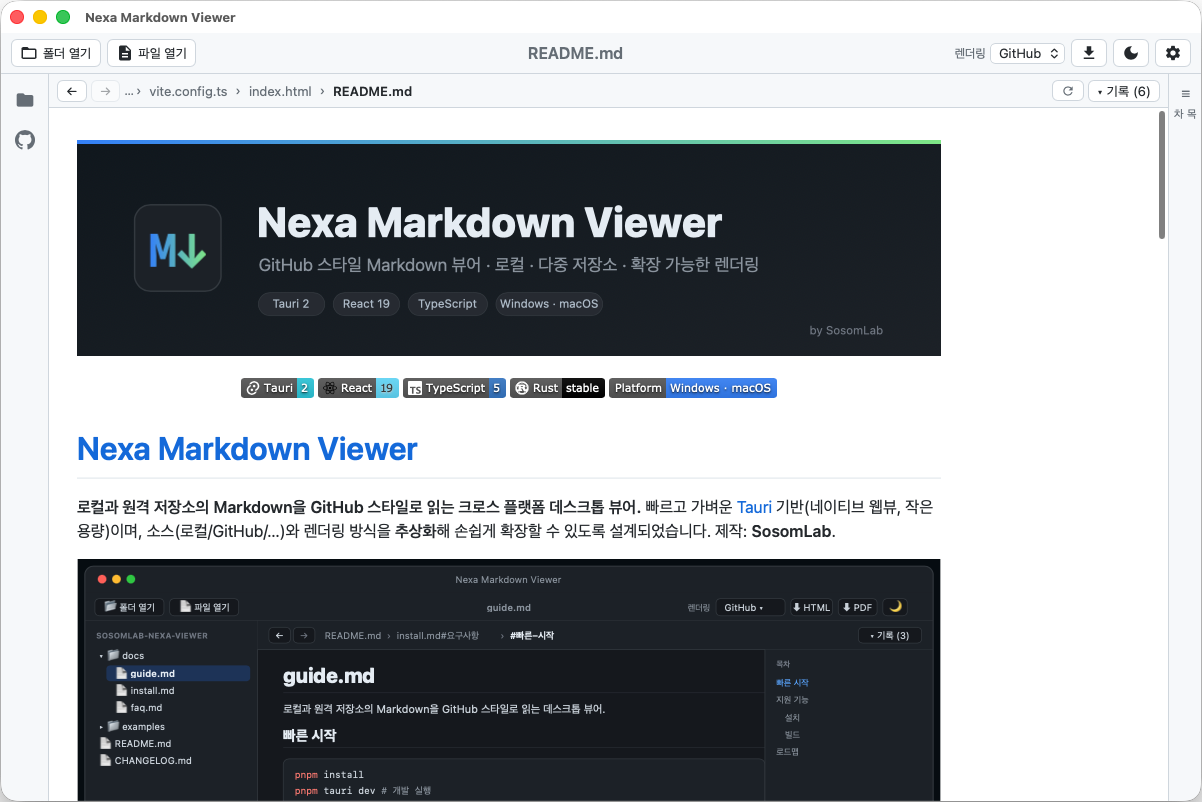
Navigation history and scroll restoration
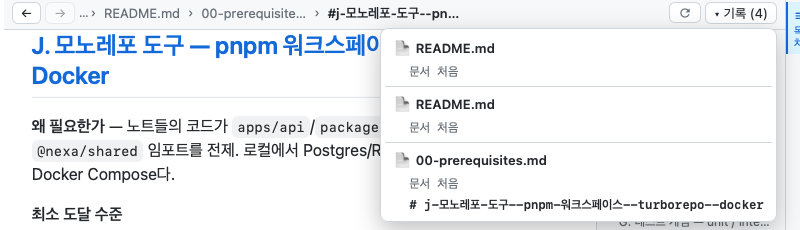
- Visited locations are recorded at the file#anchor level. Moves within the same file are shown as
#anchor; moves to another file asfilename#anchor. - ← / → go back and forward, restoring the scroll position you were at.
- The breadcrumbs show up to three recent locations.
- In the ▾ (full history) drop-down, history grouped by file lets you pick any location and jump to it in one click.
Light / dark theme
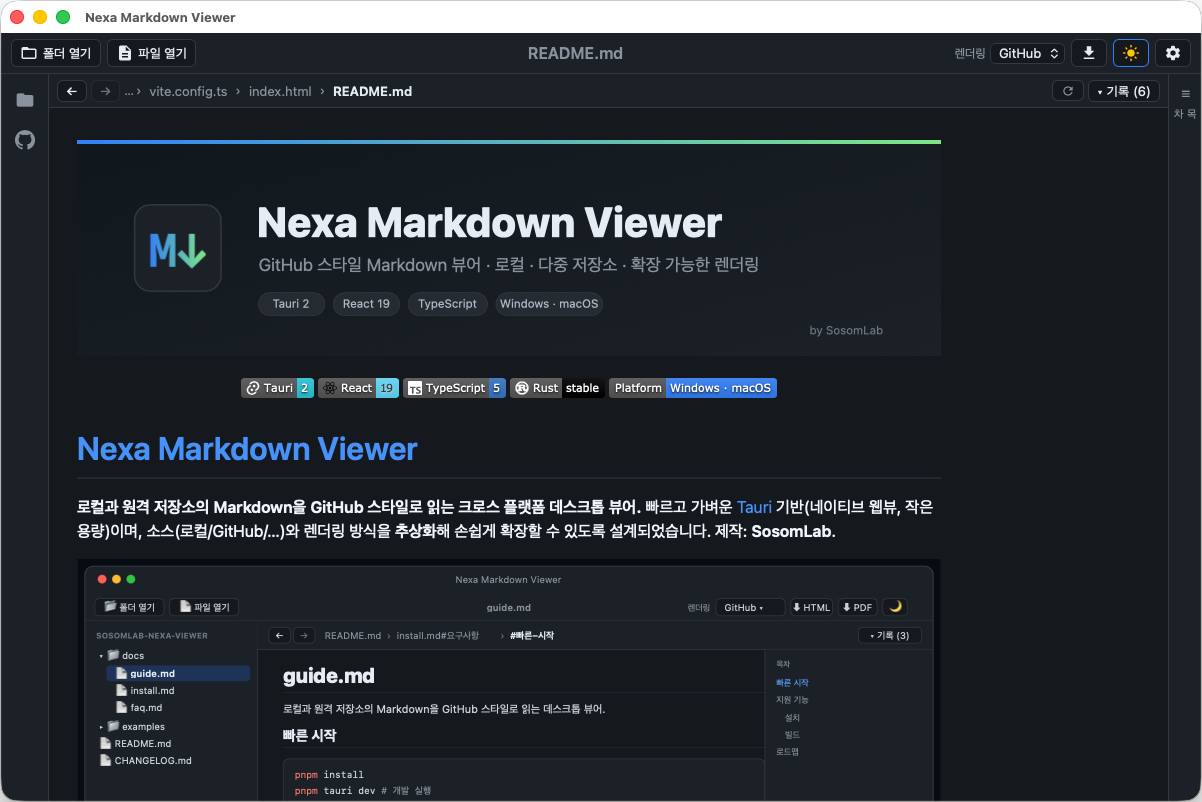
Switch with the 🌙/☀️ button in the toolbar. Code highlighting and Mermaid diagram colors change along with it.
HTML in documents
HTML inside documents is filtered by the same rules as GitHub. Elements such as <details>, <kbd>, and alignment are shown as is, while <script>, <iframe>, <style>, <form>, event attributes, and javascript: links are removed (v0.4.0). Footnotes and jumps to raw HTML anchors still work.
Large documents
Documents longer than 300,000 characters are shown as source first so the app does not freeze for several seconds while rendering (v0.4.0). Click Render in the notice banner at the top to render them as Markdown.
Mermaid diagrams
```mermaid code blocks in a document are drawn as diagrams.
- They use light/dark colors and fonts similar to VS Code, and change along with the theme.
- When first opened, they are sized to the content width so that the whole diagram is visible.
- If there is a syntax error, the original code is shown instead of the diagram.
Use the toolbar at the top right of a diagram to adjust its size.
| Button / action | Function |
|---|---|
| − / + | Zoom out / in (25%–400%) |
| Click zoom% | Reset to 100% |
| 1:1 | View at natural size — drag to pan |
| Fit | Return to the width where the whole diagram is visible (never enlarges beyond natural size) |
| Drag | Pan the diagram |
| Ctrl (⌘) + wheel | Zoom the diagram (over a diagram, this takes priority over content zoom) |
Note The display area’s height stays fixed when you zoom in, so the content below is not pushed down.
Viewing text and code
MD / TX view toggle
Switch the view mode with the MD / TX toggle in the history bar (default: MD).
- MD — displays rendered Markdown
- TX — displays the Markdown source as plain text. You can select and copy the source as is, and adjust the font size with
Ctrl/⌘ + / −.
When you drag to select and reach the edge of the content area, it scrolls automatically (in both MD and TX).
Plain-text and code files
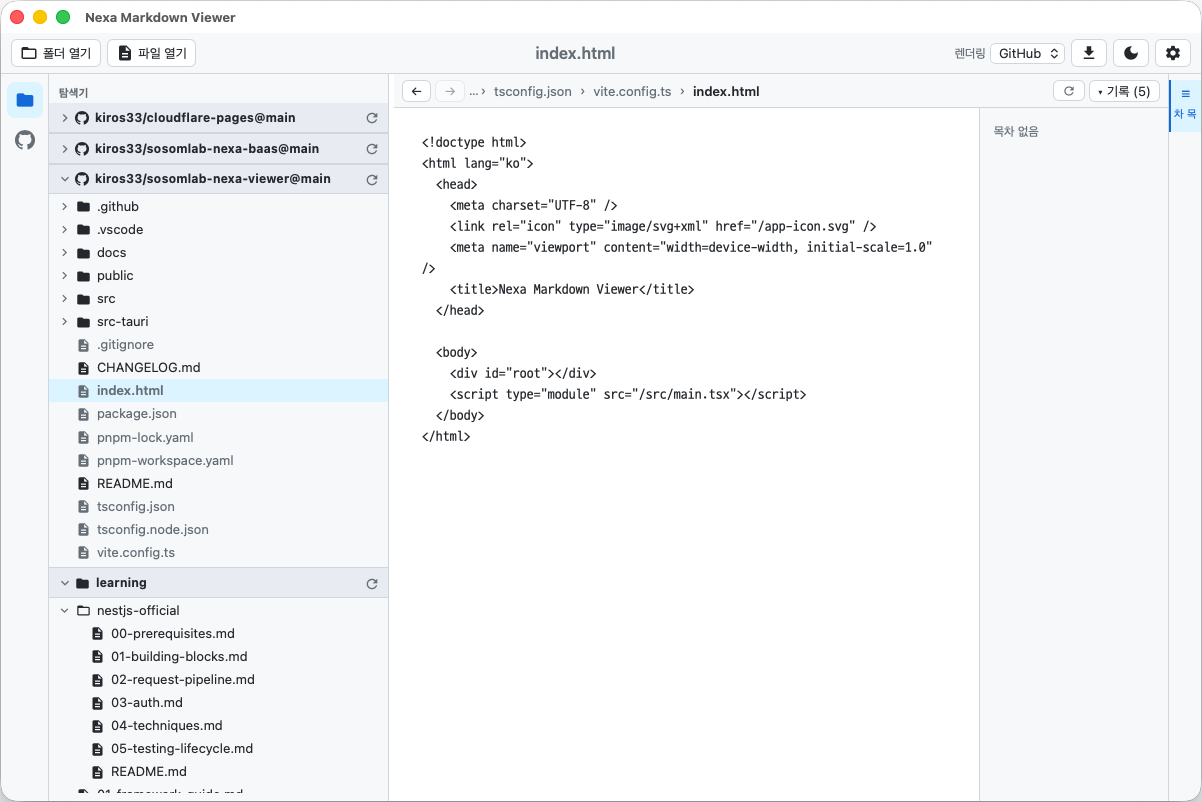
Non-Markdown files such as .txt, .json, .html, .css, and source code are displayed in a plain-text viewer with a monospaced font. To make them visible in the explorer, see Choosing which files to show.
- The font and default size are set in Preferences.
- Adjust the size with
Ctrl/⌘ +·Ctrl/⌘ −, and reset to the default withCtrl/⌘ 0.
Copying and zoom
Rich-text copy
When you select and copy text in the MD (rendered) view, it pastes into Word, PowerPoint, or Hangul exactly as rendered (heading sizes, tables, code backgrounds, and so on). In places that do not accept formatting, such as Notepad, it pastes as plain text.
Content right-click menu
| Menu | Action |
|---|---|
| Copy (keep formatting) | Copy the selection with formatting (“Copy” in TX view) |
| Copy text only | Copy the selection without formatting (shown only in MD view) |
| Copy entire document | Copy the whole document |
| Select all | Select all content |
Content zoom
In MD view, text, images, and tables are zoomed together at the same ratio (50%–300%, in 10% steps). The zoom level you set is saved.
- − / zoom% / + in the history bar (click zoom% to reset to 100%)
Ctrl/⌘ +,Ctrl/⌘ −,Ctrl/⌘ 0(100%)Ctrl/⌘ + mouse wheel
Note In TX view and in plain-text files, the same shortcuts adjust the font size instead of zooming.
Export
Click the ⬇ Export button in the toolbar (enabled when a document is open) and choose a format.
- HTML — saves the currently rendered content as a single
.htmlfile with styles included. Images are embedded in the file as well. Choose the save location in the dialog. - PDF — uses the print function. Choose Save as PDF in the print dialog. The toolbar and sidebars are left out, and only the content is printed.
Note Starting with v0.4.0, export files are saved only to the path you choose in the save dialog.
Keyboard shortcuts
General (Ctrl on Windows · Linux, ⌘ on macOS)
| Action | Windows · Linux | macOS |
|---|---|---|
| Zoom in content (MD view) | Ctrl + + | ⌘ + + |
| Zoom out content (MD view) | Ctrl + − | ⌘ + − |
| Reset content to 100% (MD view) | Ctrl + 0 | ⌘ + 0 |
| Zoom content (MD view) | Ctrl + wheel | ⌘ + wheel |
| Larger / smaller font (TX · plain text) | Ctrl + + / − | ⌘ + + / − |
| Default font size (TX · plain text) | Ctrl + 0 | ⌘ + 0 |
| Zoom diagram | Ctrl + wheel over the diagram | ⌘ + wheel over the diagram |
Mouse actions
| Action | How |
|---|---|
| Resize panels | Drag a panel border |
| Collapse/expand left panel | Click the active activity bar icon again |
| Collapse/expand table of contents | Click the ToC bar at the far right |
| Pan a diagram | Drag the diagram |
| Copy menu | Right-click the content |
| Root / folder / file menu | Right-click in the explorer |
Note There are no keyboard shortcuts yet for actions such as back/forward or opening files (a roadmap item). Use the ← / → buttons in the history bar.
Preferences
Open the Preferences window with the ⚙️ button in the toolbar.
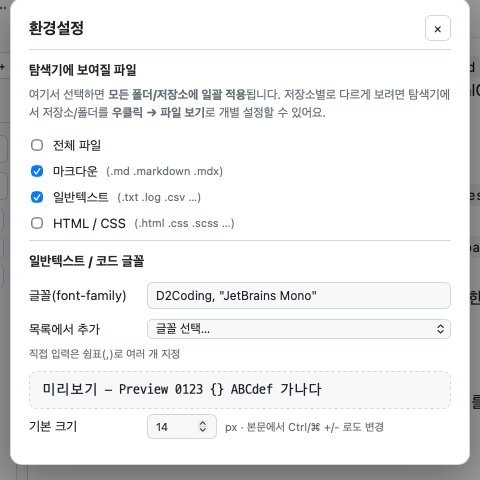
Files to show in the explorer
| Option | Applies to |
|---|---|
| All files | All files (selecting it disables the others) |
| Markdown | .md .markdown .mdx |
| Plain text | .txt .log .csv, etc. |
| HTML / CSS | .html .css .scss, etc. |
The selection here applies to all folders and repositories. To set it differently per repository, use right-click → Show files in the explorer.
Plain-text / code font
- Font — type it in directly. You can list several fonts separated by commas (,) to set a fallback order (e.g.
D2Coding, "JetBrains Mono"). - Add from list — pick from the list of installed fonts to append it to the current list (duplicates excluded).
- Preview — check the specified font right away.
- Default size (px) — the default font size of the plain-text viewer.
Automatically saved settings
The theme, panel widths and visibility, file filters, fonts, content zoom, recent documents, registered folders and repositories, explorer tree expansion state, and so on are saved automatically without a save button and restored on the next launch.
Data and privacy
- Document content — local documents are read only on your PC. The app does not send document content anywhere.
- Network use — when viewing GitHub repositories, the app communicates only with the GitHub API over HTTPS. It also loads images in a document that point to internet addresses (https).
- GitHub token (PAT) — starting with v0.4.0, it is stored in the operating system keychain (macOS Keychain · Windows Credential Manager · Linux Secret Service). The token is never passed to the UI (frontend) side.
- A token stored in a file by an earlier version is moved to the keychain on first launch and deleted from the file.
- In environments where the keychain is unavailable (e.g. Linux without a Secret Service), the token is not written to disk and is kept only while the app is running. You need to sign in again after restarting the app, and the panel shows a notice about this.
- Settings and state — the theme, recent documents, registered lists, and so on are stored locally in the app’s internal storage. The allow list of folders you opened is kept separately in the app data folder.
- Local access scope — the app reads only folders you opened yourself, and does not open symbolic links that point outside an opened folder.
Troubleshooting
An “unidentified developer” / SmartScreen warning appears at launch
This can happen because code signing and notarization have not been applied yet. On macOS, right-click the app → Open (or run xattr -dr com.apple.quarantine "/Applications/NexaMarkdownViewer.app"); on Windows, click More info → Run anyway. On macOS, installing with Homebrew avoids this warning.
I installed with winget / Chocolatey but didn’t get the latest version
Both channels run external validation or moderation for every new version, so updates arrive later. As of the repository documentation (2026-10-09), winget installs 0.3.4 and Chocolatey installs 0.3.3, with 0.4.0 awaiting validation. If you need 0.4.0 now, download it directly from GitHub Releases.
I get “You don’t have permission to read this folder”
Starting with v0.4.0, the app reads only folders you open yourself. Open the folder once more with Open Folder, and it will keep opening from then on. Folders registered in earlier versions are allowed automatically on the first launch after updating.
Files in a folder don’t show up
The default is to show Markdown only. Change ⚙️ Preferences → Files to show → All (applies everywhere) or right-click → Show files in the explorer (per repository).
A very large document is shown as source
Documents longer than 300,000 characters are shown as source first. Click Render in the notice at the top to view it as Markdown (the app may pause briefly while rendering).
On macOS, a keychain access prompt appears after updating
Until code signing is in place, a keychain access prompt may appear the first time the app accesses GitHub after an update. Click Always Allow.
On Linux, I have to sign in to GitHub again every time I restart the app
Without a Secret Service such as GNOME Keyring or KWallet, the token is kept only while the app is running. Install and run a keyring that provides the Secret Service, and the token will be saved.
Organization repositories don’t appear in “My repositories”
This is usually due to the token type. Under GitHub’s policy, a fine-grained PAT (Resource owner = yourself) does not return organization repositories.
- Issue a new Classic PAT with the
reposcope. - If the organization uses SAML SSO, choose Configure SSO → Authorize for the organization on the token.
- In the app, sign out → sign in again with the new token.
- If they still don’t appear, check your organization membership and policies, or enter
org-name/repo-namein Add directly to open it right away.
Listing has limits (up to 300 entries from your affiliation list and up to 200 per organization, most recently updated first), so very old repositories may be left out. In that case, too, use search or add the repository directly.
After rolling back to an earlier version (v0.3.4), I’m signed out of GitHub
v0.4.0 moved the token to the keychain, so v0.3.4 cannot find it. Sign in again.
I want to reload a GitHub document that changed online
The app detects changes when you refocus the window. When an update indicator appears on the refresh button in the history bar, click it to load the latest content.
Version history
Version summary
| Version | Date | Highlights |
|---|---|---|
| v0.4.0 | 2026-10-09 | Security hardening (HTML filter, CSP, user-opened folders only, token in OS keychain), links to Korean file names, large-document protection, 6.2MB executable, Linux APT/DNF |
| v0.3.4 | 2026-08-11 | Keep expanded folders when refreshing the explorer |
| v0.3.3 | 2026-07-28 | Content uses the full window width |
| v0.3.2 | 2026-07-26 | Diagram view modes, zoom/pan bug fixes |
| v0.3.1 | 2026-07-25 | Mermaid diagram sizing fixes |
| v0.3.0 | 2026-07-25 | Mermaid, MD/TX toggle, rich-text copy, content zoom |
| v0.2.1 | 2026-06-28 | Improved font selection, macOS icon padding |
| v0.2.0 | 2026-06-27 | GitHub remote integration, multi-root explorer, preferences, Linux builds |
| v0.1.0 | 2026-06-27 | First public build — local Markdown viewer |
v0.4.0 — 2026-10-09
Changed (security)
- HTML in documents is now filtered by the same rules as GitHub, removing
<script>,<iframe>,<style>,<form>, event attributes, andjavascript:links, and a Content Security Policy (CSP) is enabled. Footnotes and jumps to raw HTML anchors still work. - The app reads only folders you open yourself (Open Folder/File, launch arguments, opening from Finder). Folders registered in earlier versions are migrated automatically on first launch. Symbolic links pointing outside an opened folder are not opened.
- Export files are saved only to the path you choose in the save dialog.
- The GitHub token is stored in the OS keychain (macOS Keychain · Windows Credential Manager · Linux Secret Service). An existing file-based token is moved on first launch and deleted from the file; if the keychain is unavailable, the token is kept only while the app is running.
Fixed
- Links, images, and anchors with file names containing Korean characters or spaces did not open. Queries such as
?raw=trueand repository-root-relative links starting with/are also handled. - When documents were opened in quick succession, a previous document arriving late could overwrite the screen.
- After moving to another document, the “new version” indicator of the previous document could appear.
- The app quit when a launch argument contained a non-UTF-8 file name (Linux).
Changed
- Large documents over 300,000 characters are shown as source first; use Render in the notice banner to view the Markdown.
- Open folder in the explorer folder right-click menu shows the folder in the file manager.
Improved
- Executable size reduced from 16.0MB to 6.2MB (per architecture). Installers are smaller too (dmg 11.1→6.8MB, exe 4.1→3.1MB, deb/rpm 6.6→3.9MB).
- Reduced unnecessary recalculation during screen updates and scrolling.
- Started distribution through the Linux APT/DNF repository (pkg.sosomlab.com).
v0.3.4 — 2026-08-11
Fixed
- Refreshing the explorer collapsed all expanded folders. Expanded folders now stay as they are while only their contents are reloaded, and the expansion state is restored when you relaunch the app (for both local folders and GitHub repositories).
v0.3.3 — 2026-07-28
Changed
- The content uses the full window width. The 920px centered limit was removed, so tables and diagrams extend to the full width in wide windows.
v0.3.2 — 2026-07-26
Added
- Diagram view modes — toolbar
[−] [zoom%] [+] [1:1] [Fit]. 1:1 shows the natural size and lets you drag to pan; Fit returns to the width where the whole diagram is visible. Clicking zoom% resets to 100%.
Fixed
- Diagram zoom in (+) did not work. The display area’s height is now fixed so the content is not pushed down when zooming in.
- Dragging to pan reset the zoom level (dragging is also smoother now).
Changed
- The zoom buttons moved to the left of the MD/TX toggle, so the MD/TX button stays in place when you switch to TX.
v0.3.1 — 2026-07-25
Fixed
- Mermaid diagrams are now sized to the content width from the start so the whole diagram is visible (wide diagrams are no longer cut off). Zooming out no longer leaves margins or clipping, and “Reset” returns to fit-to-width. The diagram font size is fixed at 16px.
v0.3.0 — 2026-07-25
Added
- MD/TX view mode toggle — TX shows the Markdown source as plain text (select and copy, auto-scroll while dragging, font size adjustment).
- Rich-text copy — copying from the rendered view pastes into Word, PowerPoint, or Hangul exactly as rendered.
- Content right-click menu — Copy (keep formatting) · Copy text only · Copy entire document · Select all.
- Mermaid diagram rendering — light/dark theme sync, original code shown on syntax errors, VS Code-style colors and fonts, zoom, drag to pan, Ctrl+wheel.
- Content zoom (50–300%) — history bar controls,
Ctrl +/−/0,Ctrl+wheel. Setting is saved.
Fixed
- Mitigated organization repositories not appearing in “My repositories” (organization lists are now fetched and merged), and revised the token creation guidance.
v0.2.1 — 2026-06-28
Added
- Improved plain-text/code font selection — direct entry (multiple fonts separated by commas), adding from the installed font list, preview.
Fixed
- Adjusted the app icon to the standard macOS padding, fixing it looking larger than other apps in the Dock.
v0.2.0 — 2026-06-27
Added
- GitHub remote repository integration — PAT sign-in (not needed for public repositories), adding repositories from your account’s list, tree browsing and document viewing, resolution of relative images and document links.
- Online update detection and refresh (compared on window focus).
- Navigation history (file#anchor) — ← / →, breadcrumbs, one-click jumps from history grouped by file, scroll position restored on back/forward.
- Multi-root explorer and right-click menu (refresh · open online/folder · remove · show files).
- Preferences window — file types to show (global + per repository), plain-text font and default size.
- Plain-text/code viewer, export window (choose HTML/PDF), resizable and collapsible panels.
- Linux builds (deb · rpm · AppImage).
Fixed
- Previous content remained when switching to a file with the same name (e.g. README.md) in a different repository.
- Folders were not recognized.
- The tree and content flickered on file clicks, window focus, and tab switches.
- Explorer expansion state was reset on tab switches and relaunch.
v0.1.0 — 2026-06-27
Added
- First public build — GitHub-style rendering (GFM, light/dark), syntax highlighting, table of contents (ToC), file#anchor navigation history, wiki-style links between documents, HTML and PDF export, opening local folders/files with a file tree, remembering recent documents and theme. macOS (universal) and Windows builds.
Known limitations
- No editing — this is a read-only viewer. An editor for TX mode is at the design stage.
- No math (KaTeX) or GitHub Alerts (
> [!NOTE]) support — planned on the roadmap. - No document search — word, regex, and repository-wide search are at the design stage.
- No automatic refresh for local file changes — refresh manually when a local document changes. Only GitHub documents are checked for changes on window focus.
- No automatic updates — get new versions from a package manager or Releases.
- GitHub is the only remote source — Bitbucket and GitLab are planned on the roadmap.
- Non-UTF-8 documents (CP949, UTF-16) may not open correctly.
- On Windows and Linux, each double-clicked file opens a new window (single instance not supported).
- Relative links to non-
.mdtargets (PDFs, folders, etc.) do not yet open in external apps. - Contrast when printing to PDF in dark mode, and cleanup of the Mermaid toolbar in HTML exports, are planned improvements.
- Linux is provided for x86_64 (amd64) only.
- No code signing — a security warning may appear on first launch on Windows (SignPath application in progress) and macOS (not yet notarized).
- Keychain token storage and CSP rendering on Windows and Linux have not yet been fully verified on real machines by the developer (according to the repository documentation).